Core Web Vitals · Yogi’s VPS
Why Your Site Has No Core Web Vitals Data (And Exactly How to Fix It)
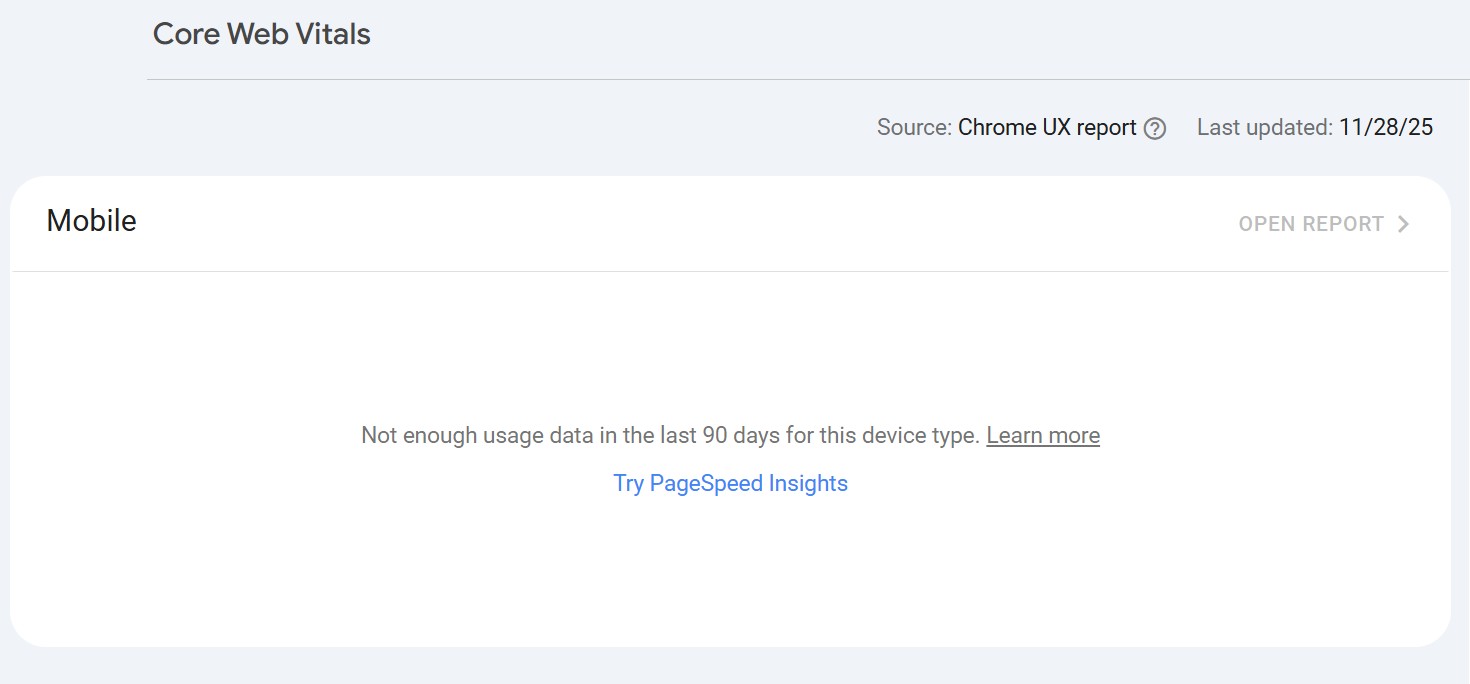
If Google Search Console is showing “Not enough data” in your Core Web Vitals report, you’re not alone. It’s one of the most common issues we see with new sites, low-traffic projects, and websites that were recently migrated, redesigned, or moved to a different hosting environment.
The good news is this does not always mean your site is slow. In many cases, it simply means Google does not have enough real-world user data yet. Below, we’ll break down what is actually happening and exactly what you can do to help that data appear faster and more cleanly.
If you are still working through broader site speed issues, it also helps to review Improving Core Web Vitals and our WordPress Performance Audit Guide.
What It Means When Core Web Vitals Data Is Missing
Google’s Core Web Vitals report in Search Console depends on the Chrome UX Report (CrUX), which is based on real Chrome users visiting your pages over time. This is called field data.
When the report is empty, it usually means one or more of the following is true:
- Your site does not have enough real-user traffic yet
- Traffic is too low on mobile, desktop, or both
- The site is very new
- You recently migrated to a new host or server
- You changed permalink structure or page layout
- You switched from
httptohttps - You changed caching, CDN, IP address, or other infrastructure settings
How to Fix It: Practical Steps You Can Take
You cannot force Google to show Core Web Vitals instantly, but you can absolutely create the conditions that help Google collect better data as quickly as possible.
1. Make Sure Your Important Pages Are Indexed
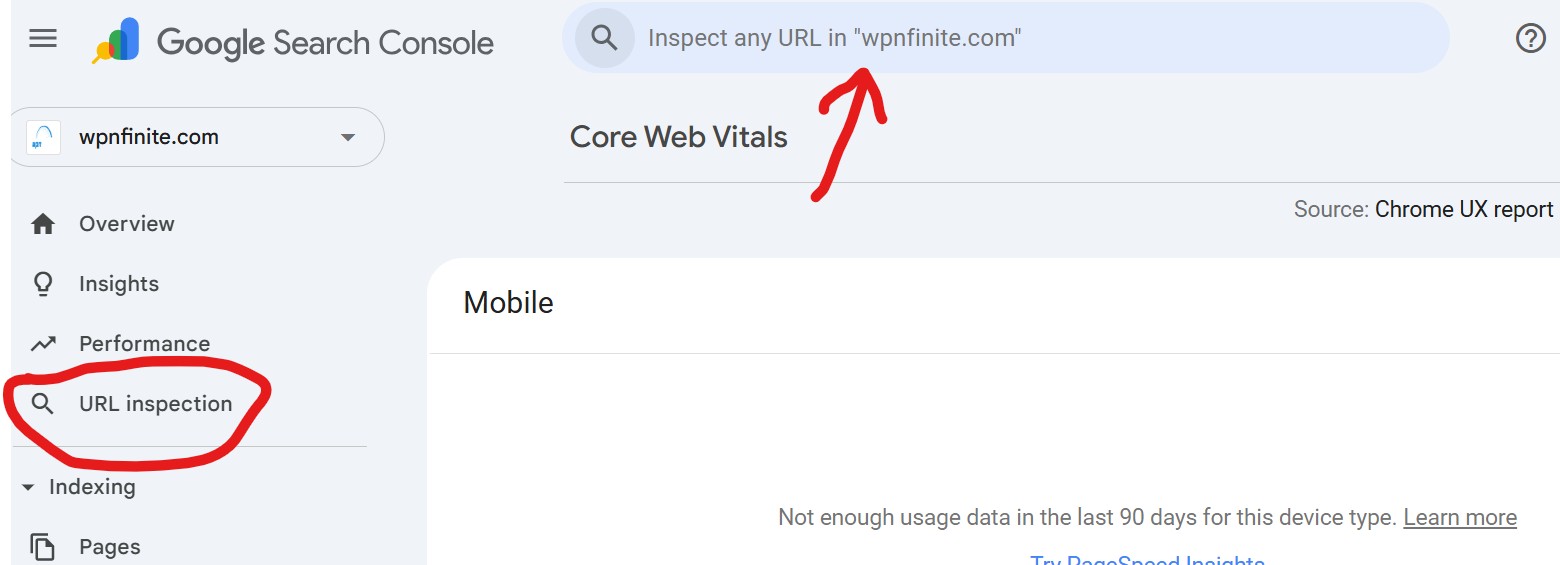
If Google is not indexing your pages, it cannot build field data around them. Start with your most important URLs: your homepage, service pages, landing pages, and top blog content.
In Google Search Console:
- Use URL Inspection
- Click Test Live URL
- Click Request Indexing
This matters even more if you recently launched, migrated, or changed URL structure. If that sounds familiar, also see Migrating From Another Host and Launching Your First WordPress Site.
2. Increase Real Chrome User Traffic
Google needs enough real traffic from actual Chrome users before it can show Core Web Vitals data. Smaller sites often take longer simply because the data threshold has not been reached yet.
Ways to increase qualified traffic:
- Share important pages on social media
- Run a small Google Ads or remarketing campaign
- Send traffic through email newsletters
- Publish SEO-focused blog content consistently
- List the site in relevant directories or communities
The goal is not fake traffic. The goal is real visitors interacting with real pages.
3. Avoid Constant Structural Changes
Every major structural change can make Google treat your pages like “new” URLs again, which effectively resets the data collection process for those pages.
Common changes that reset Core Web Vitals history:
- Switching themes or builders
- Migrating to a new host or server
- Changing permalink structure
- Switching from
httptohttps - Changing main URL patterns such as
/blog/postto/post
After a big change, Google often needs at least 28 days of fresh field data before reports stabilize again.
That is one reason we recommend planning migrations and infrastructure changes carefully. See Migrating From Shared Hosting to a Managed VPS for a cleaner approach.
4. Use PageSpeed Insights While You Wait
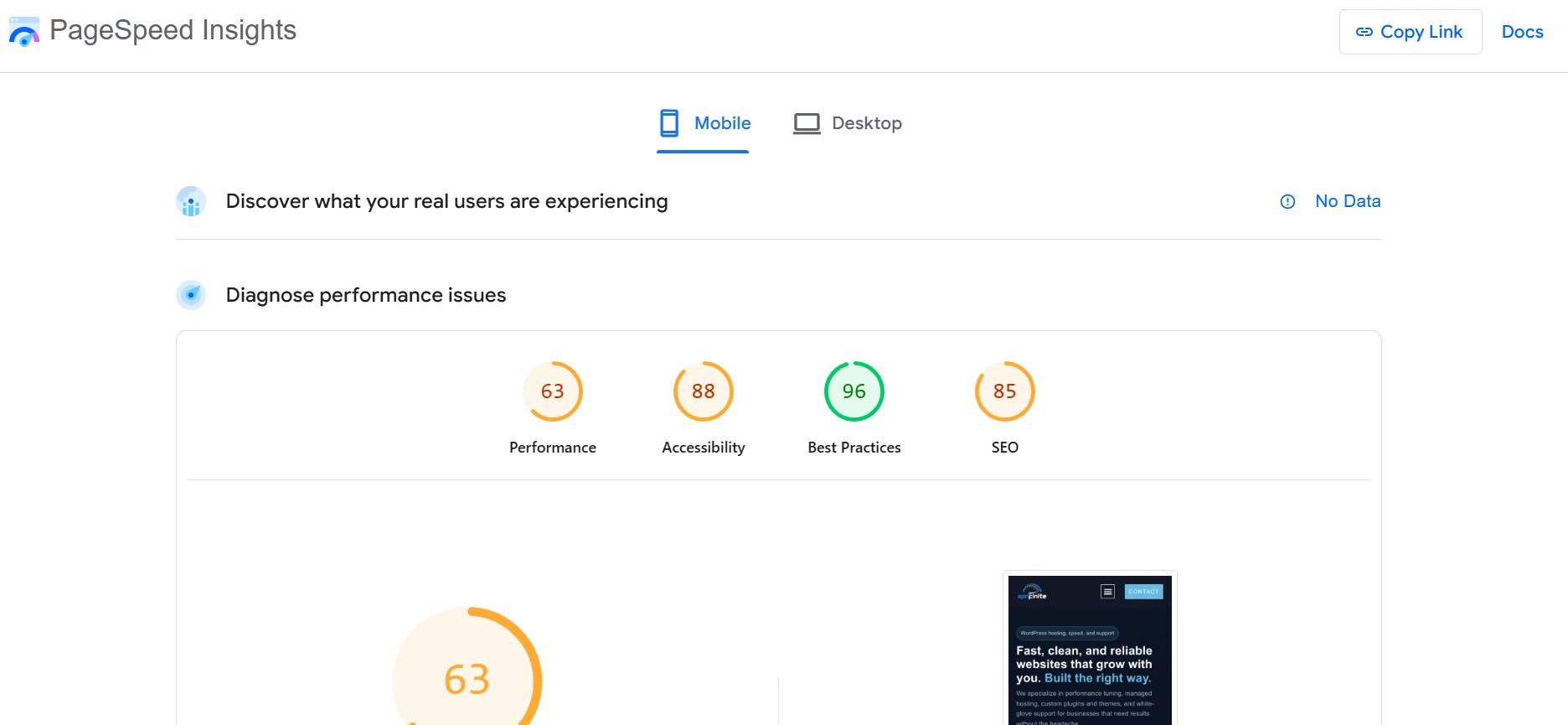
Even if Search Console does not have field data yet, you can still improve performance with lab tools like PageSpeed Insights.
This gives you lab values for:
- LCP (Largest Contentful Paint)
- CLS (Cumulative Layout Shift)
- INP or FID (Interactivity)
- TBT (Total Blocking Time)
- Speed Index
- FCP (First Contentful Paint)
This is also where the right caching stack matters. If you have not reviewed that yet, read Choosing the Right Caching Setup for Your WordPress Site.
5. Make Sure Googlebot Can Load Key Assets
If CSS, JavaScript, fonts, or other assets are blocked, Google may not render the page correctly. That can affect how the site is understood and how performance is evaluated.
Check:
/robots.txt- Security plugin settings
- Firewall or WAF rules
- CDN restrictions
Make sure you are not blocking:
/wp-content//wp-includes/
If your site is heavily locked down, review Hardening Your WordPress Login alongside your crawl settings so security does not accidentally interfere with visibility.
6. Make Sure HTTPS Is Fully Enabled
If your site still has mixed content or partial HTTP loading, browsers and Google can run into inconsistent behavior.
Use tools like: Why No Padlock?
If you need to confirm SSL and secure redirects, review Setting Up Free SSL for Your Site.
7. Keep Staging Sites Out of Google’s Index
If both staging and production are crawlable, traffic and data can get split between them. That makes it harder for your live site to collect enough field data.
Best practices for staging:
- Password protect staging environments
- Set noindex on staging
- Use robots.txt to discourage crawling
This is especially important after a migration or redesign. Your live site should be the only version collecting meaningful visibility and performance signals.
What You Cannot Do, No Matter the Plugin
To set expectations clearly, here is what is not possible:
- You cannot manually upload Core Web Vitals data to Google
- You cannot force Google to generate CrUX data instantly
- GTmetrix, Pingdom, and Lighthouse tests do not create field data
- PageSpeed Insights lab scores do not equal CrUX field data
- No plugin can magically “fix Core Web Vitals indexing” because that is not how Google’s system works
How Long Until Core Web Vitals Data Shows Up?
Once your site has enough real traffic, Google typically needs at least 28 days to build and surface Core Web Vitals data in Search Console.
What we usually see:
- 4 to 8 weeks for smaller or lower-traffic sites
- 24 to 48 hours for large, high-traffic sites
Sites usually stabilize faster when hosting, caching, SSL, and indexability are all set up correctly from the start. That is also why we recommend Yogi’s VPS for performance-focused WordPress sites.
Need Real Performance Gains, Not Just Better Lab Scores?
At Yogi’s VPS, we combine managed WordPress hosting with hands-on performance optimization. That means better Core Web Vitals, faster load times, cleaner migrations, and a site that actually feels faster to real visitors.
We can review your current setup, identify what is delaying field data, and build a practical optimization plan around your stack.
Get a Free WordPress Performance Audit →