How to Improve Core Web Vitals in WordPress
Most WordPress sites do not fail Core Web Vitals because of one small issue. They usually fail because slow hosting, heavy themes, oversized images, plugin bloat, render-blocking scripts, and poor caching all stack together.
This guide walks you through how to improve LCP, CLS, and INP in WordPress using the same performance-first process we use when auditing client sites.
Start Here: WordPress Performance Cluster
Core Web Vitals are only one part of a larger WordPress performance system. These related guides help you diagnose the full stack, from hosting and caching to WooCommerce and theme performance.
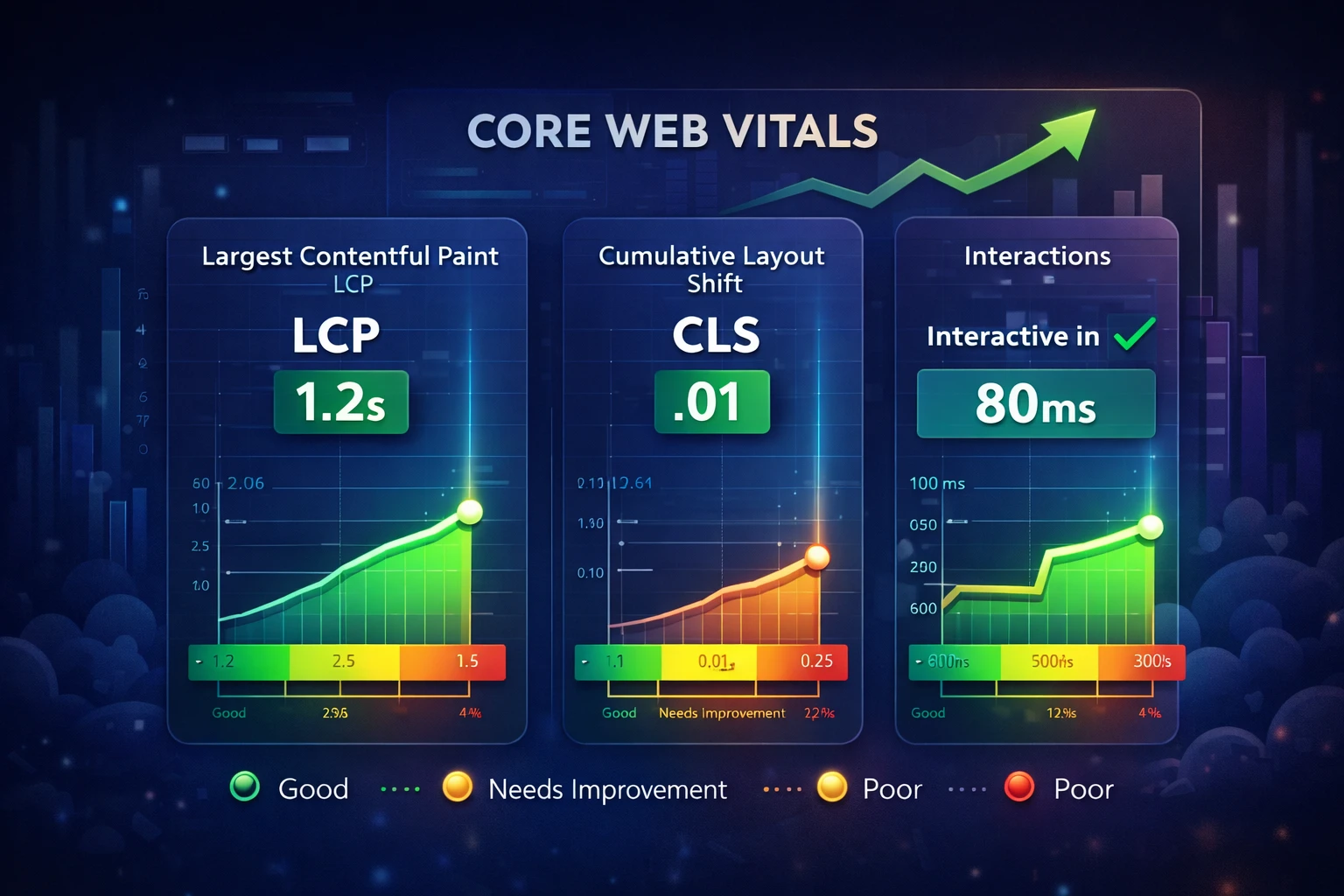
Step 1: Focus on the Core Web Vitals That Matter
PageSpeed Insights can feel overwhelming, but you do not need to fix every warning at once. Start with the metrics that affect real user experience.
Largest Contentful Paint usually points to slow hosting, large hero images, delayed CSS, or render-blocking resources.
Interaction to Next Paint is usually affected by heavy JavaScript, too many plugins, third-party scripts, or bloated builders.
Cumulative Layout Shift usually comes from missing image dimensions, late-loading fonts, ads, embeds, or unstable page elements.
For the complete diagnostic workflow, start with the WordPress Performance Audit Guide.
Step 2: Fix Hosting Before Smaller Optimizations
Hosting is one of the biggest reasons WordPress sites perform poorly. If the server responds slowly, every other optimization starts late.
This is why slow hosting can hurt your Google rankings and why cheap WordPress hosting can damage SEO.

If you are comparing infrastructure options, read managed WordPress hosting vs AWS or review our guide on migrating from shared hosting to a managed VPS.
Step 3: Reduce Plugin and Theme Bloat
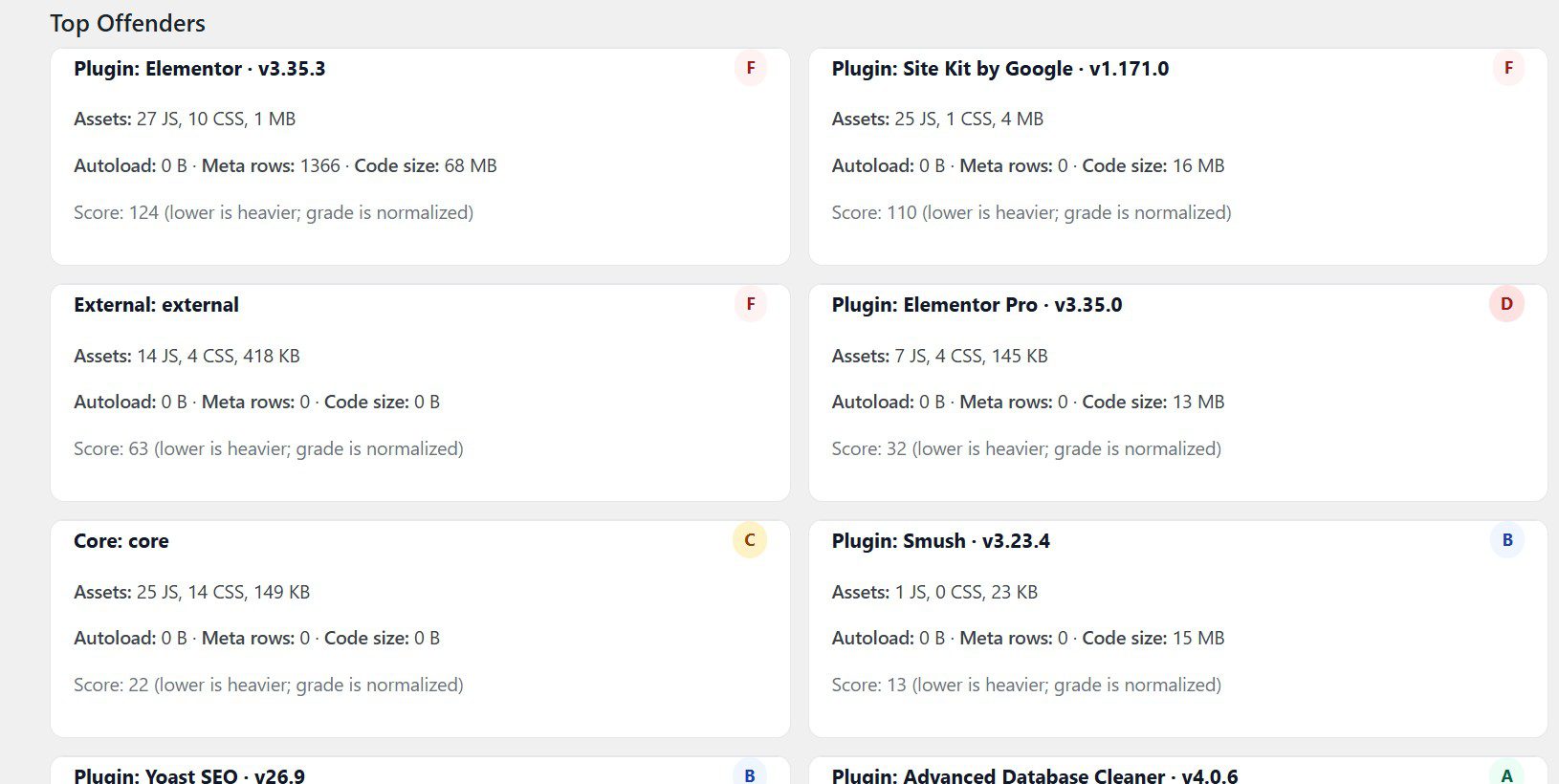
Plugin bloat affects both load speed and responsiveness. Too many overlapping plugins increase CSS, JavaScript, database overhead, and conflict risk.
- Remove duplicate functionality.
- Stick to one builder when possible.
- Avoid heavy sliders, animation plugins, and unnecessary add-ons.
- Audit plugins that load scripts sitewide.
- Replace bloated themes with faster foundations when needed.
If your admin area feels sluggish too, read how to troubleshoot a slow WordPress dashboard. If the theme is the issue, compare options in our fastest WordPress themes guide.
Step 4: Optimize Images for Better LCP
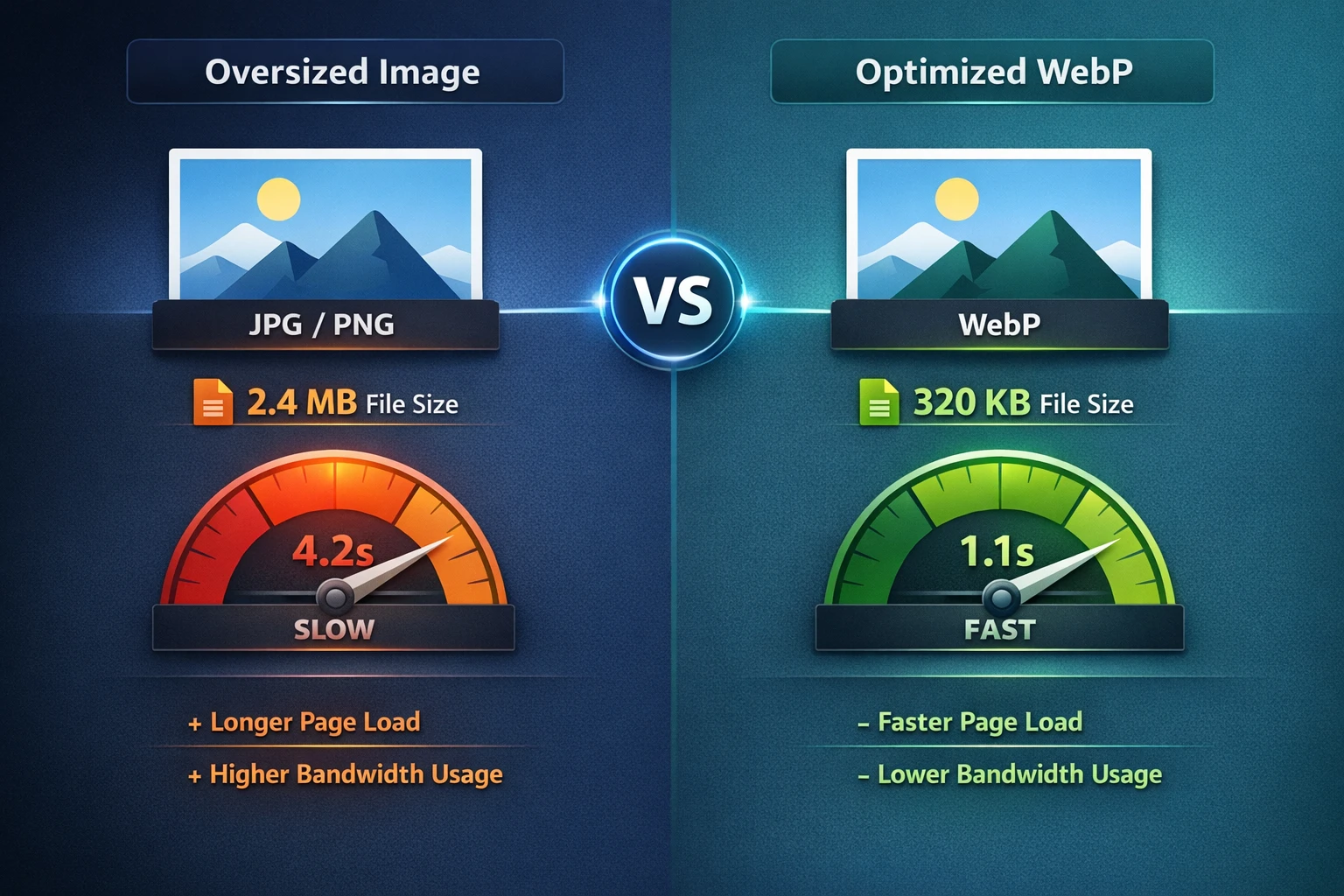
Large, uncompressed images are one of the most common causes of poor LCP scores. Your hero image, featured image, and above-the-fold product images should be reviewed first.
- Resize images before upload.
- Use WebP when possible.
- Compress images before or during upload.
- Lazy load images below the fold.
- Preload the main hero image only when needed.
- Set proper image dimensions to reduce layout shift.
Step 5: Configure Caching the Right Way
Caching is one of the biggest performance wins for WordPress when it is configured correctly. Start simple, avoid stacking multiple caching plugins, and make sure dynamic pages are excluded when needed.
- Enable page caching.
- Enable browser caching.
- Use GZIP or Brotli compression.
- Use object caching when the stack supports it.
- Exclude cart, checkout, account, and session-based pages.
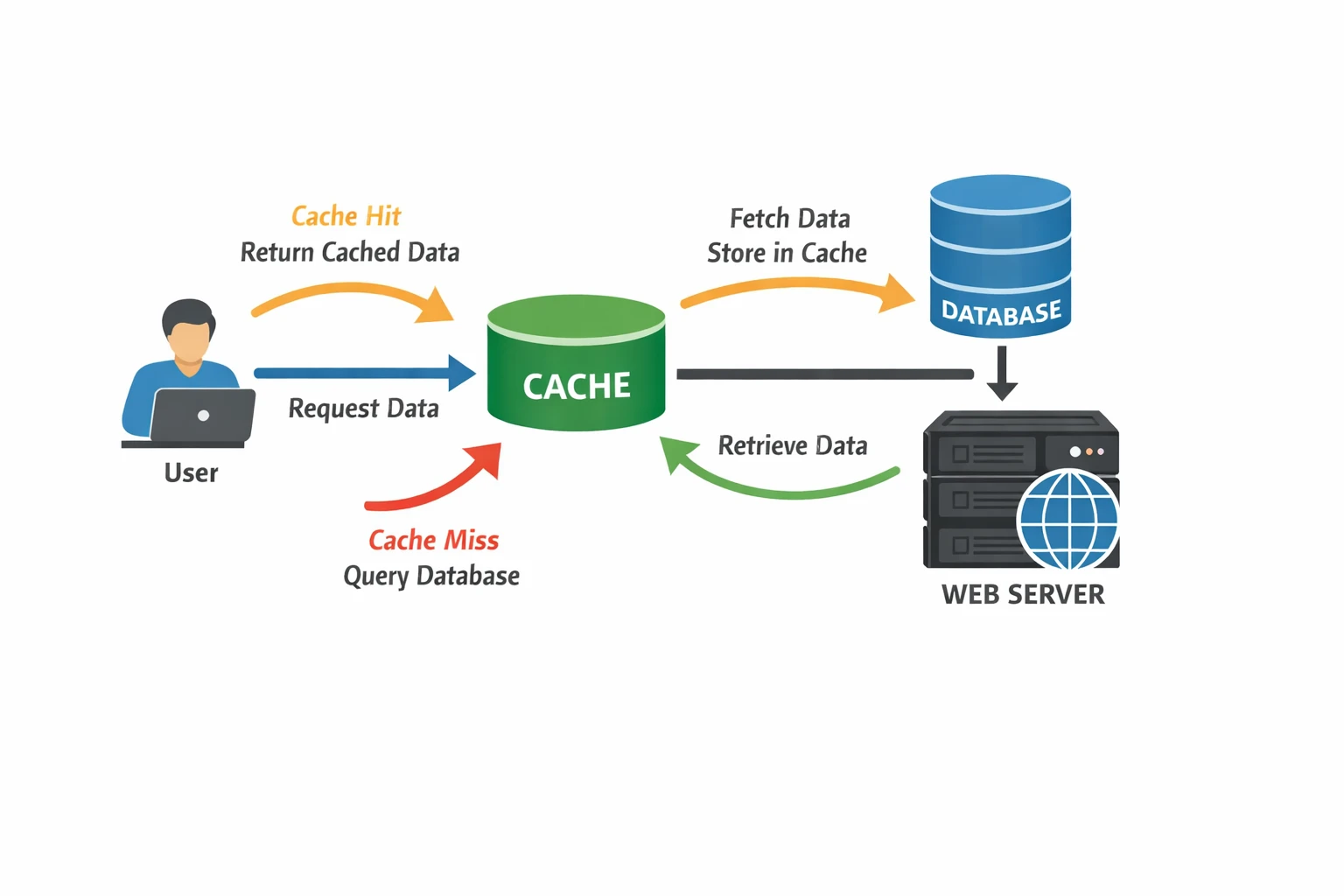
For a deeper breakdown, read choosing the right caching setup for your WordPress site. If you run an online store, use the WooCommerce performance checklist.
Step 6: Reduce Scripts and Improve INP
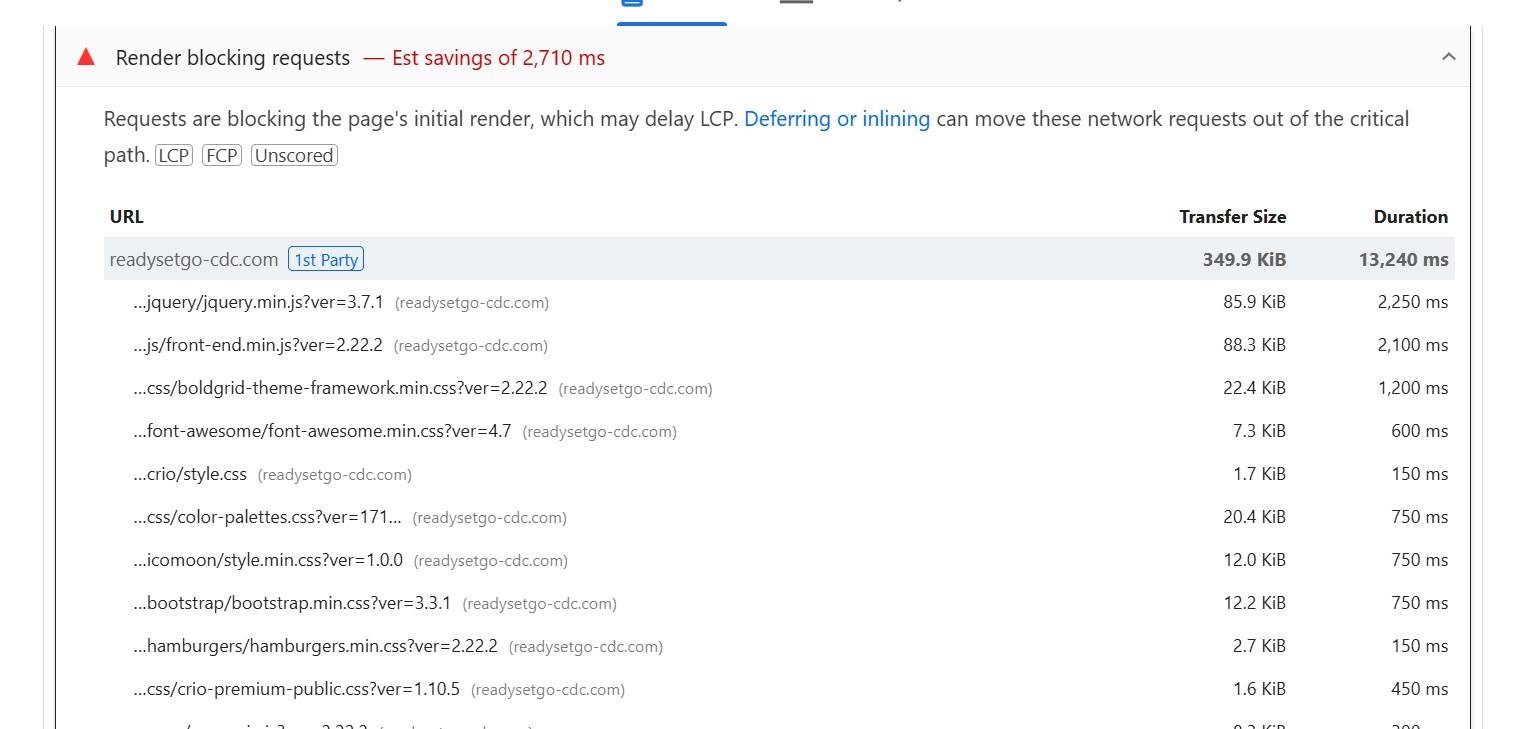
Script bloat affects both loading speed and responsiveness. This is especially important for INP because JavaScript can block the browser from responding quickly to user interactions.
- Remove unused tracking scripts.
- Limit fonts and font weights.
- Avoid heavy icon libraries when possible.
- Reduce third-party embeds and chat widgets.
- Delay non-critical JavaScript carefully.
Step 7: Use a CDN, But Do Not Treat It Like a Magic Fix
A CDN helps deliver static assets faster by serving them closer to your visitors. For most WordPress sites, Cloudflare is the easiest place to start.
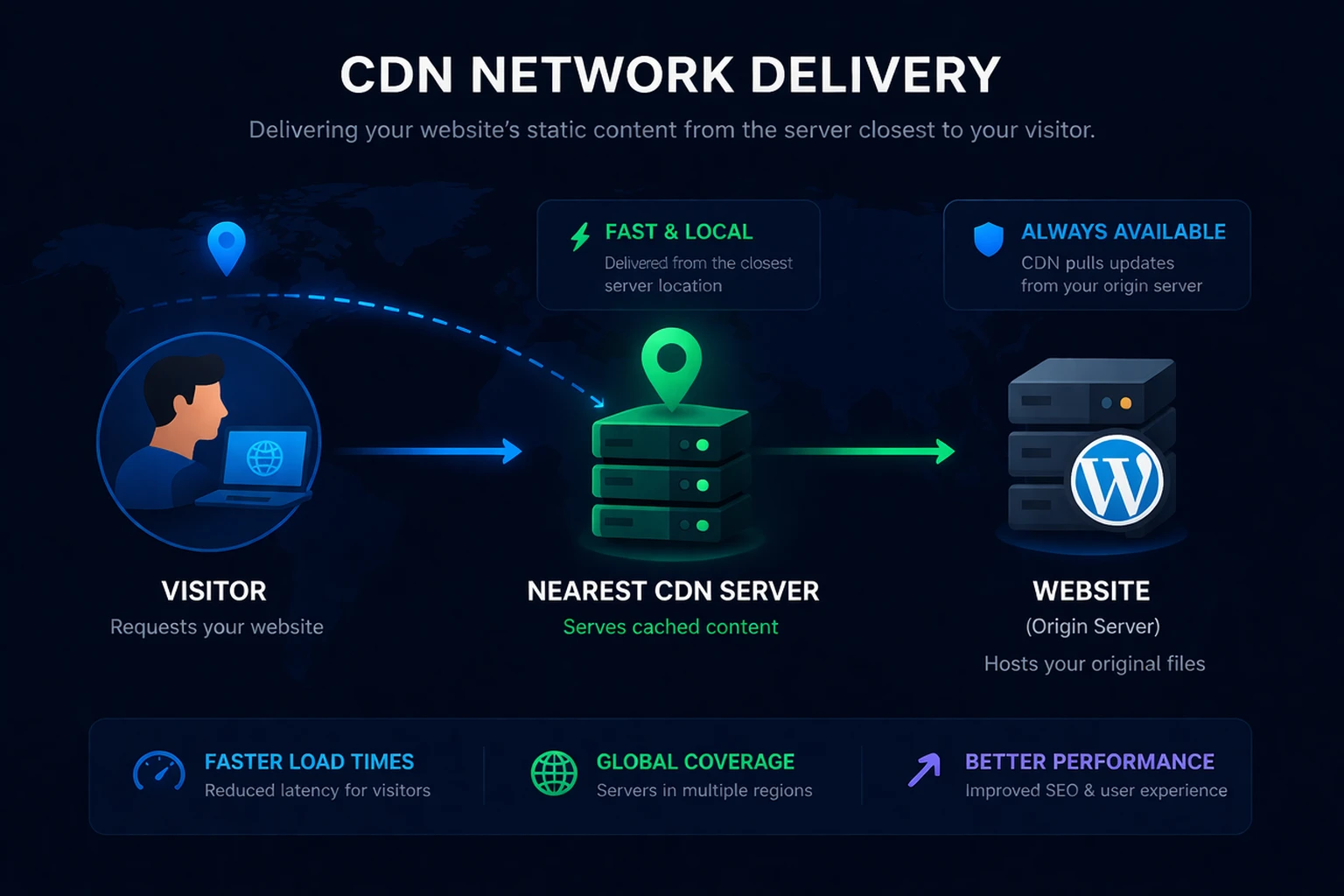
A CDN will not fix a bad server by itself, but it can support better performance when combined with strong hosting, clean WordPress architecture, caching, and optimized images.
Recommended Reading Path
Use this order if you want to build a full WordPress performance improvement plan instead of chasing random PageSpeed scores.
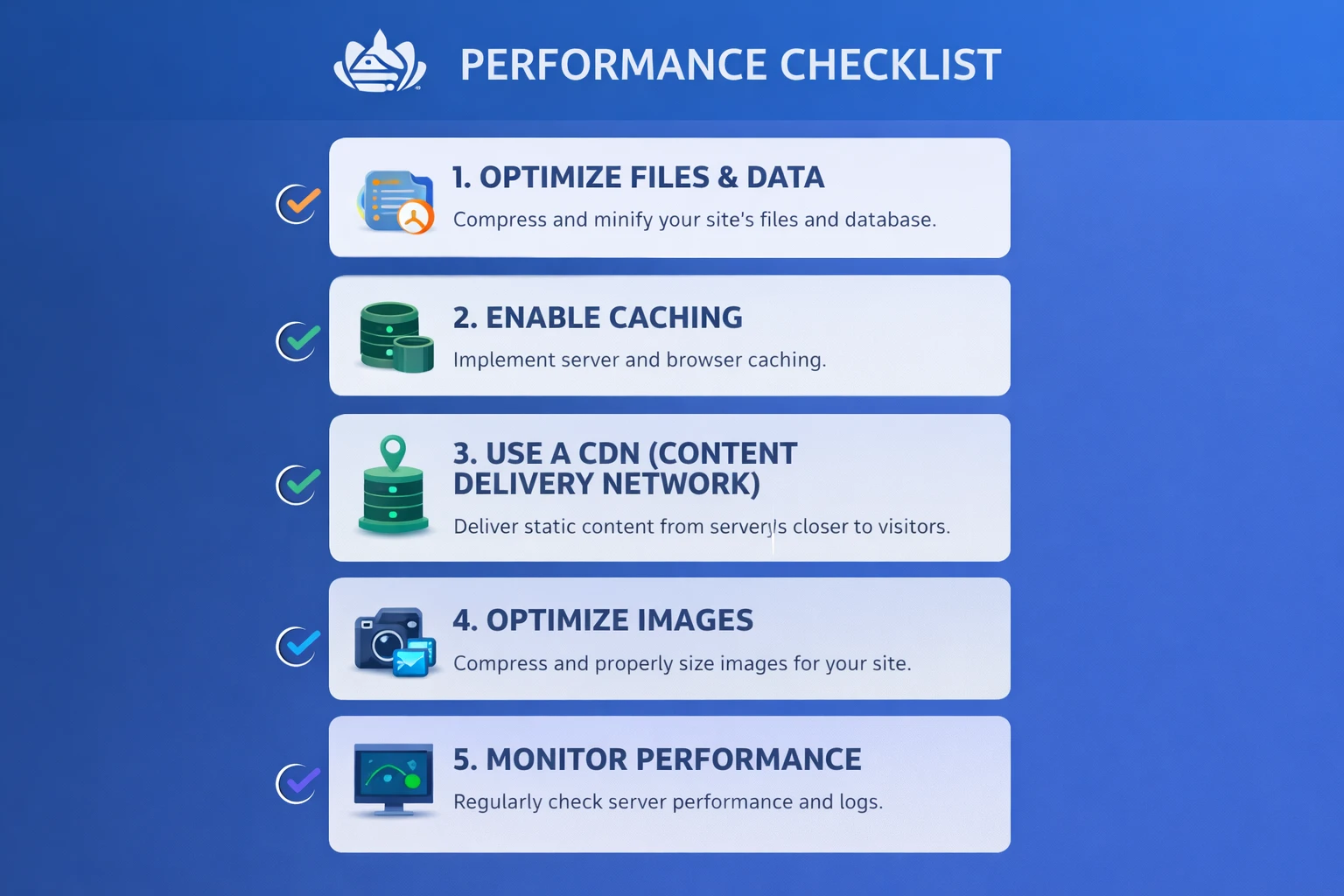
Simple Core Web Vitals Checklist
- Run PageSpeed Insights and check LCP, CLS, and INP.
- Review hosting and server response time.
- Clean up unnecessary plugins and scripts.
- Optimize images and preload the right above-the-fold asset.
- Configure caching without breaking dynamic pages.
- Reduce render-blocking CSS and JavaScript.
- Add CDN support for static assets.
- Check Google Search Console after the 28-day field data window updates.
When You Need More Than a Quick Fix
Sometimes the problem is not just one PageSpeed score. It is the full performance stack: hosting, caching, plugins, database queries, scripts, image delivery, and theme efficiency all working against each other.
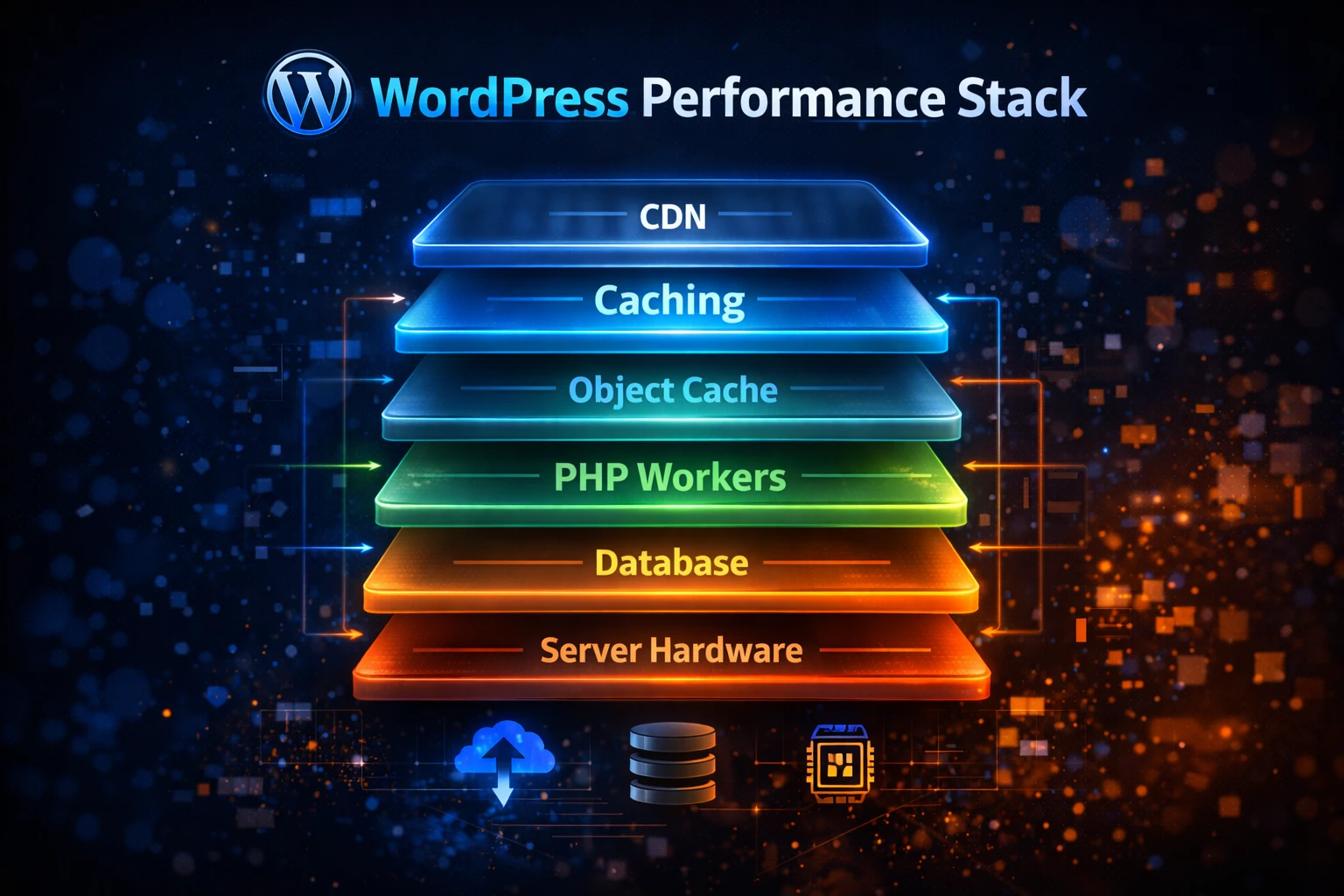
If you are dealing with low scores, weak Core Web Vitals, slow dashboards, and poor overall performance, start with a proper WordPress site audit so you know what is actually holding the site back.
Want Us to Fix This For You?
Yogi’s VPS handles hosting, optimization, caching, updates, performance tuning, and technical support together so your WordPress site has a stronger foundation.