Choosing the Right Caching Setup for Your WordPress Site
When should you use plugin caching, server caching, or a CDN? The answer depends on your site type, traffic, and hosting environment. This guide breaks down realistic caching setups for blogs, WooCommerce stores, membership sites, and high-traffic WordPress builds.
Caching is one of the biggest factors in website speed, but it only works well when it matches your site type. The wrong setup can create broken pages, stale content, login issues, and checkout errors. The right setup can improve load times, reduce server strain, and support stronger search visibility.
Understanding the three types of caching
Before you choose the right stack, you need to understand what each caching layer does and when it is useful.
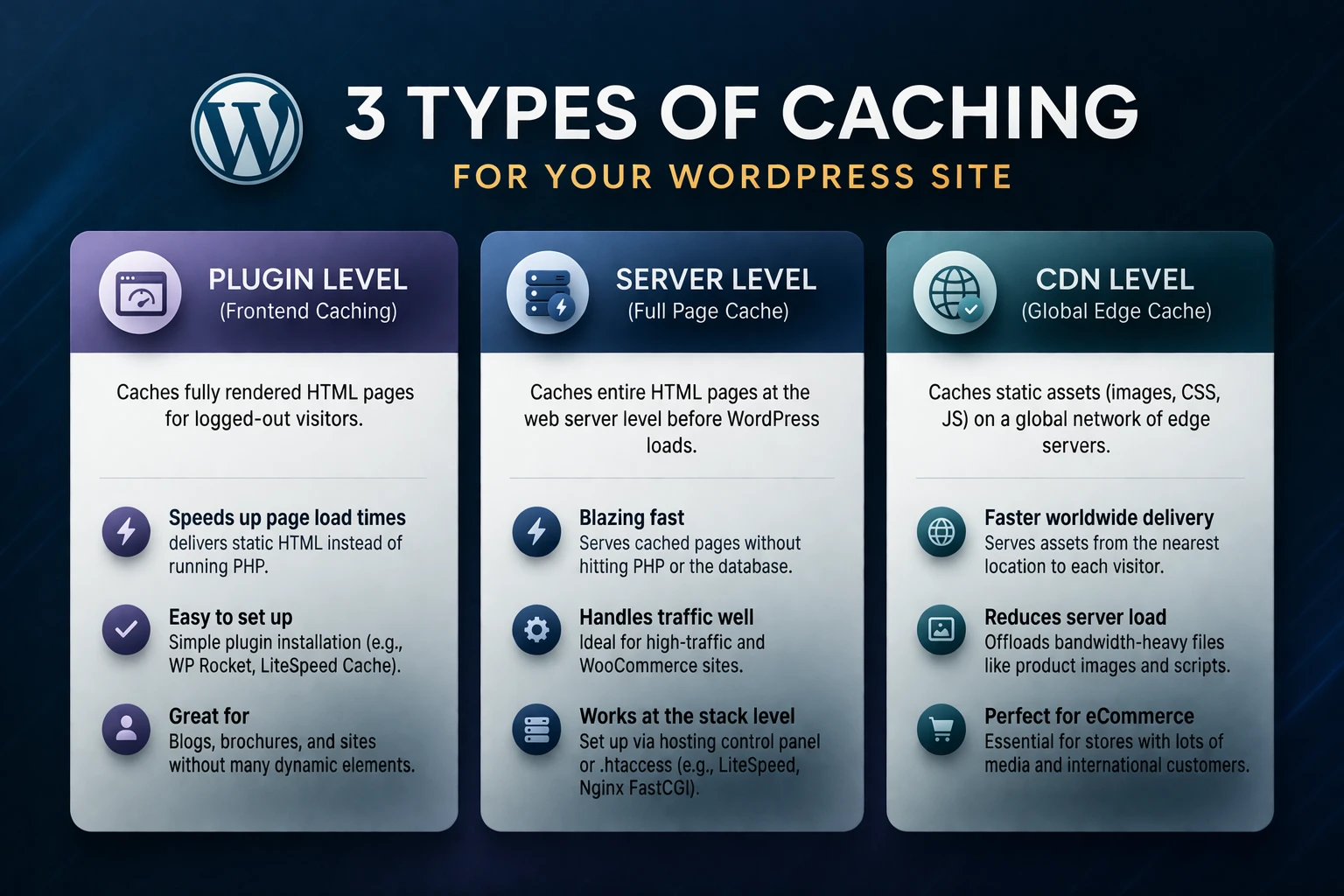
1. Plugin caching (inside WordPress)
Plugin caching lives inside WordPress and is handled by tools like:
- W3 Total Cache
- WP Rocket
- LiteSpeed Cache when you are on LiteSpeed servers
- Cache Enabler and similar tools
These plugins typically create static HTML versions of your pages so your server does not have to run PHP and database queries on every request.
- Easy to set up
- Great for small sites
- Works on shared hosting
Best for: blogs, simple business sites, small portfolios, and sites without server-level caching.
If you are still on weaker hosting, this is often the first caching layer people rely on. That is one reason cheap hosting environments can create performance limits.
2. Server-level caching (on the hosting layer)
Server-level caching happens before WordPress is even loaded. Common examples include:
- Object cache: Redis or Memcached
- Opcode cache: OPcache for PHP
- Full page cache: NGINX FastCGI cache or Varnish
- HTTP/2 and HTTP/3 optimizations
This layer is faster and more scalable because the server can respond without fully bootstrapping WordPress.
Best for: high-traffic sites, WooCommerce stores, membership sites, and anything running on a VPS or dedicated server.
This is where better infrastructure makes a real difference. It is part of the reason slow hosting can hurt rankings and why moving to a stronger stack often improves both speed and stability.
3. CDN caching (global edge delivery)
A Content Delivery Network stores copies of your assets, and sometimes full pages, on servers around the world. Popular options include:
- Cloudflare with or without APO
- Bunny.net
- Akamai
- QUIC.cloud
- Fastly
CDNs reduce latency for global visitors and offload a large amount of traffic from your origin server.
Best for: global audiences, media-heavy sites, and websites that experience traffic spikes.
Which caching setup should you use?
Let’s look at realistic stacks based on the type of WordPress site you’re running.
1. Blogs and content websites
Recommended setup
- Plugin caching for full page and browser cache
- CDN for static assets like images, CSS, and JavaScript
- OPcache on the server, usually enabled by default
Blogs and content sites are mostly static. Once an article is published, it does not change much. That makes plugin-level page caching very effective.
Ideal stack example:
- W3 Total Cache for page cache, browser cache, and minification
- Cloudflare free plan for global static asset delivery
- Image compression and lazy loading for media
What to avoid
- Aggressive cache-everything rules at the CDN without bypasses for wp-admin
- Object cache on tiny sites where it adds complexity without meaningful benefit
This setup pairs well with the ideas covered in why high-performance websites drive SEO growth.
2. WooCommerce stores
Recommended setup
- Server-level full page cache for catalog and marketing pages
- Redis object cache for product and cart-related queries
- CDN for global performance
- Plugin cache for browser caching and minification only, not full page cache
WooCommerce has dynamic pages that should never be cached, including cart, checkout, and account pages. Server-level rules can handle that more intelligently than many basic caching plugins.
Ideal stack example:
- FastCGI cache configured to bypass cart, checkout, and logged-in users
- Redis object cache enabled via plugin or host
- Cloudflare APO for edge caching of public pages
- W3 Total Cache or WP Rocket for static file optimization and browser cache only
What to avoid
- Caching checkout or cart pages
- Double caching the full page with plugin and server both trying to do the same thing
- Random fragment caching without understanding WooCommerce sessions
For stores specifically, pair this with our WooCommerce performance checklist.
3. Membership sites and LMS platforms
Recommended setup
- Redis or Memcached object cache for heavy database queries
- CDN for static assets only
- Plugin caching with page cache disabled for logged-in users
- Optional NGINX FastCGI cache for public marketing pages
Membership and LMS sites generate a lot of user-specific content such as lessons, progress, dashboards, and account data. That makes full page caching for logged-in users risky.
Ideal stack example:
- Redis object cache to speed up user-specific queries
- OPcache for faster PHP execution
- Cloudflare for CSS, JS, and media
- No page caching for logged-in traffic
What to avoid
- Caching pages that show user-specific dashboards or progress
- Full-site CDN caching without strict cookie and login rules
4. News or high-traffic websites
Recommended setup
- Server-level full page cache for article pages
- Redis object cache for search, archives, and personalization
- CDN edge caching to handle spikes
- Plugin used mainly for minify, compression, and browser cache
These sites need both speed and stability during traffic surges. A CDN plus server-level cache can keep the site stable even when a post goes viral.
5. Portfolio and agency sites
Recommended setup
- Plugin full-page cache
- CDN for static assets
- OPcache on the server
These sites are usually mostly static with occasional updates. A solid caching plugin plus a CDN is often enough to perform well.
The best all-around stack for most WordPress sites
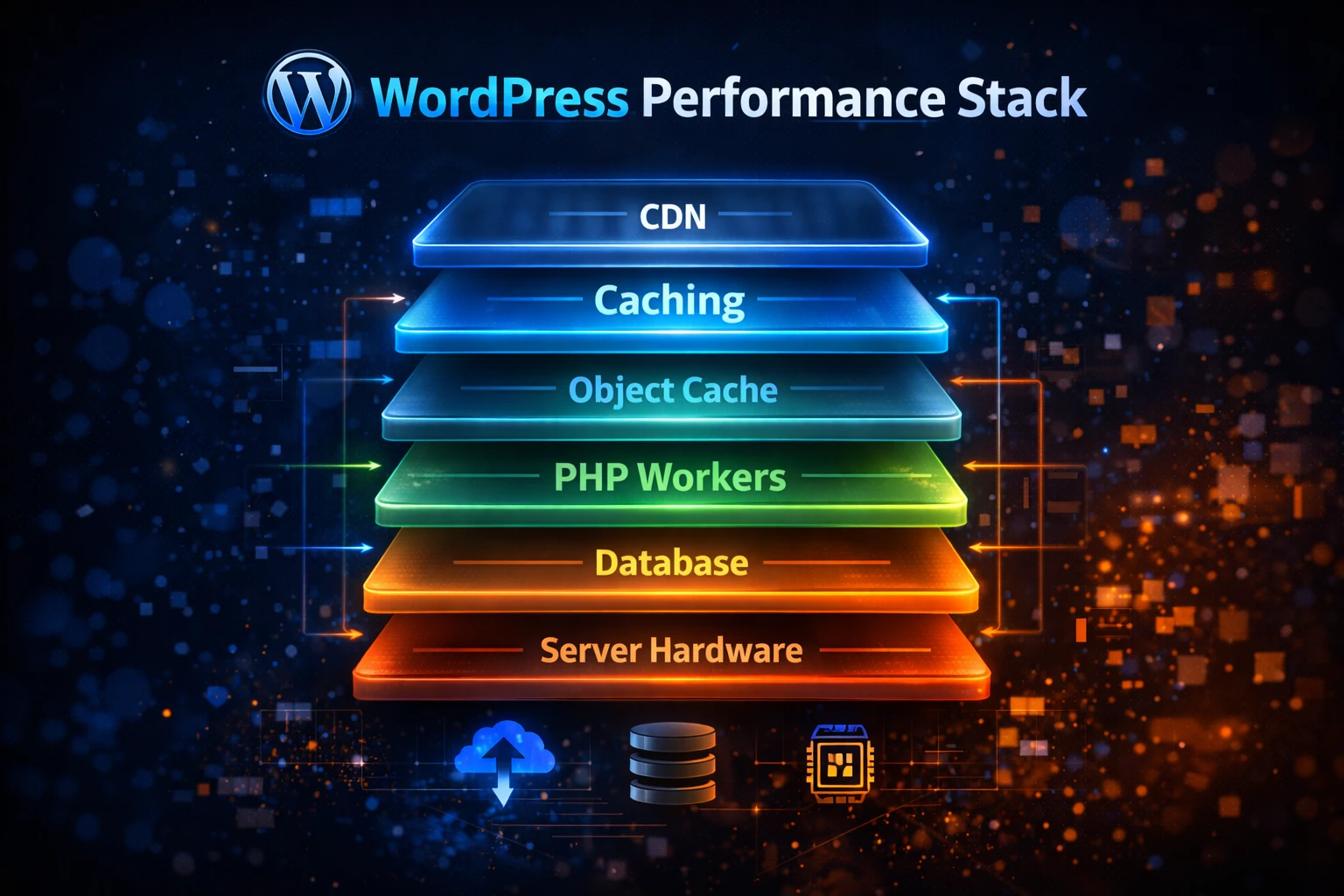
If you want a strong setup that works for most real-world WordPress installs, this is what we typically recommend on Yogi’s VPS:
- Server-level FastCGI cache for public pages
- Redis object cache for database-heavy operations
- Cloudflare CDN with APO when appropriate
- W3 Total Cache for browser caching and file optimization
- Optimized TTFB on a VPS environment
This combination gives you low TTFB, better Core Web Vitals, and a stack that can grow with your traffic.
That is one reason we often recommend Yogi’s VPS for performance-focused WordPress clients.
Signs your caching setup is wrong
You may have a misconfigured or conflicting caching stack if:
- Your site breaks after clearing cache or updates
- Visitors see outdated pages
- WooCommerce checkout or cart behaves inconsistently
- Logged-in users see other users’ data
- Your mobile PageSpeed score is consistently under 50
- TTFB is high even with caching enabled
- Your database and wp_options table grow rapidly
In some cases, this also causes backend lag. If that sounds familiar, review troubleshooting a slow WordPress dashboard.
Plugin vs. server vs. CDN caching: simple decision guide
Use this quick reference when planning or auditing a site:
- If your site is mostly static: plugin caching + CDN
- If you run WooCommerce: server caching + CDN + Redis
- If you run membership or LMS content: Redis + CDN for static assets, no page cache for logged-in users
- If you have global traffic: a CDN is necessary
- If you expect spikes or viral traffic: server-level cache is mandatory
Not sure which stack you need? Get a free WordPress performance audit.
We’ll review your current caching setup, hosting environment, and Core Web Vitals and send you a clear report showing what to change and what to keep.
You can also review our WordPress site audit page if you want a broader look at your full stack.
Yogi’s VPS · Managed WordPress Hosting & Performance Optimization
Get Your Free Audit →