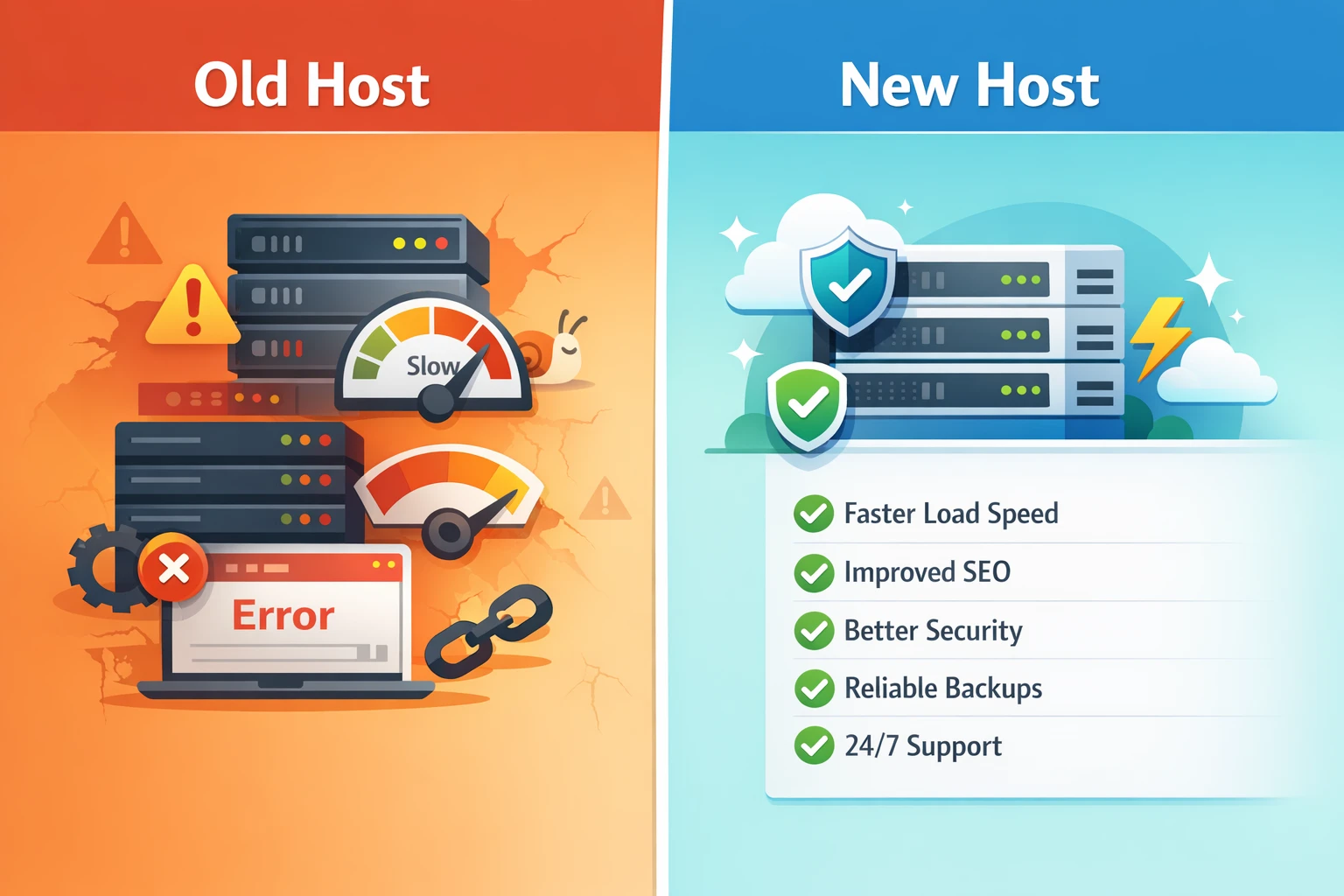
Site Migration · Yogi's VPS
Migrating from another host
Moving from your current host to Yogi's VPS does not have to be stressful. Your existing site can stay live while we copy everything to your new account, test it, and then switch your domain once you are ready.
This guide explains what we need from you, which migration options are available, and how the process works from start to finish.
Many site owners start this process after running into the same problems covered in why cheap WordPress hosting hurts SEO and how slow hosting hurts rankings.
Before you start: what we need
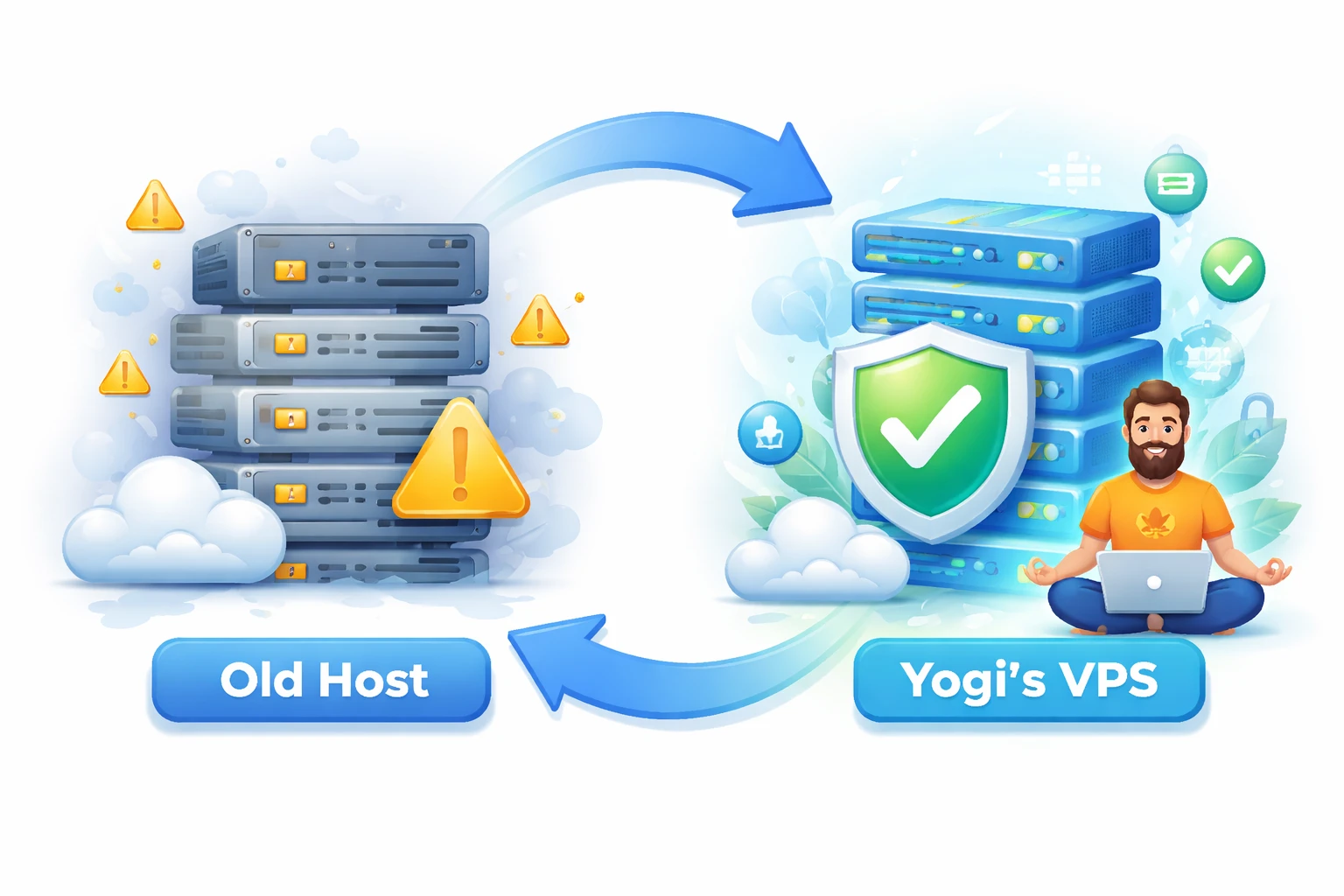
A smooth migration starts with a clear picture of your existing setup.
Information about your current host
- Login to your current hosting control panel.
- Any SFTP or FTP credentials you already have.
- Database access if available, for example phpMyAdmin.
- Any special notes like staging sites or subdomains you are using.
Your domain and email setup
- The domain that points to your current site.
- Which email service you use for that domain.
- If email is hosted at your current provider or through a separate service like Google Workspace or Microsoft 365.
If your current setup is messy, a WordPress site audit can help identify issues before the move.
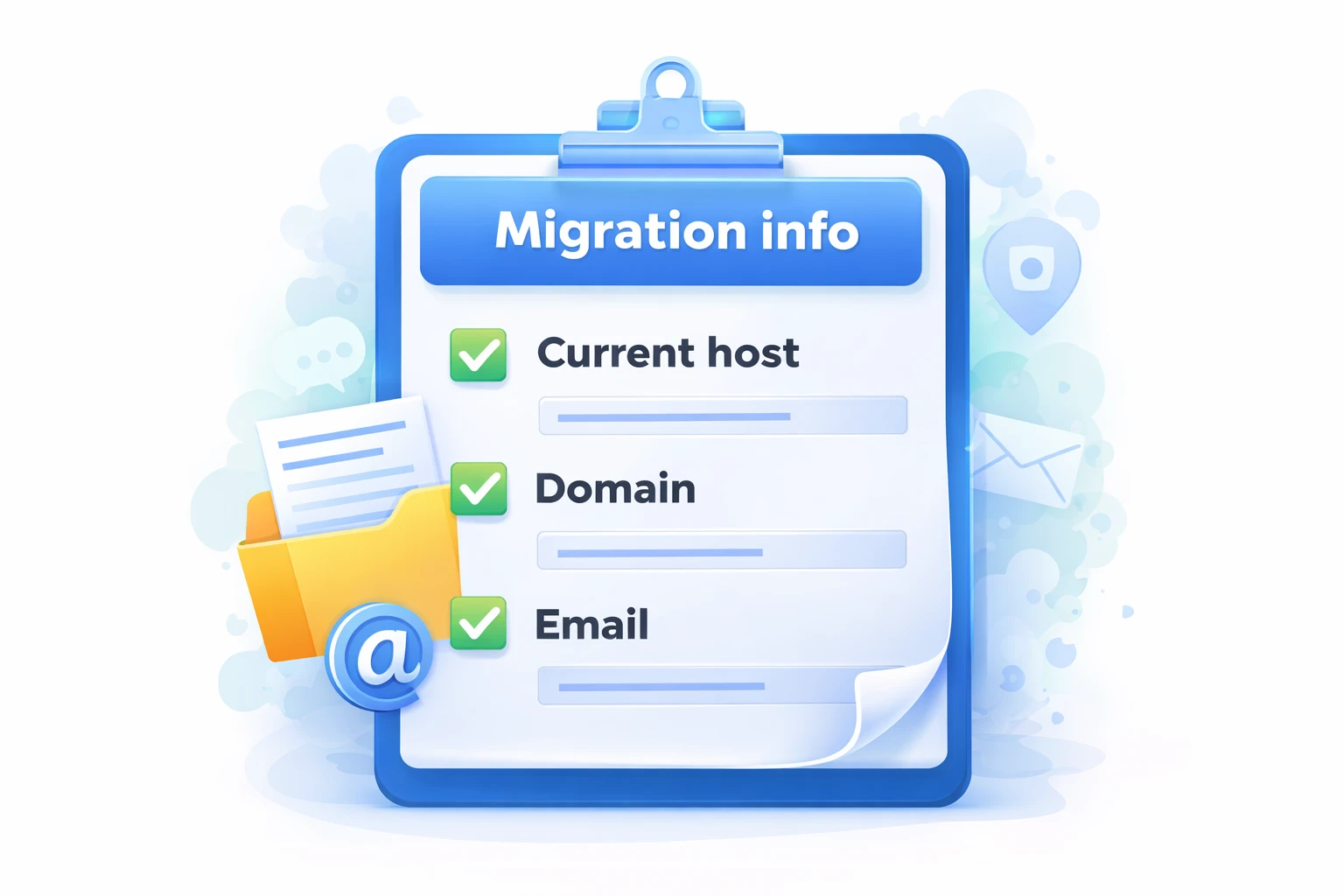
Choose how you want to migrate
You can have us handle everything or use a migration plugin if you prefer to do it yourself. Either way, your old site can stay online until you are ready to move DNS.
Option 1: Yogi's VPS moves your site for you
- Open a support ticket and choose "Site migration".
- Share the requested login details securely.
- We copy files and database to your new account.
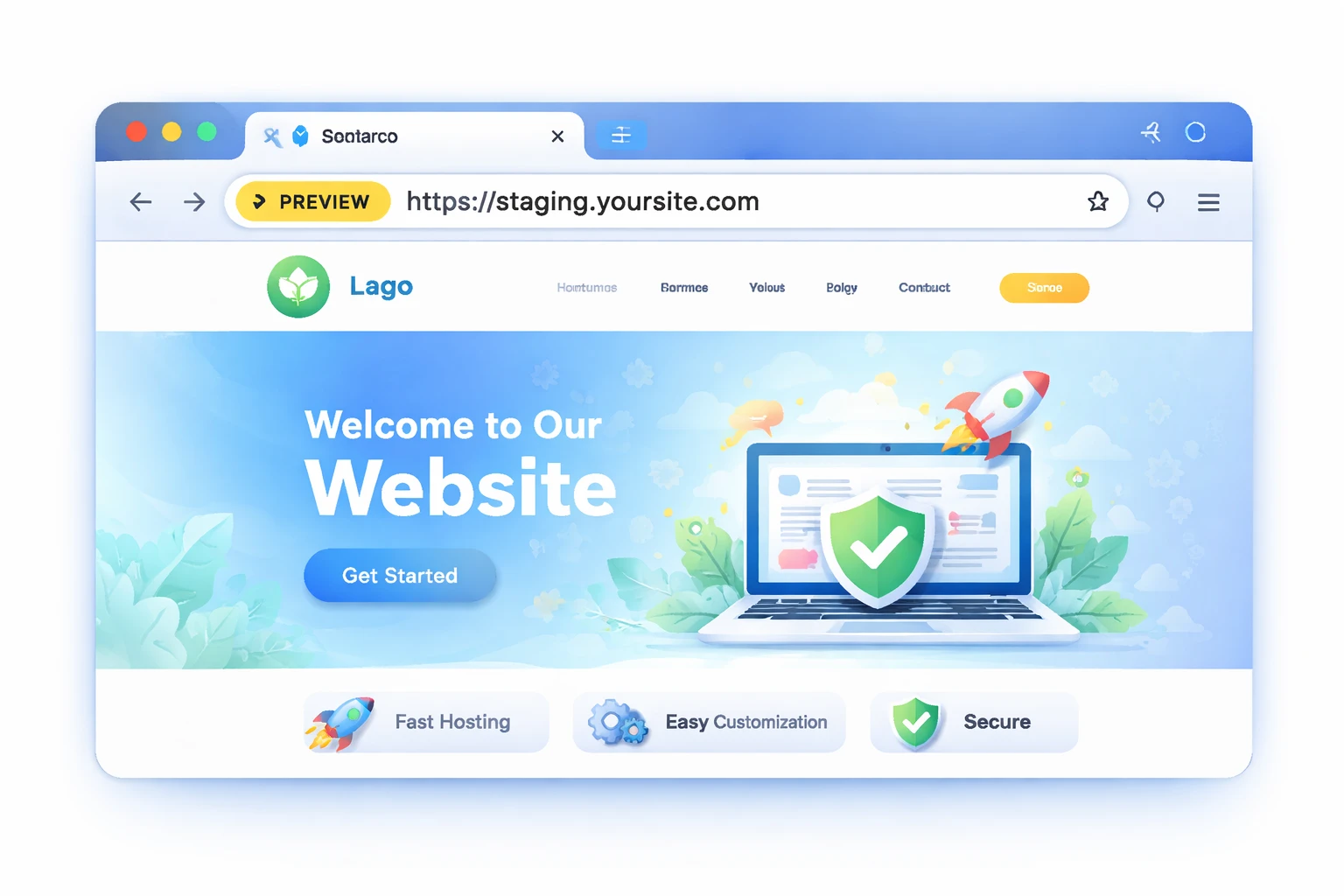
- We set up a temporary preview URL so you can test before going live.
Option 2: Use a migration plugin
- Install a trusted migration plugin on your current site.
- Create a package or connect your new site to import the content.
- Restore files and database to your Yogi's VPS account.
- Test everything on the new server before changing DNS.

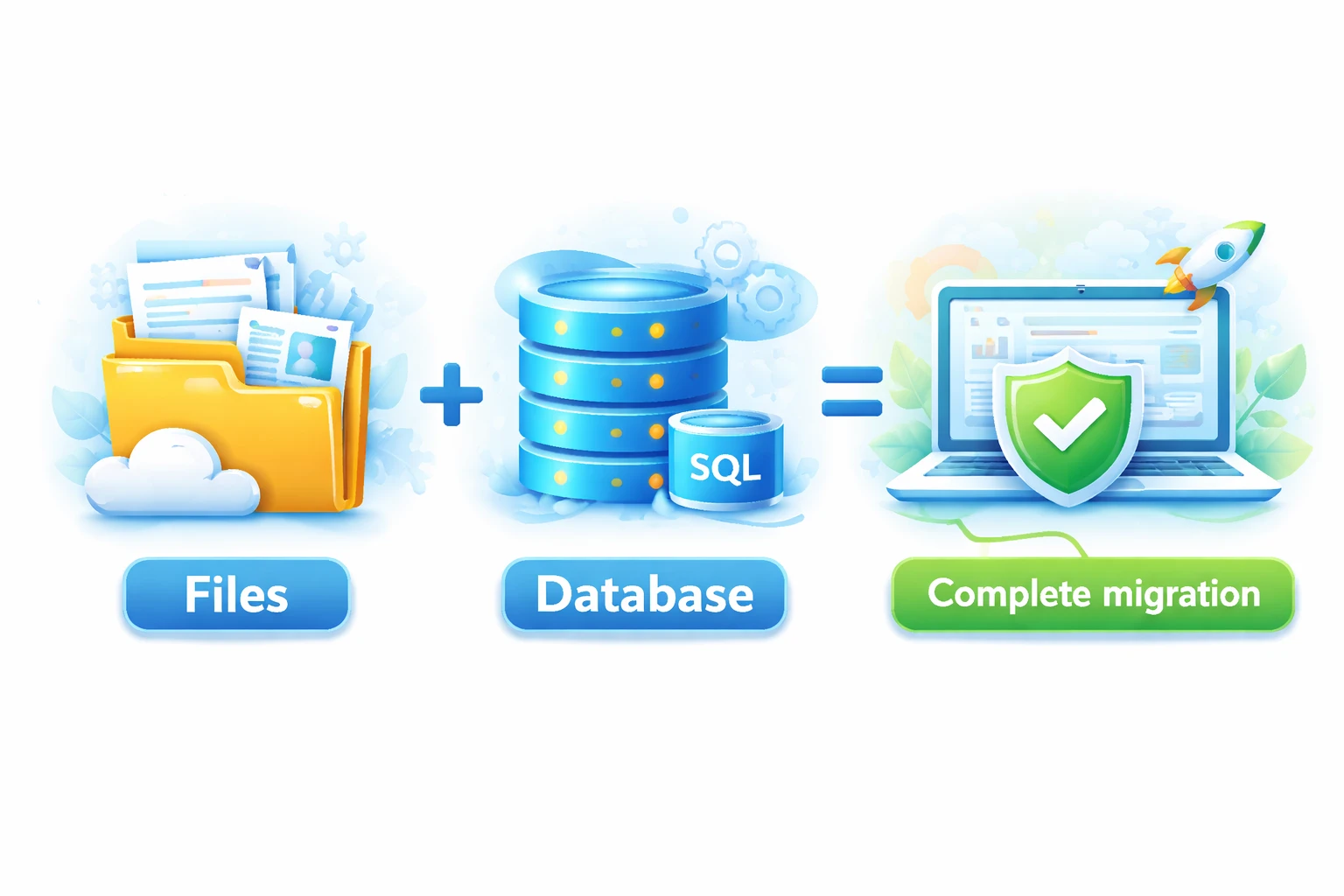
What gets copied during migration
The goal is to reproduce your existing site exactly as it is, only on faster and more stable hosting.
Site files
- WordPress core files.
- Themes and child themes.
- Plugins and their configurations.
- Uploads such as images, documents, and media.
Database content
- Pages, posts, and custom post types.
- Menus, widgets, and theme options stored in the database.
- Users, orders, and form submissions, depending on your setup.
For a more detailed look at this workflow, see migrating from shared hosting to a managed VPS.
Testing your site on Yogi's VPS before you go live
After the copy is complete, we want to make sure your site works perfectly on the new server before switching your domain.
- Visit the preview URL or temporary domain we provide.
- Click through key pages like the home page, contact page, and product or service pages.
- Submit a test form or checkout if you run ecommerce.
- Check for missing images, styling differences, or errors.
This is also the best time to check performance gains and review Core Web Vitals improvements before launch.
Switching DNS to point your domain at Yogi's VPS
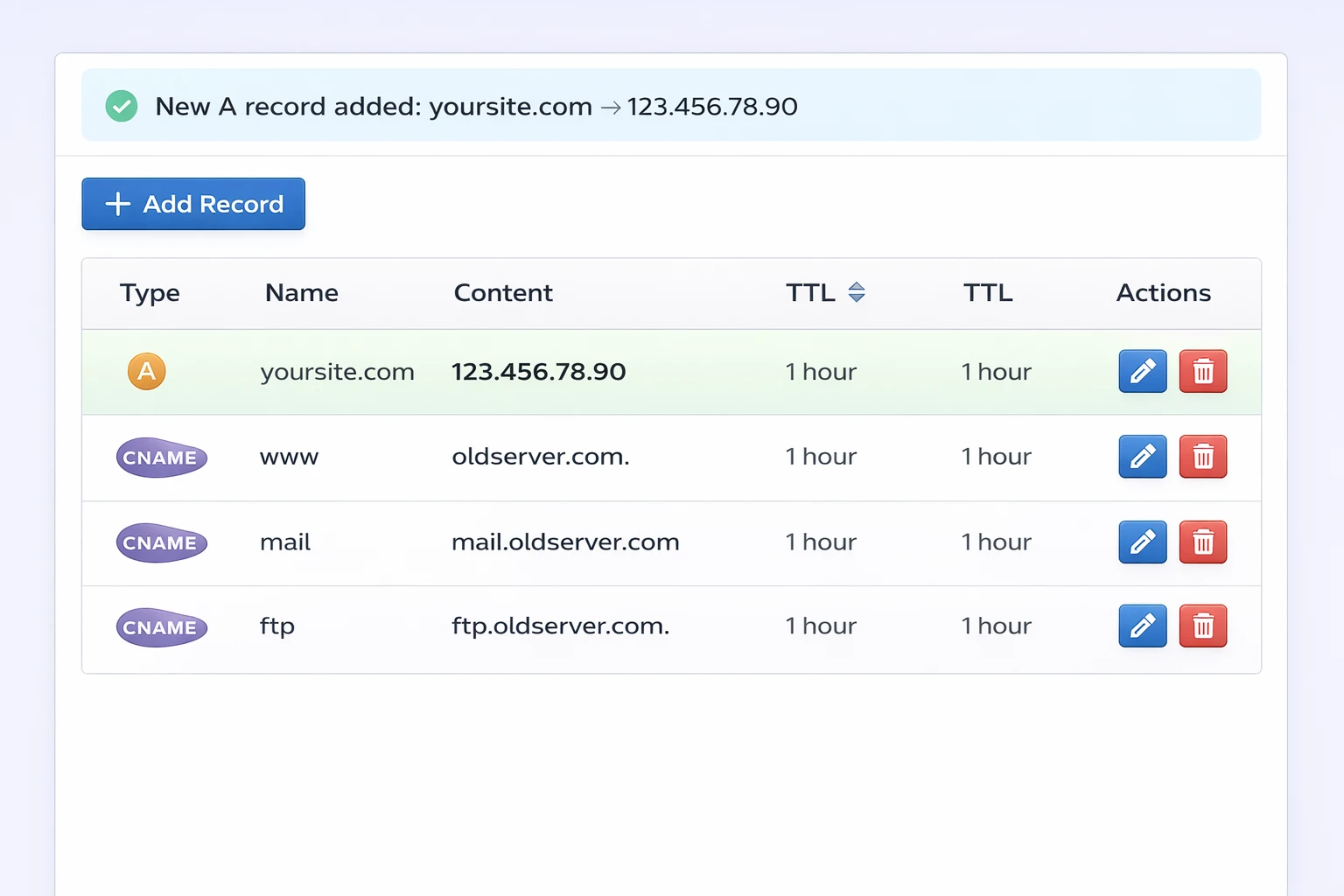
Once testing looks good, the final step is to point your domain to the new server. This is where you change either nameservers or A and CNAME records.
- Pick a low traffic time window if your site is busy during business hours.
- Update nameservers or A record to the values we provide.
- Keep your old hosting plan active until DNS fully propagates.
- Monitor the new site and confirm you see it on both desktop and mobile.
For help with this step, use how to connect your domain and update DNS records and pointing your domain to Yogi’s VPS.
Common migration issues and how we handle them
Every site is different, but most migration problems fall into a few predictable categories.
Old URLs or mixed content
- Some internal links or images may still use the old domain or http.
- We can run a search and replace to update these to the correct https URLs.
Plugin or theme compatibility
- A few plugins may behave differently on a newer PHP version.
- We can adjust PHP settings or suggest alternatives if needed.
Email and DNS records
- If your old host also handled email, DNS changes may affect email delivery.
- We help preserve or recreate MX, SPF, and DKIM records so that email continues to work correctly.
After launch, it also helps to verify SSL, forms, and general performance, which is covered in launching your first WordPress site.