WooCommerce Performance Checklist: Speed Up Your Store Before It Costs You Sales
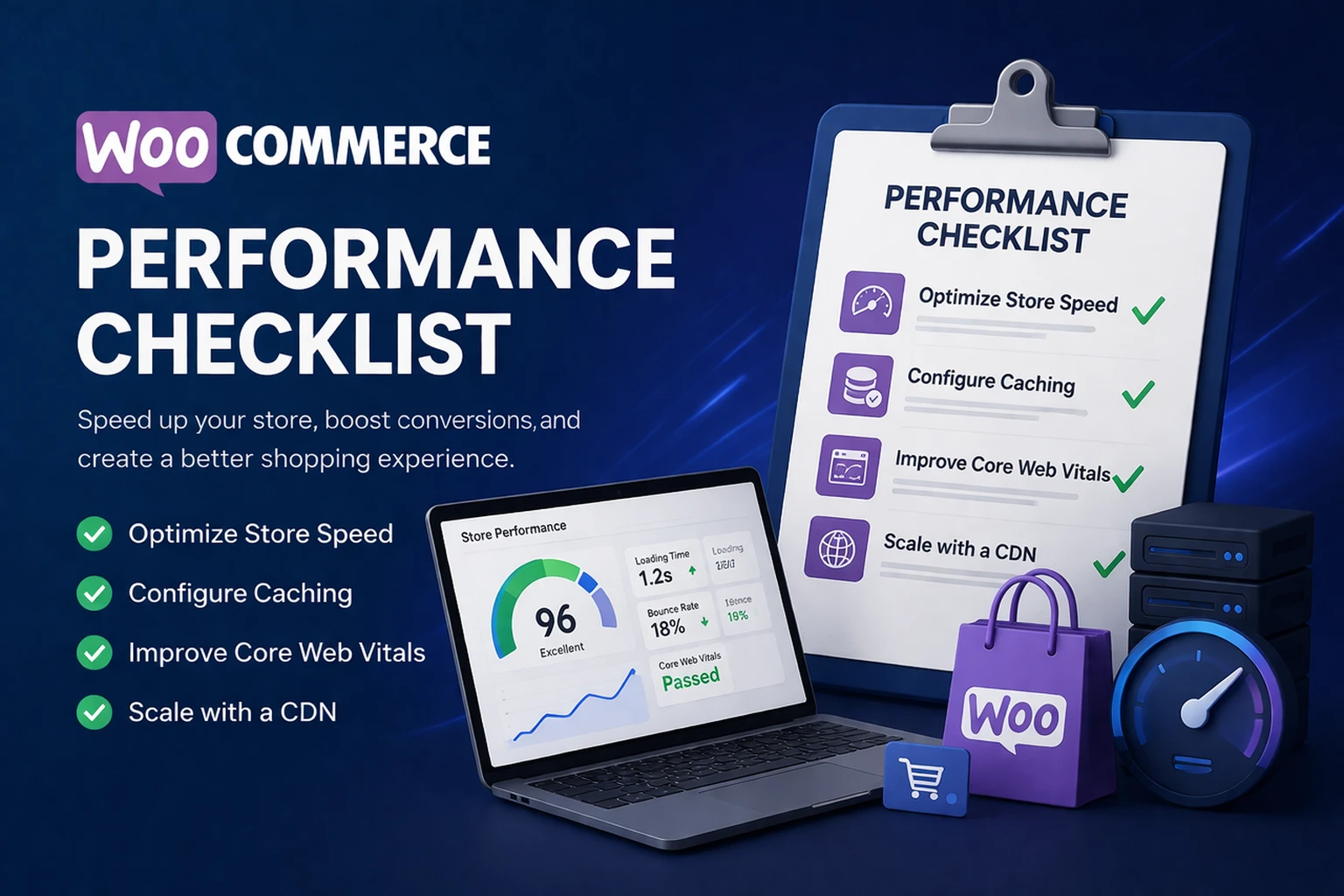
A slow WooCommerce store is not just a technical issue. It can hurt rankings, lower conversions, frustrate customers, and make your store harder to scale. Use this checklist to find the real bottlenecks and improve store speed the right way.
The goal is simple: faster product pages, cleaner checkout, better Core Web Vitals, and fewer performance issues during traffic spikes.
Most WooCommerce stores do not have one single speed problem. They usually have a stack problem.
Shared hosting and limited PHP workers can slow down dynamic store activity.
Extra builders, marketing tools, and unused add-ons increase load time.
WooCommerce needs smart caching that protects cart, checkout, and sessions.
Uncompressed images can damage LCP and make product pages feel heavy.
This checklist expands on the process we use inside our WordPress performance audit guide, but it focuses specifically on WooCommerce stores.
1. Start With Hosting and Server Performance
WooCommerce is more demanding than a standard WordPress blog because it handles carts, checkout sessions, customer accounts, orders, payment gateways, and dynamic database requests.
If your server is underpowered, every other optimization becomes harder.
Your WooCommerce host should support:
- PHP 8.2 or higher
- OPcache enabled
- Fast NVMe storage
- Enough PHP workers for dynamic traffic
- Optimized MariaDB or MySQL configuration
- Server-level caching for static assets
- Staging environments for safe updates
If that sounds familiar, read why cheap WordPress hosting hurts SEO and how migrating to a managed VPS can improve stability.
2. Use WooCommerce-Safe Caching Rules
Caching is one of the fastest ways to improve store performance, but WooCommerce caching has to be handled carefully. You want fast product and category pages without breaking carts, checkout, accounts, or customer sessions.
Cache these pages:
- Product pages
- Product category pages
- Blog posts
- Landing pages
- Static marketing pages
Do not cache these pages:
- Cart
- Checkout
- My Account
- WooCommerce endpoints
- Admin pages
3. Compress and Optimize Product Images
Product images are often one of the biggest reasons WooCommerce product pages load slowly. Large image files can hurt Largest Contentful Paint, increase page weight, and make mobile visitors wait longer before they can shop.
- Upload product images at the correct display size
- Use WebP whenever possible
- Compress images before or during upload
- Lazy load images below the fold
- Preload the main product or hero image when needed
- Avoid oversized sliders and heavy gallery plugins
If your LCP score is poor, product media is one of the first things to investigate. This connects directly to improving Core Web Vitals for eCommerce stores.
4. Clean Up the WooCommerce Database
WooCommerce stores create a lot of database activity. Orders, logs, transients, sessions, product variations, coupons, subscriptions, and postmeta can pile up over time.
- Delete expired transients
- Clear old WooCommerce sessions
- Clean action scheduler logs
- Remove orphaned postmeta
- Optimize database tables
- Review old revisions and autosaves
5. Remove Plugin Bloat
WooCommerce stores often collect plugins over time. Eventually, the store becomes harder to maintain and slower to load.
- Page builder add-ons
- Unused payment gateways
- Marketing popups
- Tracking scripts
- Product filter plugins
- Checkout add-ons
- Duplicate SEO or schema plugins
6. Use a Lightweight WooCommerce Theme
Your theme affects your product templates, cart styling, checkout layout, script loading, CSS weight, and mobile experience.
- Astra
- GeneratePress
- Blocksy
- Kadence
- Hello Elementor, when paired with a clean Elementor build
7. Speed Up the Checkout Flow
Checkout speed matters because this is where performance directly affects revenue. A customer who waits too long at checkout may abandon the purchase.
- Remove unnecessary checkout fields
- Use a reliable payment gateway
- Avoid redirect-heavy payment flows when possible
- Keep cart and checkout excluded from page cache
- Use a dedicated SMTP provider for order emails
- Test checkout after plugin and theme updates
WooCommerce Performance Checklist Summary
| Area | What to Check | Why It Matters |
|---|---|---|
| Hosting | CPU, PHP workers, storage, database performance | Weak hosting slows down dynamic WooCommerce activity. |
| Caching | Product pages cached, checkout excluded | Improves speed without breaking cart sessions. |
| Images | Compressed WebP product images | Improves page weight and Core Web Vitals. |
| Database | Transients, logs, sessions, postmeta | Reduces backend drag and dashboard slowness. |
| Plugins | Remove unused or duplicate plugins | Reduces PHP, CSS, JavaScript, and conflict risk. |
| Checkout | Fields, payment flow, cache exclusions | Protects conversions and customer trust. |
Need Help Speeding Up Your WooCommerce Store?
Yogi’s VPS helps WordPress and WooCommerce site owners improve speed, stability, Core Web Vitals, hosting, caching, updates, and technical maintenance.
If your store is slow, unstable, or hard to manage, start with a free audit and we’ll review your hosting, plugins, theme, database, images, caching setup, and Core Web Vitals.