How to Add Google Analytics to Your WordPress Site
Learn how to properly connect Google Analytics to your WordPress site so you can track visitors, measure conversions, and make better decisions based on real data.
What You'll Learn
Why Google Analytics Matters
Google Analytics helps you understand how people find your site, what pages they visit, how long they stay, and what actions they take before leaving or converting.
If you want to improve SEO, increase leads, or grow sales, analytics gives you the data you need to stop guessing and start making informed decisions. It also pairs well with a broader WordPress performance audit so you can compare traffic insights with real speed and user experience issues.
- Traffic sources like Google, social media, referrals, and ads
- Most visited pages and top landing pages
- Conversions, purchases, and form submissions
- User behavior across desktop and mobile
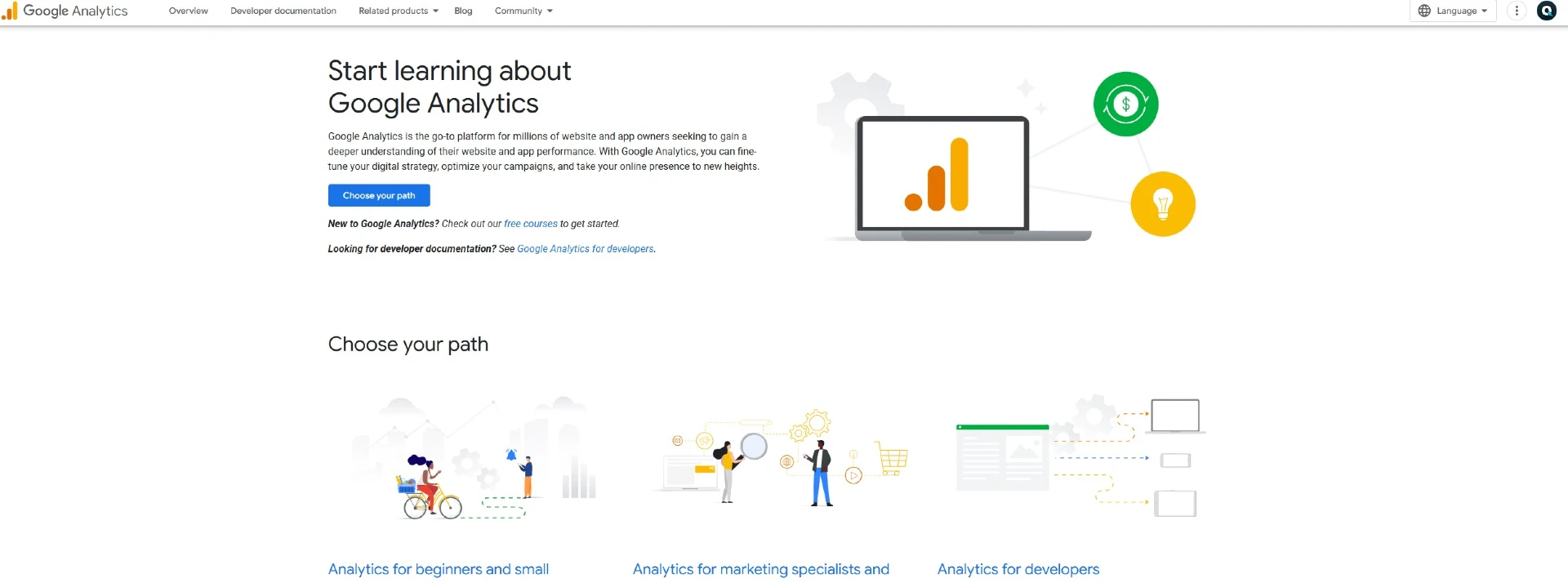
Step 1: Create a Google Analytics Account
Start by signing in to Google Analytics and creating a new property for your website. If you need a deeper walkthrough, you can follow this step-by-step Google Analytics setup guide .
Set up your GA4 property
Make sure you create a GA4 property, which is the current version of Google Analytics.
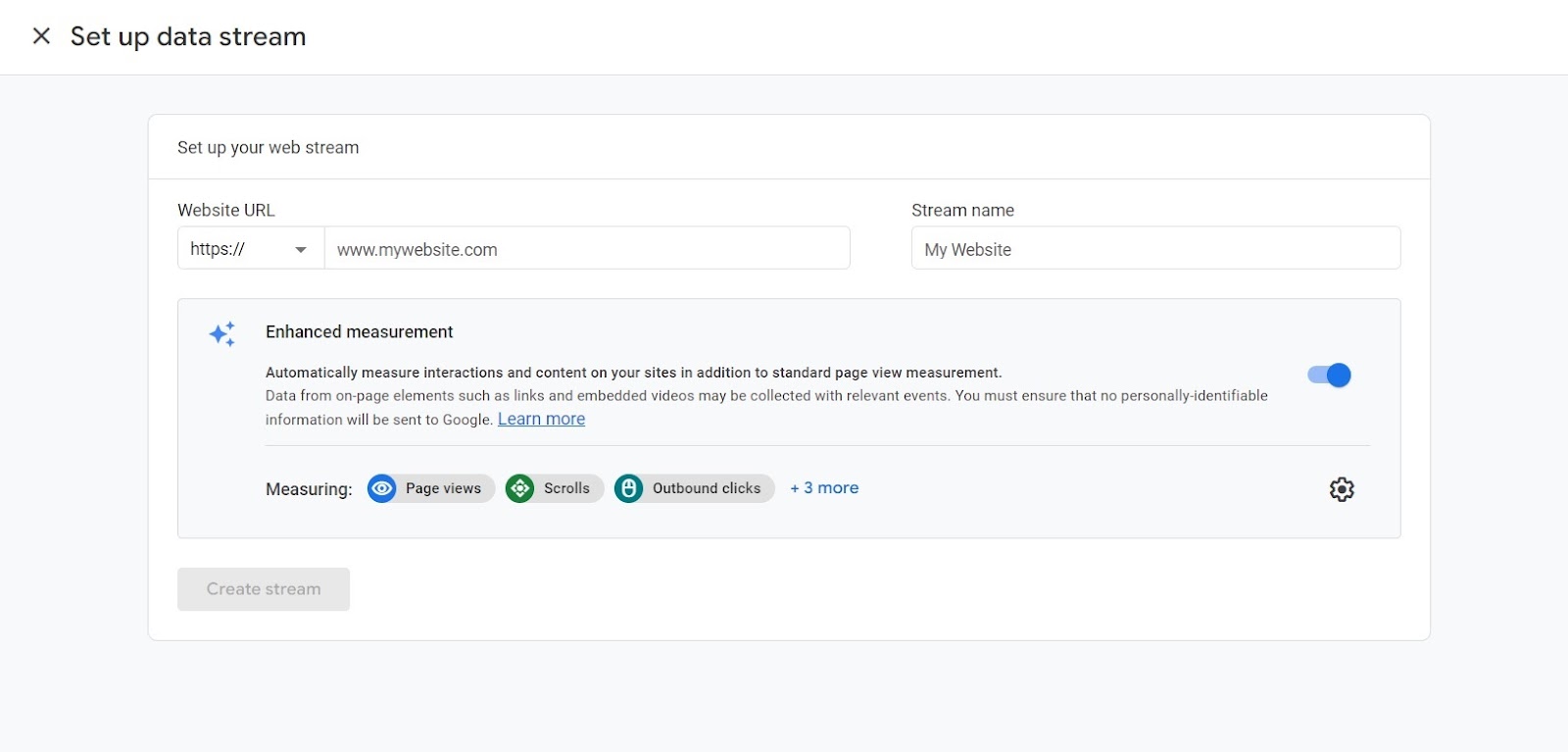
Step 2: Find Your Measurement ID
After creating your property, go to Admin → Data Streams and click into your website stream. There you’ll find your Measurement ID.
G-XXXXXXXXXXOnce you have your ID, the next step is connecting it correctly inside WordPress without creating duplicate tracking or script conflicts.
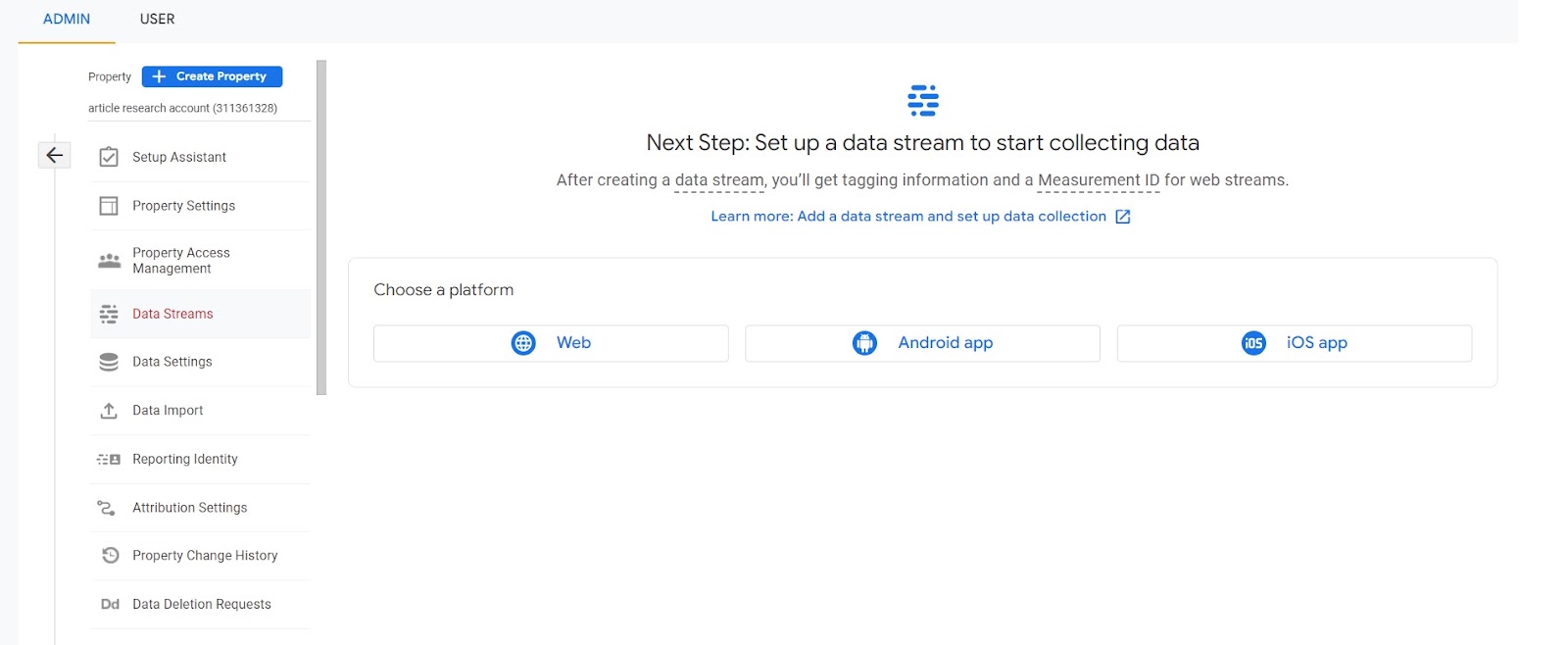
Step 3: Add Google Analytics to WordPress
There are a few ways to add Google Analytics to WordPress depending on your setup. If your site is already dealing with plugin bloat, theme issues, or performance problems, it’s worth reviewing your setup alongside a free WordPress audit before installing more tracking tools.
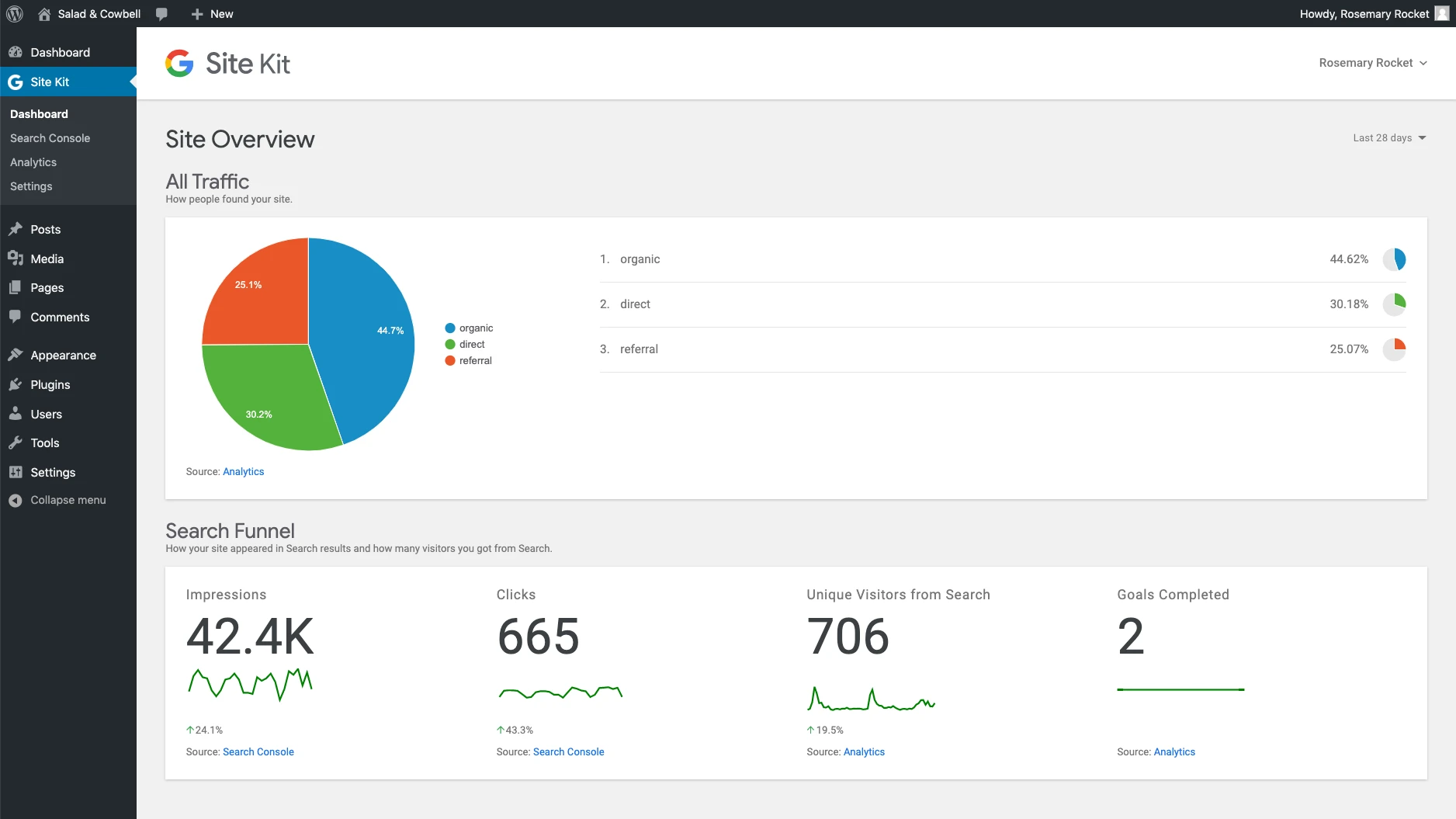
Method 1: Use Site Kit by Google
Install the official Site Kit plugin to connect Analytics quickly.
- Connect your Google account
- Select your Analytics property
- Complete setup in minutes
Follow the official Site Kit installation guide .
Method 2: Add the tracking code manually
Use a plugin like Code Snippets to safely insert your tracking code.
- Copy your GA4 script
- Add it to your site header
- Avoid editing theme files directly
Method 3: Use Google Tag Manager
Ideal for advanced tracking, event tracking, and marketing integrations.
- Track conversions and events
- Manage scripts in one place
- Improve CRO tracking
Example of the Manual Tracking Code
Manual implementation gives you more control, but it also leaves more room for mistakes. If your site already has script conflicts, slow loading pages, or render-blocking issues, you may also want to review your broader WordPress performance strategy.
<!-- Google tag (gtag.js) -->
<script async src="https://www.googletagmanager.com/gtag/js?id=G-XXXXXXXXXX"></script>
<script>
window.dataLayer = window.dataLayer || [];
function gtag(){dataLayer.push(arguments);}
gtag('js', new Date());
gtag('config', 'G-XXXXXXXXXX');
</script>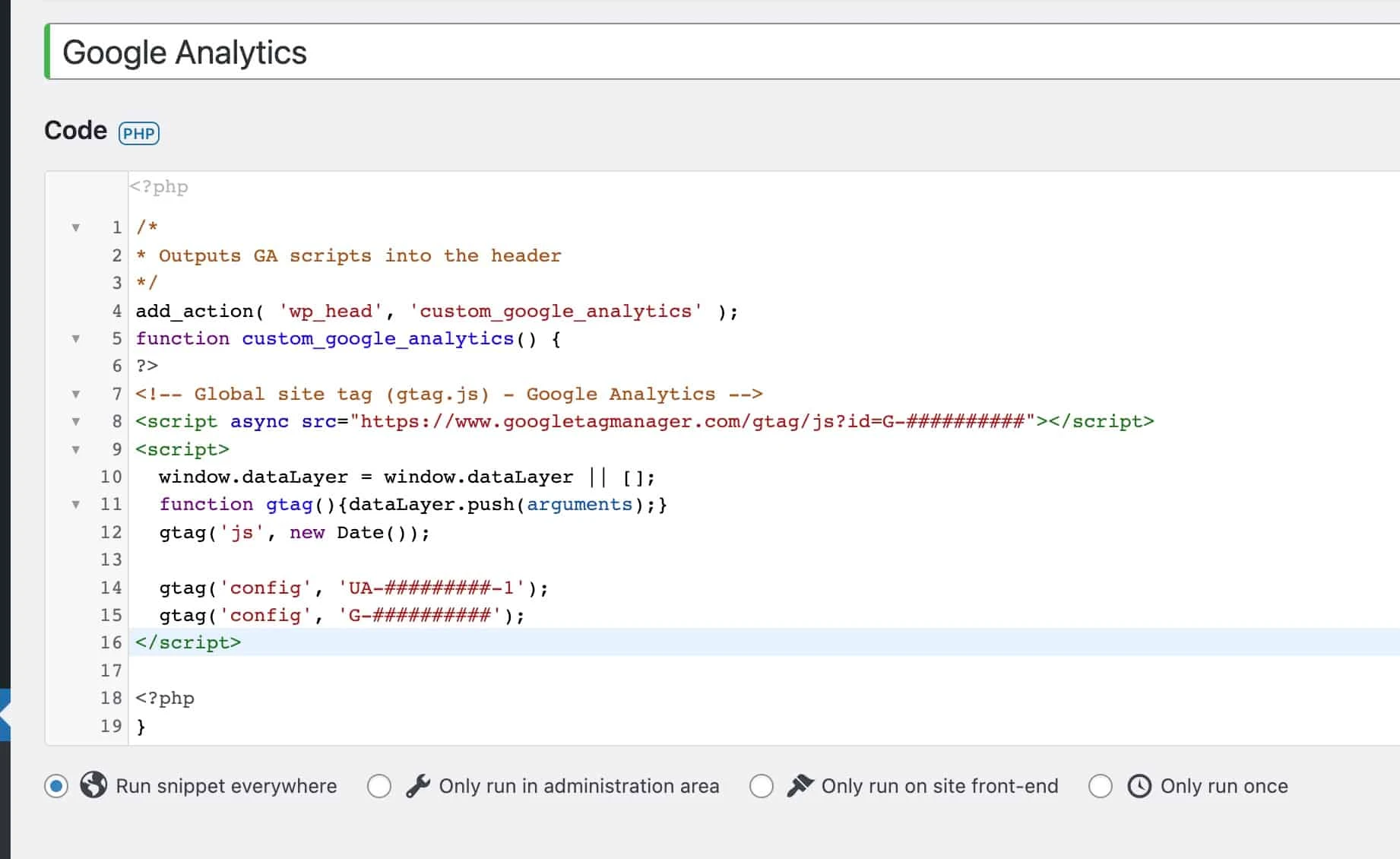
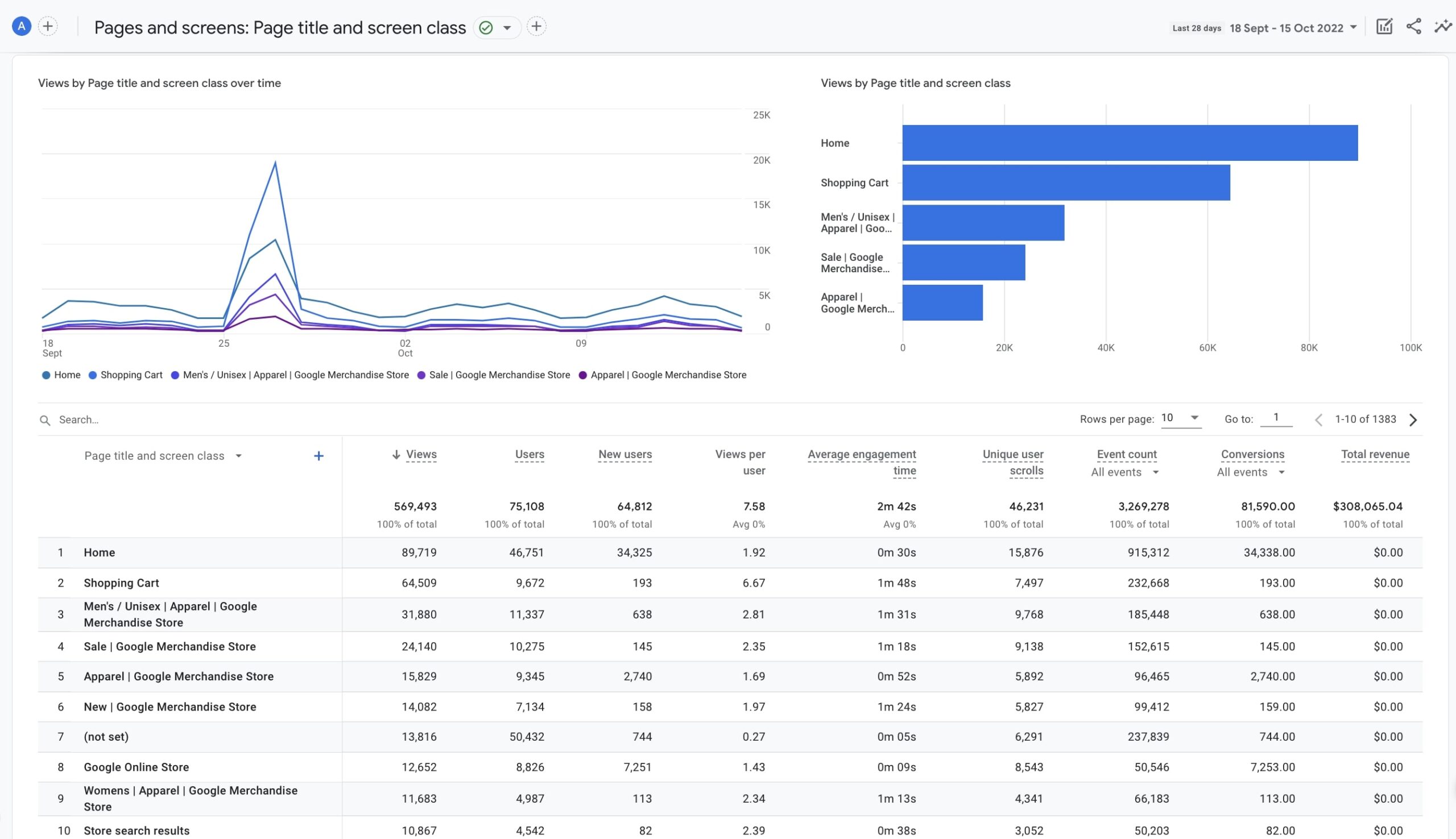
Step 4: Verify That Tracking Is Working
Verifying the setup is just as important as installing it. A broken configuration can leave you with missing data, duplicate pageviews, or conversion tracking problems.
Common Mistakes to Avoid
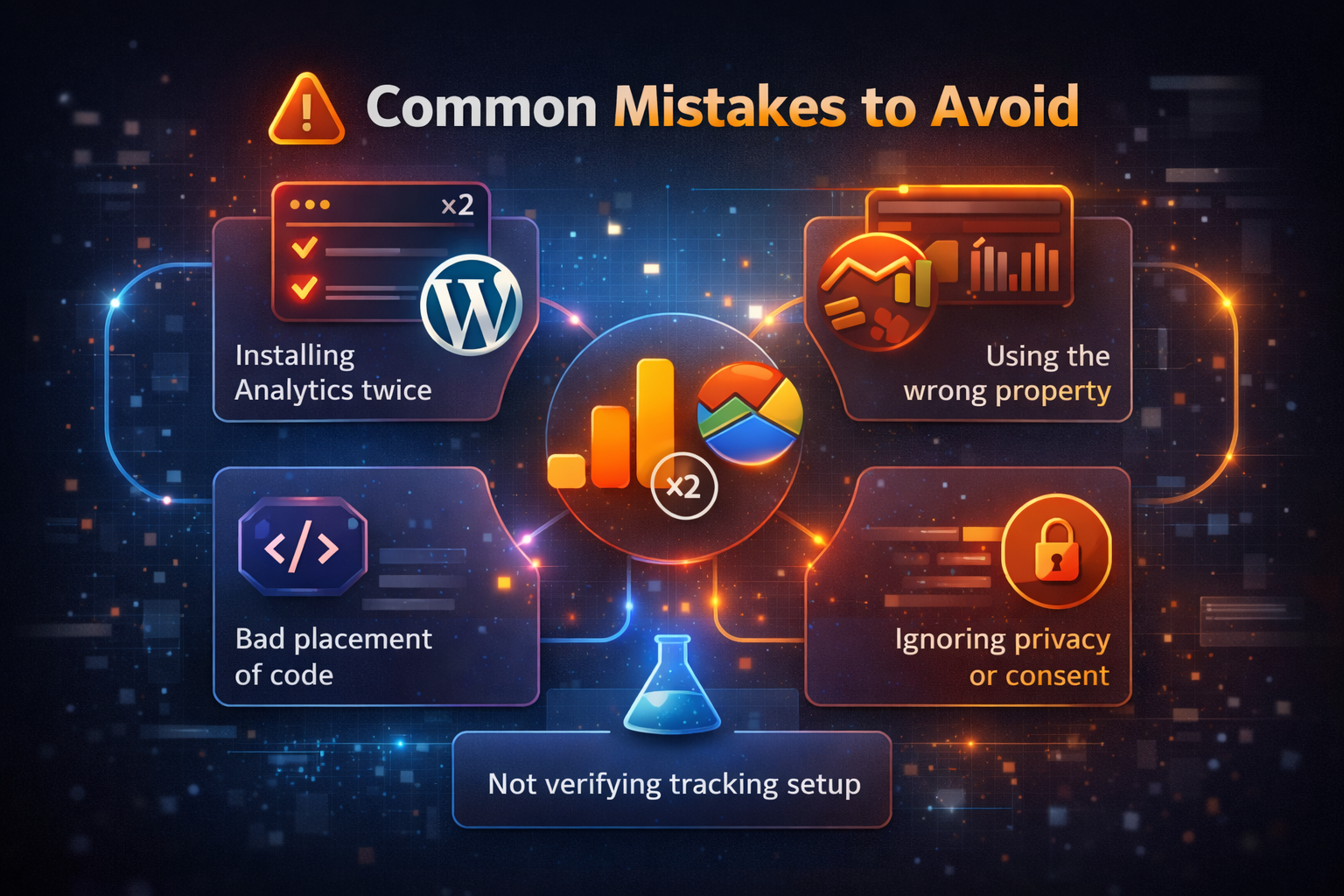
Watch out for these setup problems
- Installing Google Analytics twice
- Using the wrong property
- Incorrect code placement
- Not verifying tracking
- Ignoring privacy requirements
These setup issues can create inaccurate reporting and make it harder to understand what users are actually doing on your site. If you want help reviewing your setup, start with a free WordPress audit and we’ll help identify performance, tracking, and technical issues.
Final Thoughts
Adding Google Analytics to WordPress is simple, but doing it correctly ensures you get accurate data. Once set up, you can use insights to improve SEO, increase conversions, and grow your site.
If you also want to improve load speed, user experience, and technical performance, check out our WordPress Performance Audit Guide or request a free WordPress audit.
Frequently Asked Questions
What is the easiest way to add Google Analytics to WordPress?
For most users, the easiest method is using the Site Kit plugin. It lets you connect Google Analytics without editing code manually.
Can I add Google Analytics to WordPress without a plugin?
Yes. You can add the GA4 tracking script manually in your site header, or use a tool like Code Snippets to insert the code safely.
How do I know if Google Analytics is working?
Open the Realtime report in Google Analytics and then visit your site in another tab. If your visit appears as an active user, the setup is working.
Can Google Analytics slow down my WordPress site?
Google Analytics by itself is usually lightweight, but poor implementation, duplicate scripts, or too many tracking tools can contribute to unnecessary overhead. That’s why setup quality matters.
Should I use Site Kit or add Google Analytics manually?
Site Kit is better for beginners and fast setup. Manual installation is better for users who want tighter control over scripts and a lighter plugin stack.
Get a Free WordPress Audit
We’ll help you uncover tracking issues, performance bottlenecks, and technical problems that may be holding your site back.
Claim Your Free Audit