Backups and Recovery · Yogi's VPS
How to Request a Site Restore
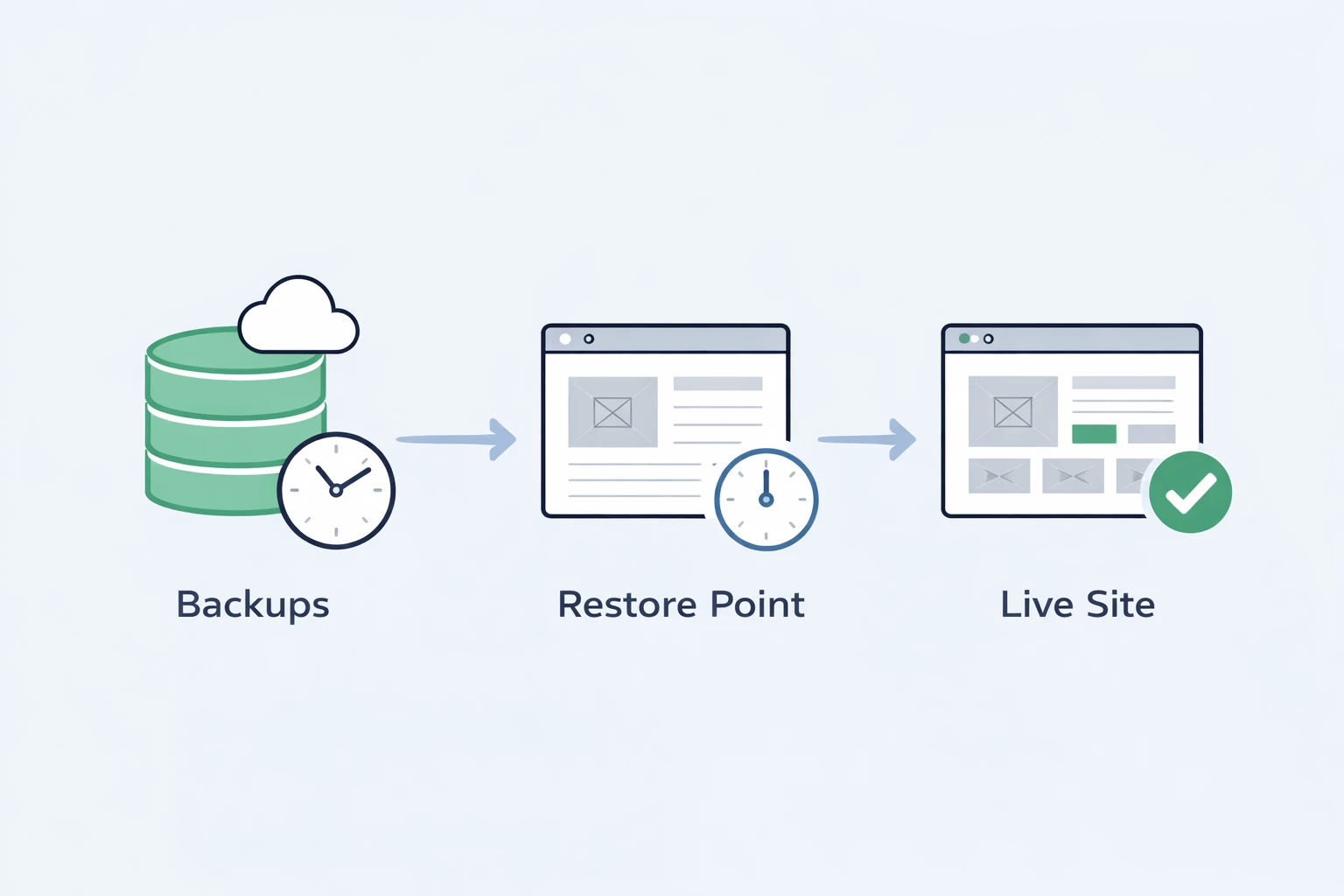
If your site breaks after an update, plugin installation, malware issue, or accidental deletion, you can request a restore from any of your daily backups. Yogi's VPS stores backups safely off server so restoring your site is quick and reliable.
This guide shows you exactly how to request a restore and what to expect during the process.
If you want to understand how backups are created and stored, see how WordPress backups and restores work.
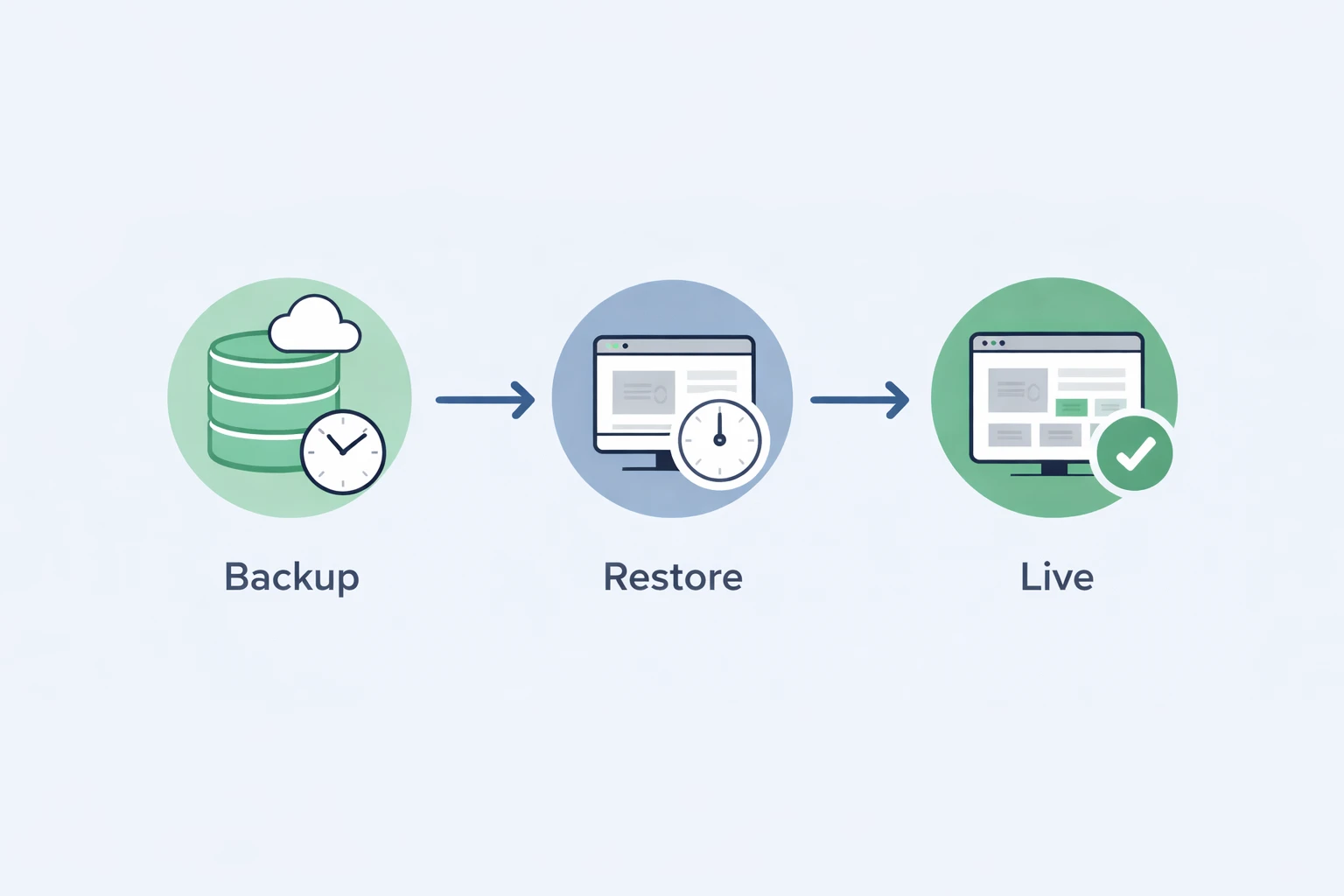
When you should request a site restore
A restore is the fastest fix when your site experiences a sudden, unexpected break. You should request one immediately if:
- The site goes down after a plugin, theme, or core update.
- Your WordPress admin dashboard becomes inaccessible.
- Something disappears or displays incorrectly without explanation.
- You suspect a malware infection or unauthorized change.
- You accidentally delete pages, media, or settings.
Many of these issues are also covered in troubleshooting a slow WordPress dashboard and WordPress login security.
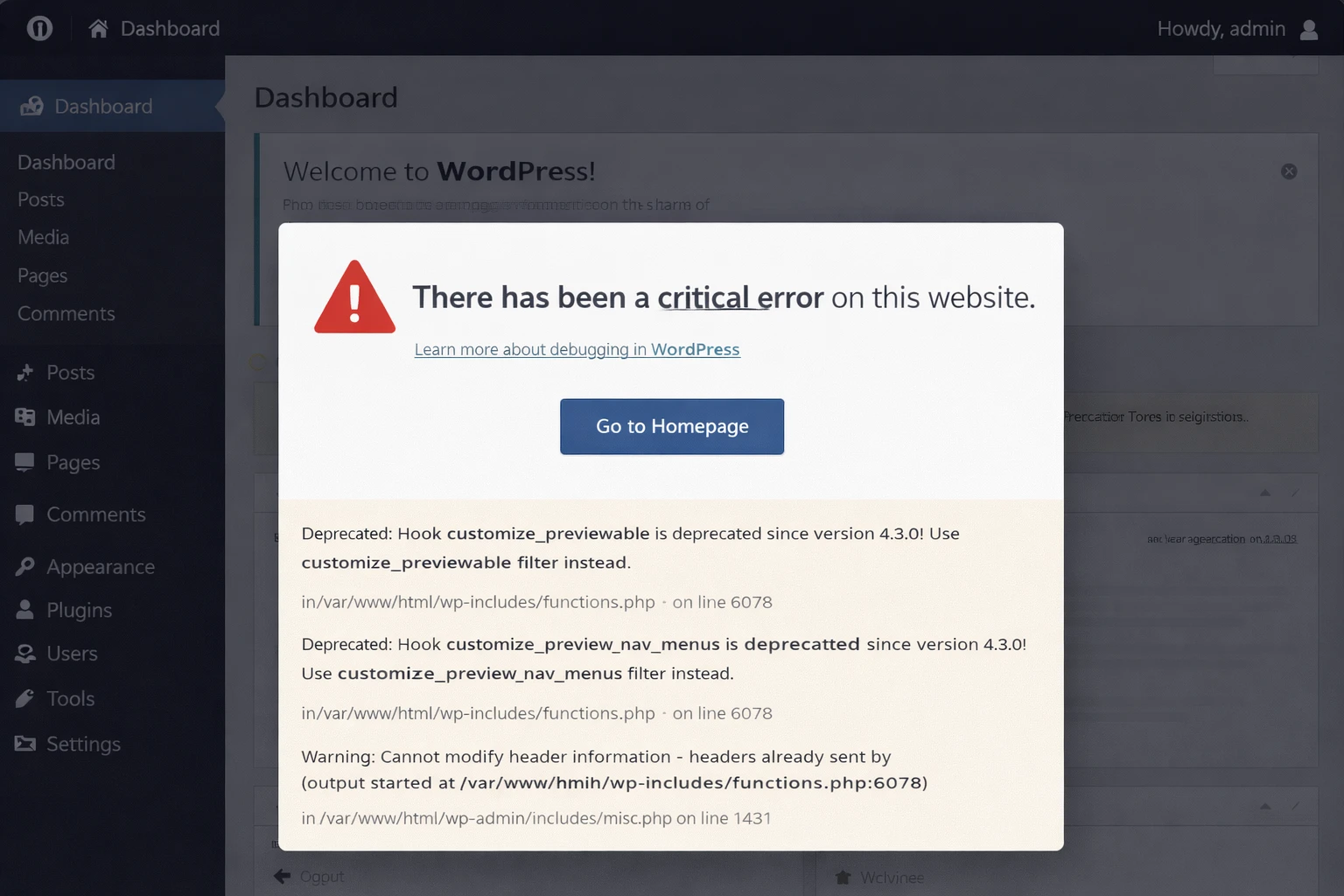
What information we need from you
The more details you provide, the faster we can restore your site with the correct backup point.
Send this information in your request
- Your domain name.
- What happened right before the issue began.
- The approximate time the problem started.
- Whether you need a full or partial restore.
- Screenshots of errors, optional but helpful.
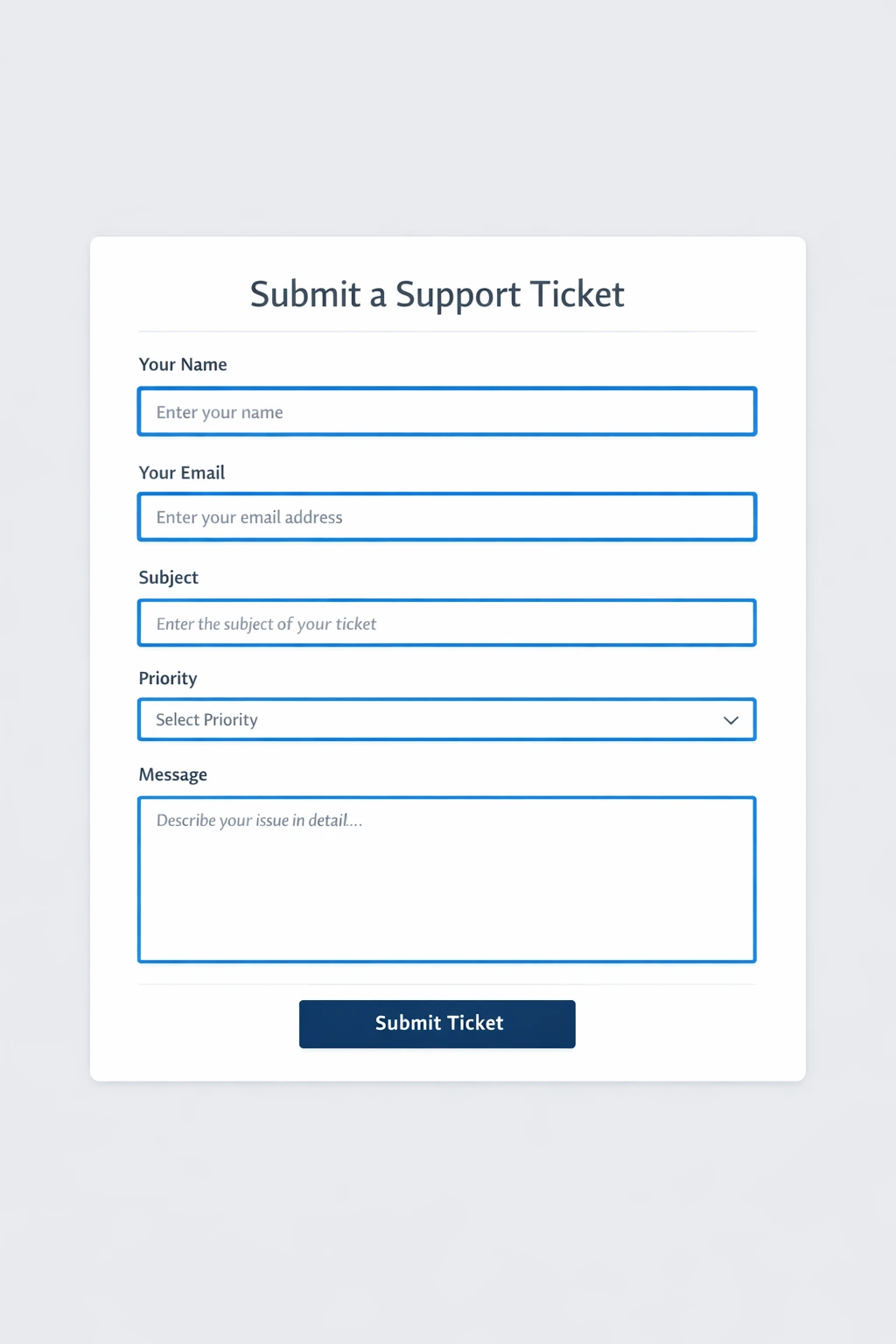
How to request a restore
You can request a restore through your hosting portal or by sending a support message.
Method 1: Submit a support ticket
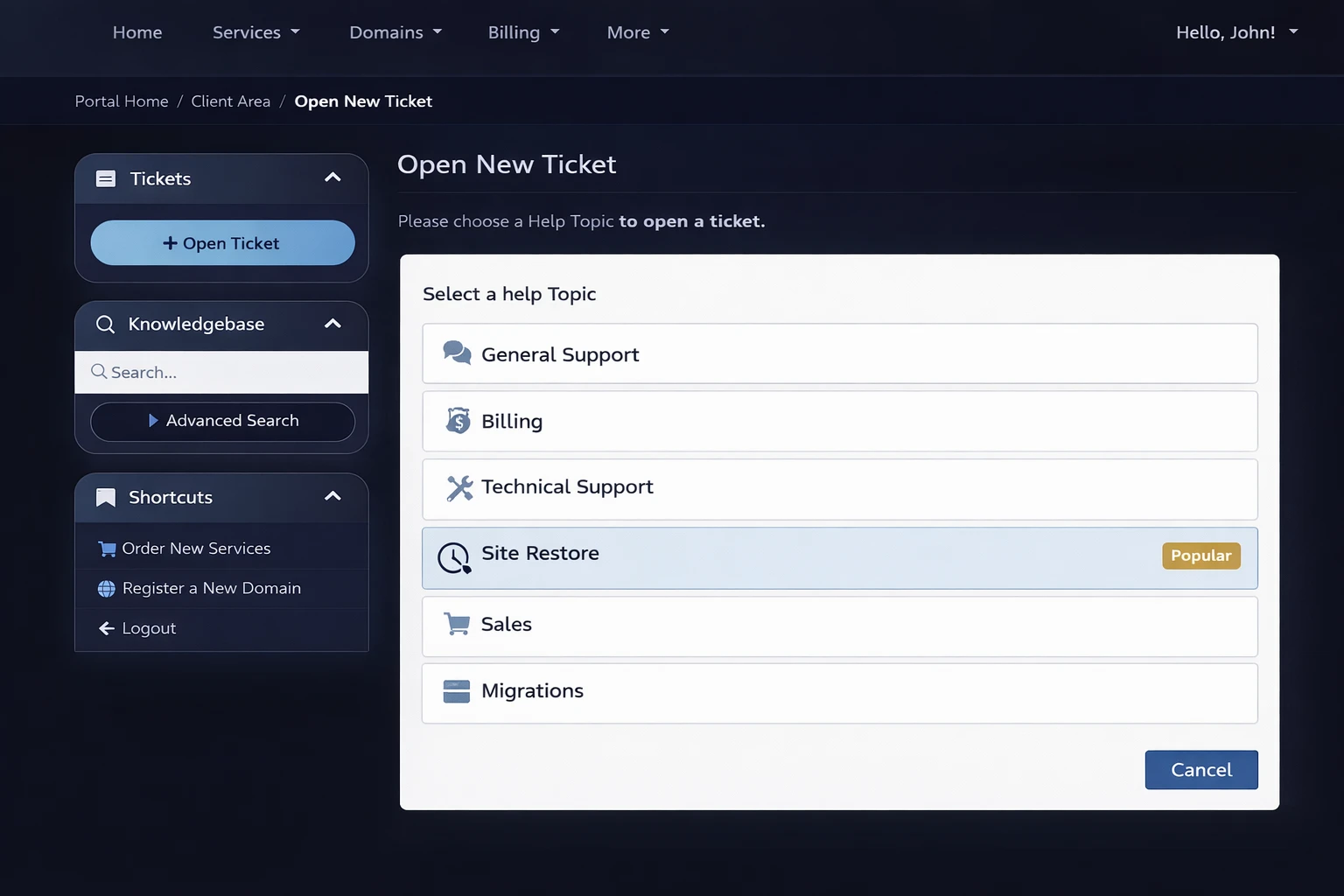
- Log in to your Yogi's VPS dashboard.
- Click Support → Open Ticket.
- Select "Site Restore Request" or "Emergency Support".
- Fill in details and submit.
Method 2: Email support
- Email support@yogisvps.com
- Use subject: "Site Restore Request - YourDomain.com"
- Include all details listed above
How long does a restore take?
Most restores complete quickly depending on scope.
- Full site restore: 10 to 30 minutes
- Database restore: 5 to 15 minutes
- File restore: 10 to 20 minutes
- Malware cleanup: varies
After your site is restored
After a restore, we confirm your site is stable and help identify what caused the issue.
- Clear browser cache and reload your site
- Test key pages and functionality
- Avoid re-running updates until reviewed
- Report anything unusual
If performance issues return, review improving Core Web Vitals or how slow hosting affects rankings.
Preventing future restore situations
Restores are powerful, but preventing issues is even better.
- Keep plugins updated and minimal
- Use trusted tools only
- Secure your login and users
- Monitor performance regularly
For a safer setup, review recommended plugins and tools and login security best practices.