Backups and Recovery · Yogi's VPS
How WordPress backups and restores work on your account
Backups are your safety net. If an update breaks your site, a plugin conflicts, or something is deleted by accident, backups let us roll your site back to a clean restore point.
This guide explains how backups work on Yogi's VPS, what is included in each backup, how long we keep them, and how restores are handled when you need help.
Backups are especially important during migrations, updates, and performance changes. If you are planning a move, review migrating from another host or moving from shared hosting to a managed VPS.
What we back up on your WordPress site
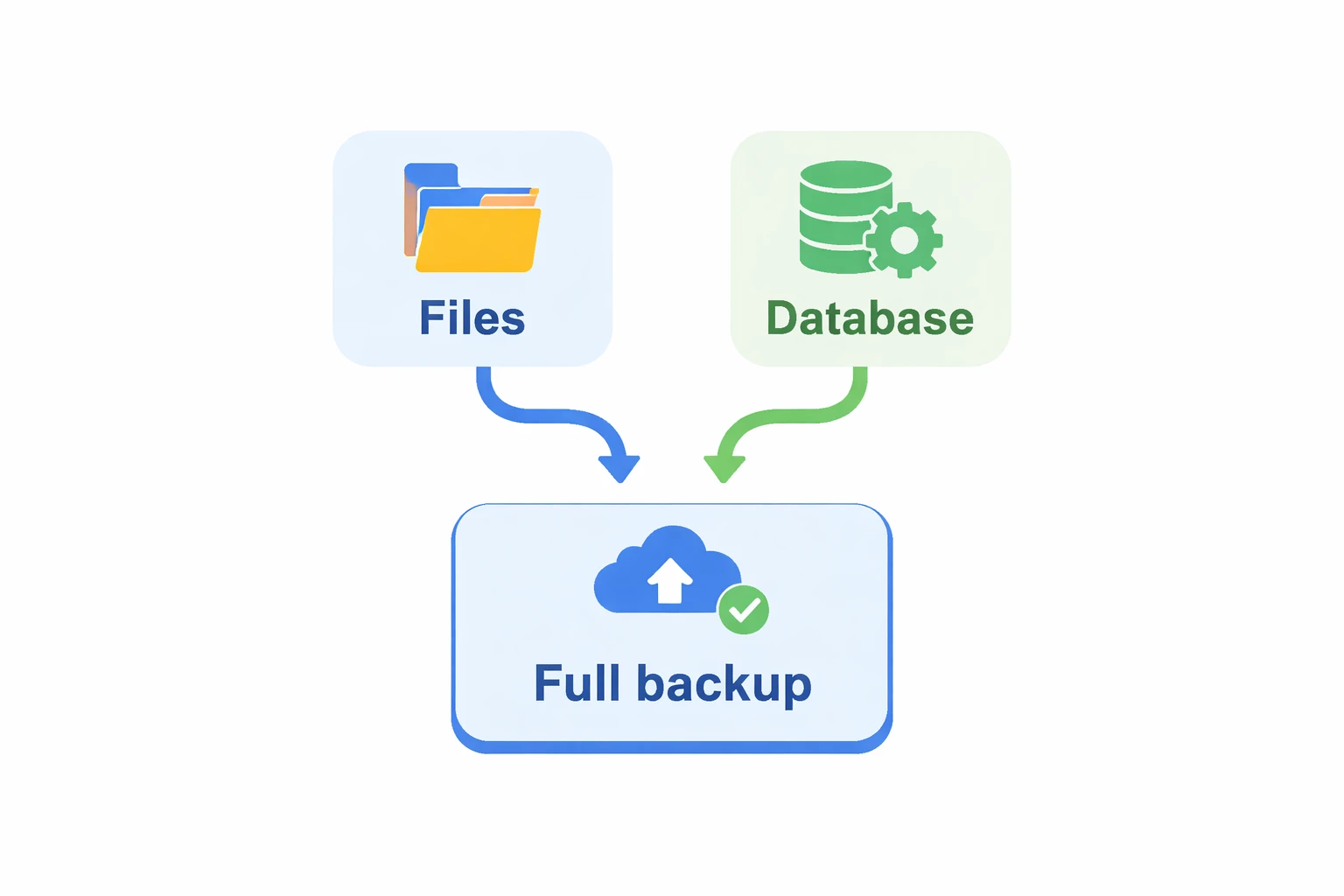
A WordPress site is more than just pages and posts. Your backup includes everything needed to bring the site back to a working state.
Files that are backed up
- WordPress core files and configuration
- Themes and child themes
- Plugins and their files
- Uploads including images and media
Database content
- Pages and posts
- Menus and theme settings
- Users and roles
- WooCommerce products and orders
Backup schedule and retention
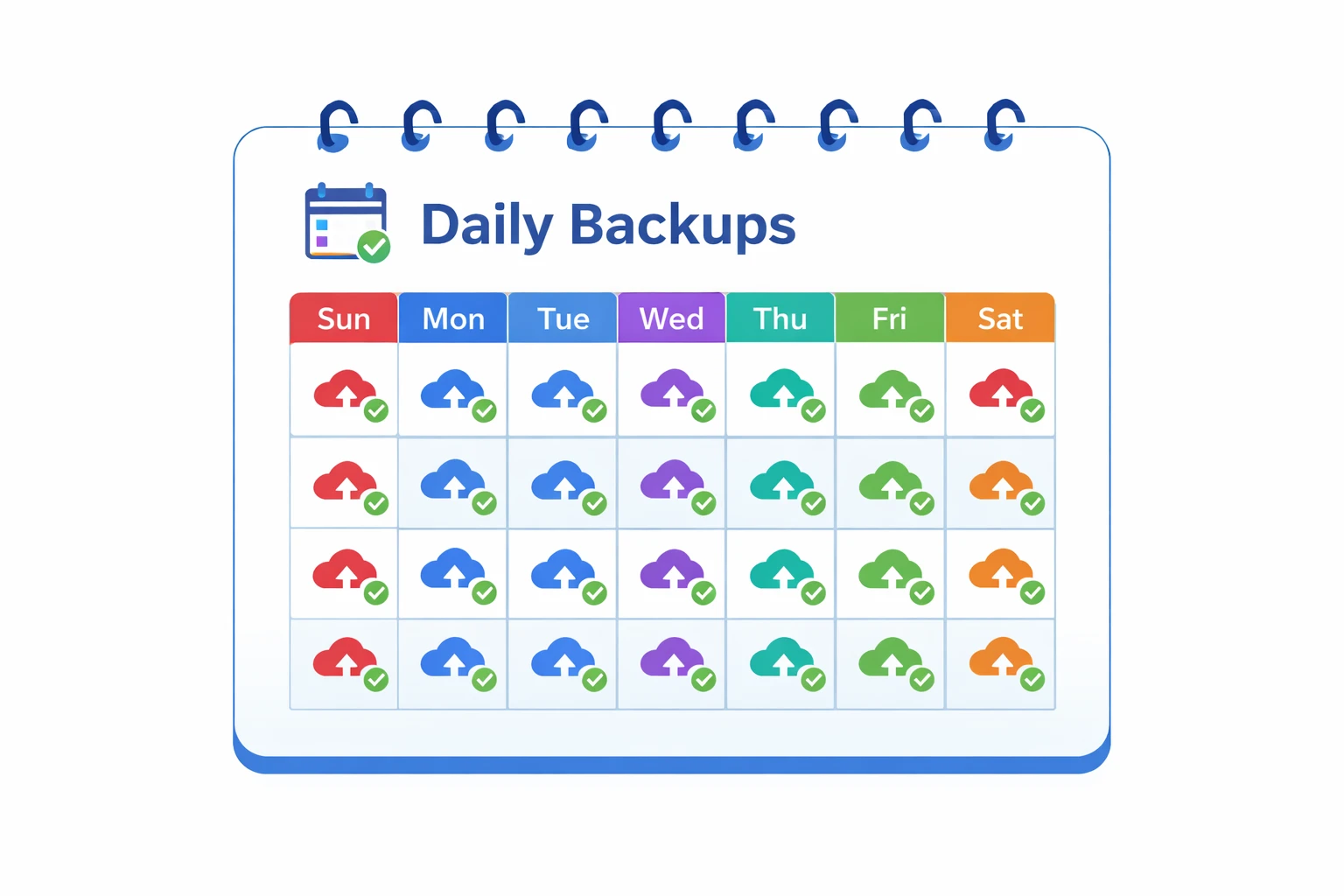
Your account includes automated backups so you do not have to think about it.
Backup schedule
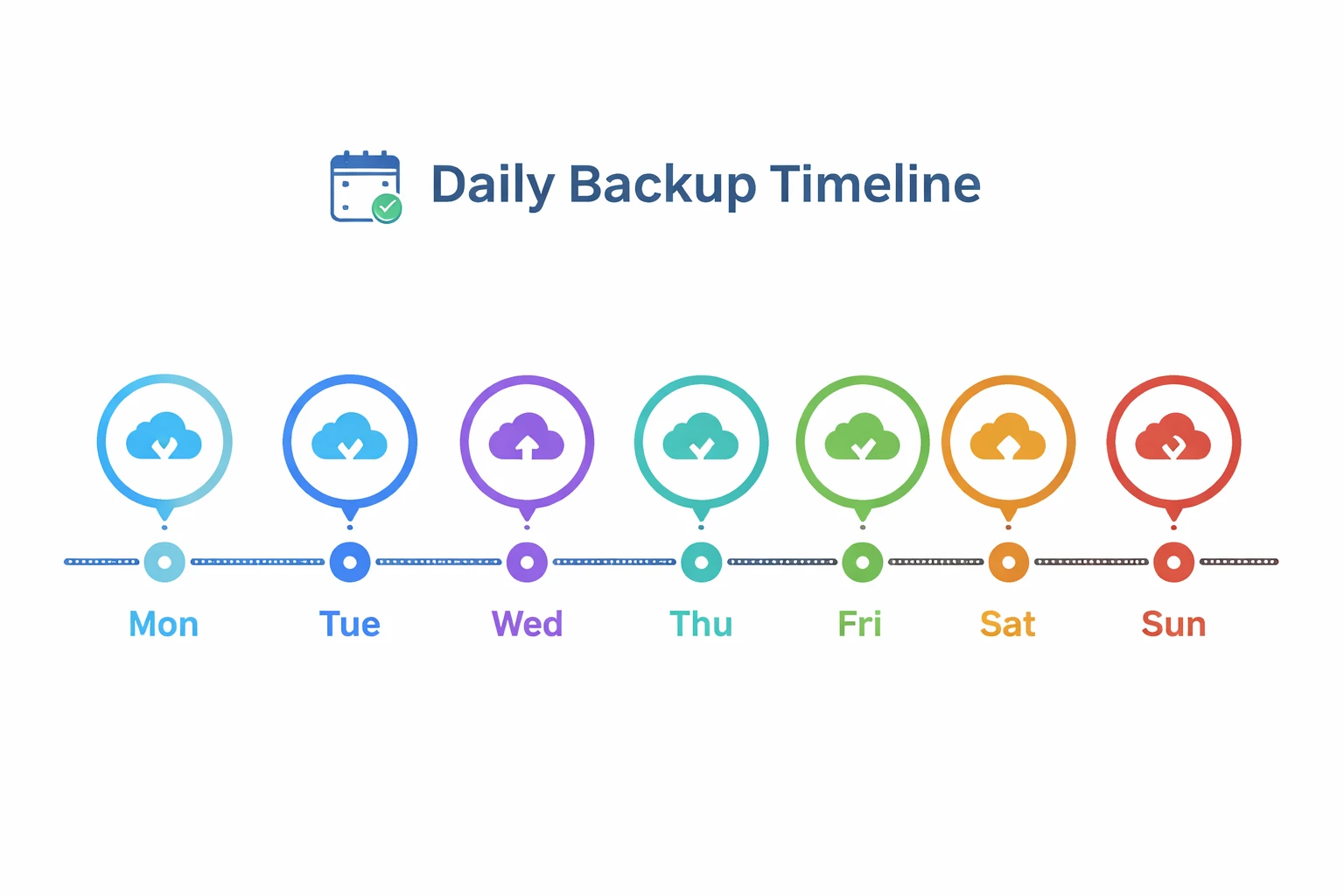
- Daily full-site backups
- Optional backups before major changes
- Manual backups available through support
Storage and retention
- Multiple restore points stored
- Backups stored off-server
- Secure access controls
Server backups vs plugin backups
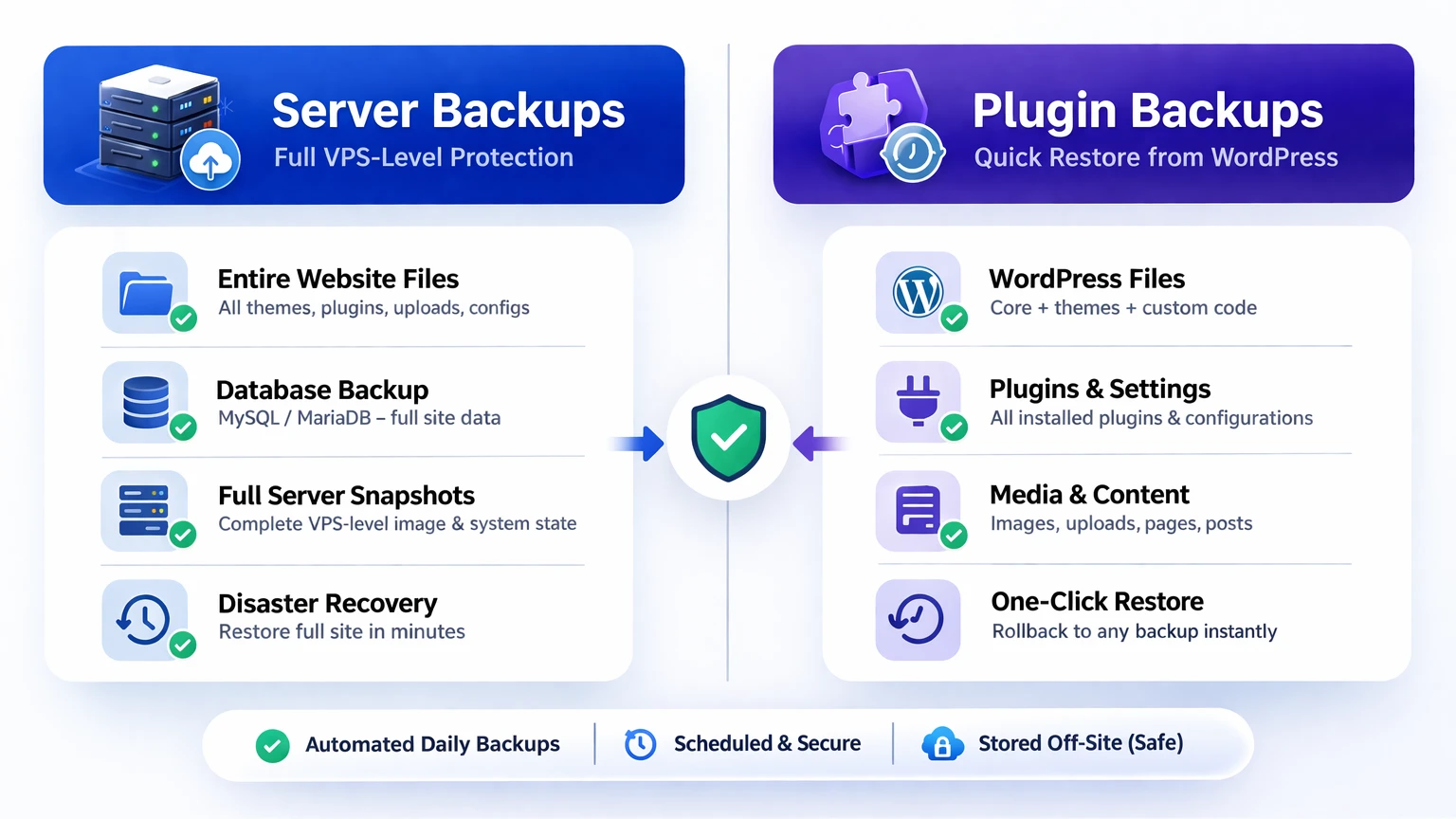
You can use plugins, but your primary protection comes from server-level backups.
Server backups
- Run outside WordPress
- Work even if site is broken
- Capture full system state
Plugin backups
- Run inside WordPress
- Useful for extra copies
- Can fail if site is unstable
For recommended tools, see recommended plugins and tools.
How restores work
If something breaks, we restore your site to a previous working state.
Full restore
- Restores entire site
- Best for major issues or hacks
Partial restore
- Files only or database only
- Used for targeted fixes
To request a restore, follow how to request a site restore.
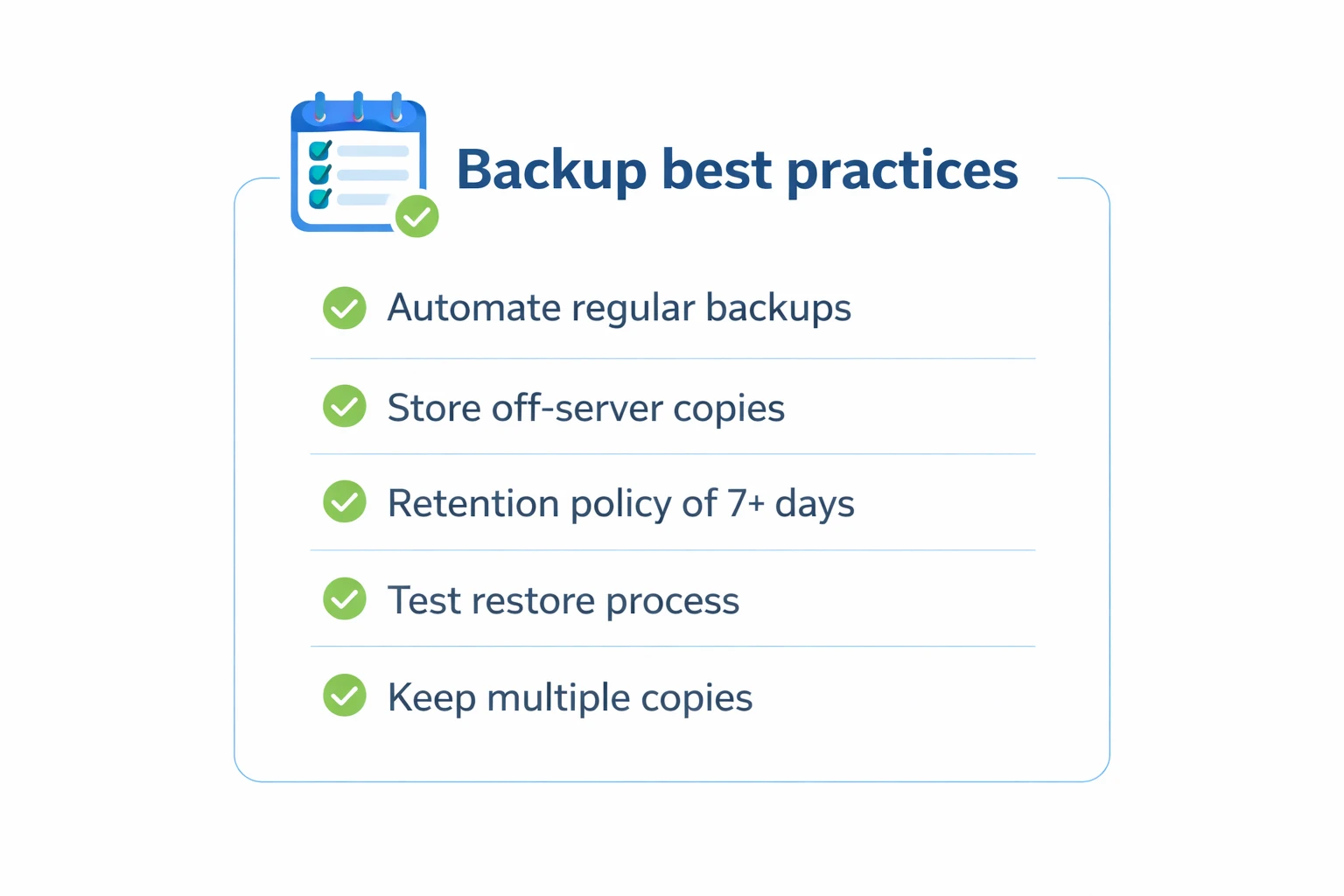
Backup best practices
- Always confirm a recent backup before major changes
- Schedule updates during low traffic
- Keep plugin stack clean and minimal
- Monitor site performance regularly
Many issues that require restores come from plugin conflicts or performance problems. Learn how to prevent these in slow dashboard troubleshooting and Core Web Vitals optimization.
Why backups matter for SEO and stability
A broken site means downtime, lost traffic, and potential ranking drops. Backups allow fast recovery, which protects both your users and your search visibility.
This is part of the larger performance and reliability strategy explained in how slow hosting affects rankings.