Domain Setup · Yogi's VPS

Pointing your domain to Yogi's VPS

DOMAIN Connect your URL
DNS Nameservers and A records
GO LIVE Launch on Yogi's VPS

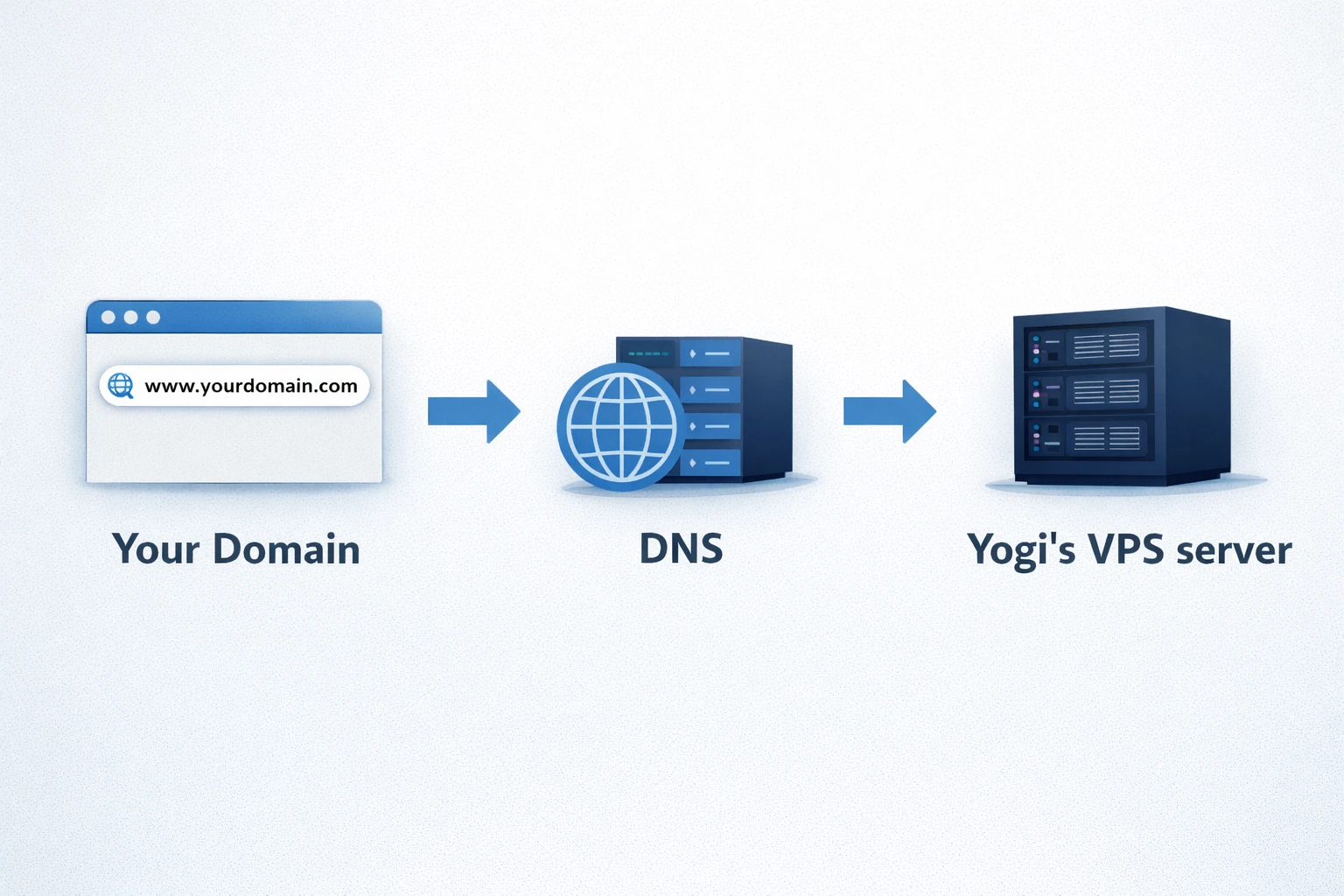
Pointing your domain is the final step that makes your site live on Yogi's VPS. You keep owning your domain at your registrar, but DNS tells browsers to load your site from our server.

There are two main ways to do this. You can either point nameservers to Yogi's VPS or keep DNS where it is and only update A and CNAME records. This guide walks through both paths so you can pick the one that fits your setup.

Option 1: Change nameservers to Yogi's VPS Option 2: Keep DNS where it is and update records
Image placeholder: Diagram showing "Your Domain" → "DNS" → "Yogi's VPS server".

Before you start: what you need ready

You can usually connect your domain in one short session if you gather a few details first.

Access you need

  • Login to your domain registrar (for example GoDaddy, Namecheap, Cloudflare, Name.com).
  • Login to any external DNS provider if it is separate from the registrar.
  • Access to your email provider settings if you use custom email.

Details from Yogi's VPS

  • Your server IP address.
  • Nameserver values if you plan to use Yogi's VPS nameservers.
  • Confirmation of your primary domain (with or without www).
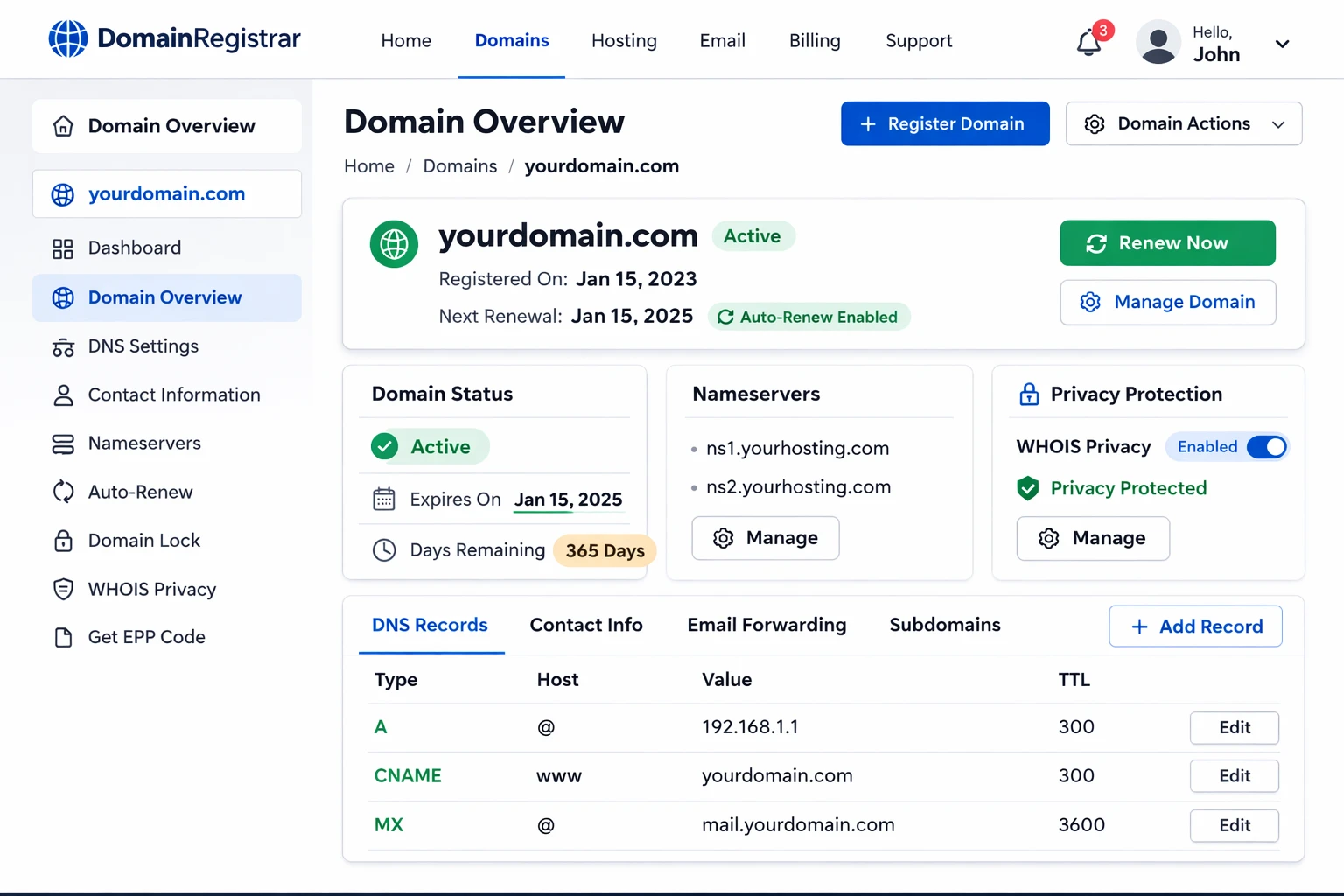
Image placeholder: Screenshot style mockup of a registrar "Domain overview" page.

Step 1: Choose how you want to point your domain

Both methods work. The choice is about who manages DNS long term and whether you already use services like Cloudflare.

Option 1 - Point nameservers

Use this if you want Yogi's VPS to manage DNS for you.

  • Simple long term for most businesses.
  • Easy for us to add records for staging and subdomains.
  • Best when you are not already using a separate DNS platform.

Option 2 - Update A and CNAME records

Use this if you want to keep DNS where it is and only point web traffic to our server.

  • Ideal when you already use Cloudflare or managed DNS.
  • Keeps MX and other records in the same place.
  • Gives internal IT teams more direct DNS control.
Tip: Not sure which option to pick? Send us a screenshot of your current DNS screen. We will suggest the simplest path and provide exact values to paste in.

Step 2a: Point your nameservers to Yogi's VPS (Option 1)

If you choose the nameserver method, you are telling the world that DNS for this domain lives on our side. After that, we manage the individual records for you.

Checklist: Change nameservers at your registrar

  • Log in to your domain registrar and open the domain you want to connect.
  • Find the "Nameservers" or "DNS" settings section.
  • Switch from "Default" or "Standard" nameservers to "Custom nameservers".
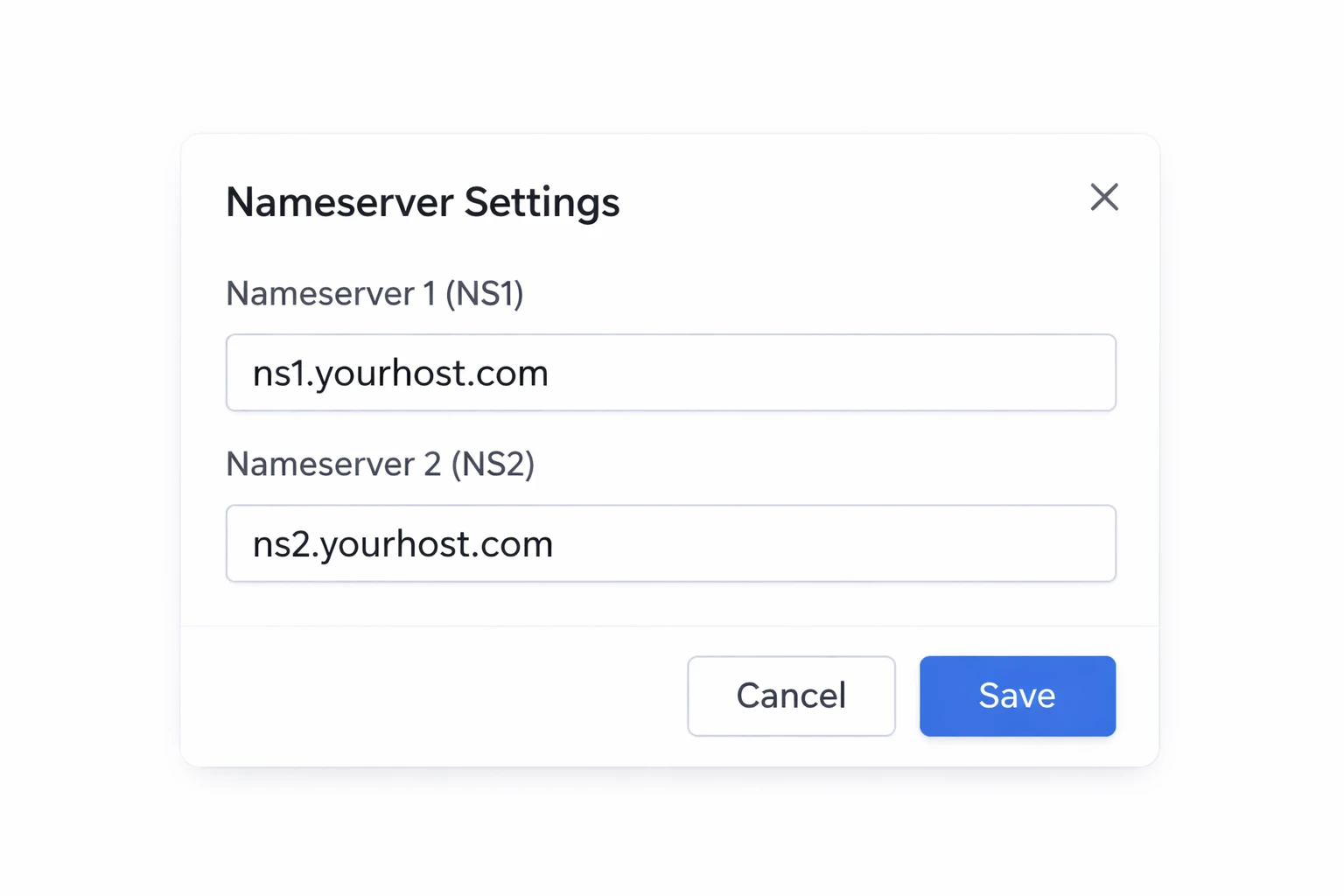
  • Enter the nameserver values from your Yogi's VPS welcome email.
  • Save your changes and confirm there are no error messages.
Image placeholder: Nameserver form with NS1 and NS2 values filled in.
Nameserver changes can take from a few minutes up to 24 hours to fully propagate. During that time, some visitors may still see your old host while others see the new one. This is normal and settles as DNS updates spread.

Step 2b: Point A and CNAME records to Yogi's VPS (Option 2)

If you choose the records method, you keep DNS where it lives today and only change the records that handle web traffic.

Checklist: Update web records

  • Log in to your DNS management screen (this may be at your registrar or a service like Cloudflare).
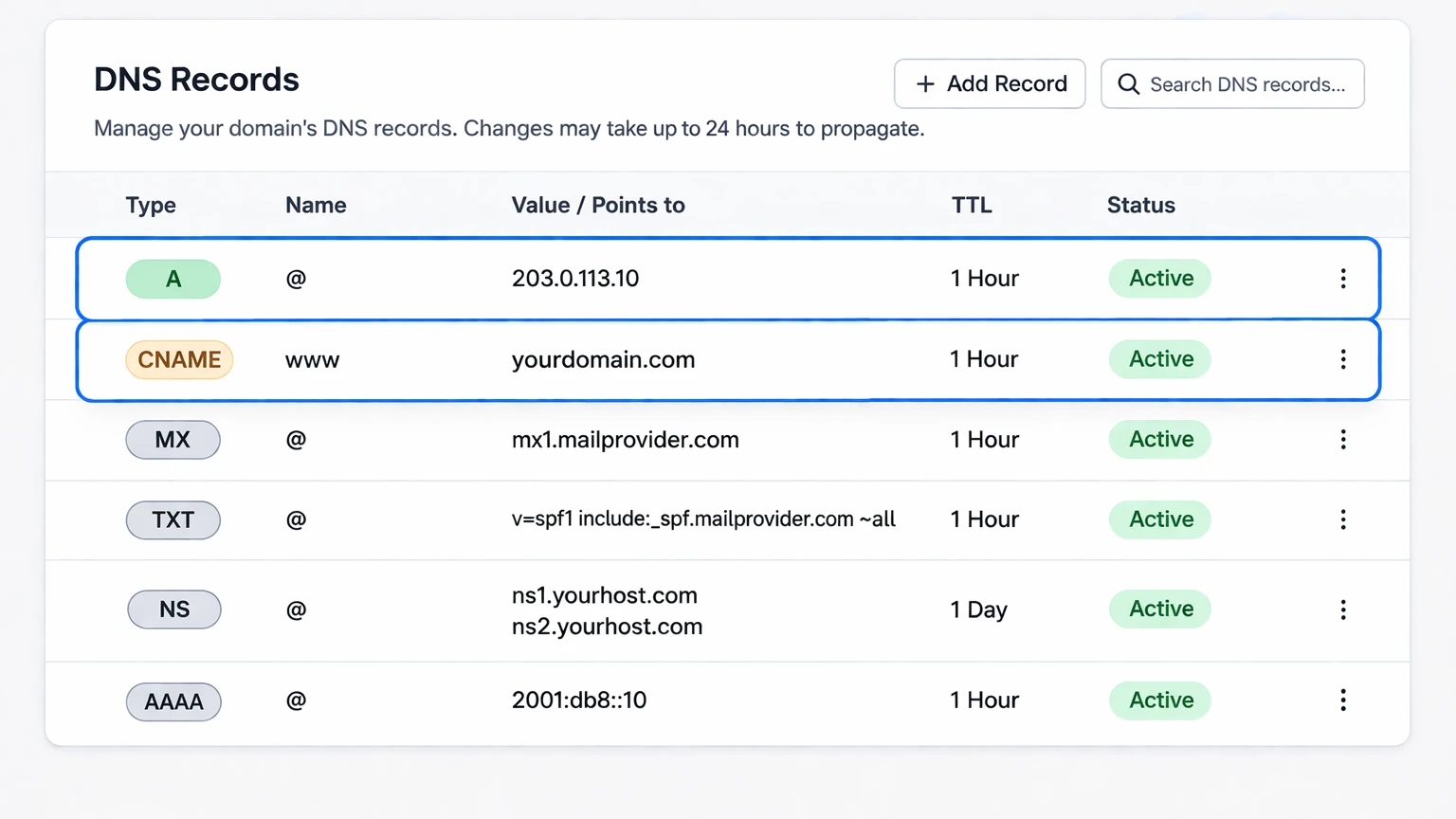
  • Find the A record for your root domain (often with "Name" set to @ or left blank).
  • Edit that A record and set the "Value" or "Points to" field to your Yogi's VPS server IP.
  • Find the record for www. This is often a CNAME that points to your root domain.
  • Make sure the www record still points to your root domain or directly to our server, depending on our instructions.
Image placeholder: DNS table with the A record and www CNAME highlighted.
Tip: Before editing any record, take a screenshot or copy the old values into a note. If something needs to be reversed, you will have the previous settings ready.

Do not touch email records

When using the records method, avoid changing MX, SPF, DKIM, and other email related records unless you are moving email providers. These records should stay as they are in most cases.

Step 3: Verify that your domain points to Yogi's VPS

After you update nameservers or records, you want to confirm that your domain now loads the site on our server over HTTPS.

Checklist: Confirm everything is working

  • Open your domain in a private or incognito browser window.
  • Refresh the page a few times and check that you see the Yogi's VPS version of your site.
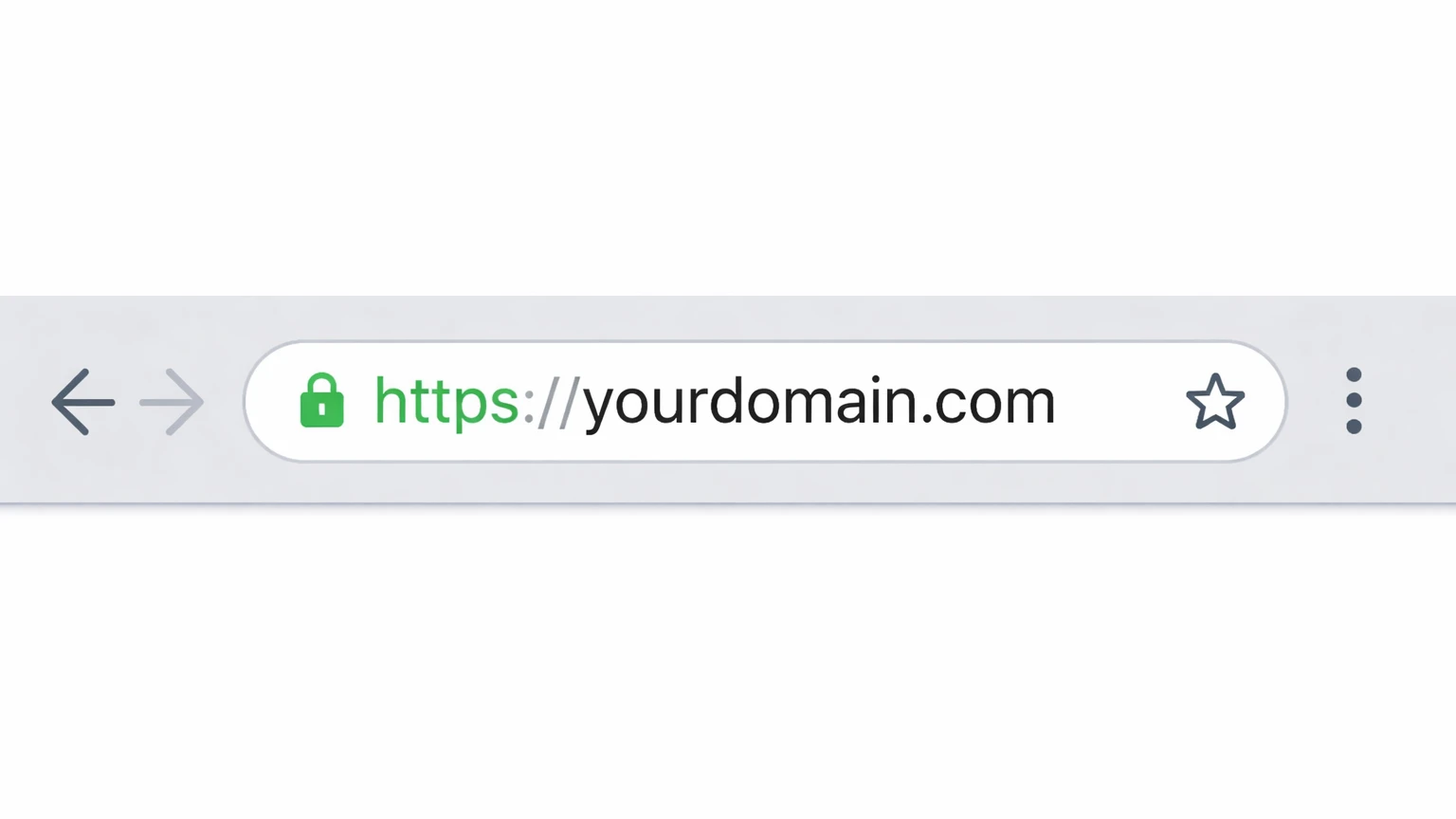
  • Confirm that the URL starts with https and that you see a padlock icon in the address bar.
  • Test both the root domain (example.com) and www (www.example.com) and make sure they end up on the same final URL.
Image placeholder: Browser bar screenshot with https and a padlock next to the domain.
If you still see the old site, your internet provider or device may be holding on to a cached DNS result. Try a different device, switch from WiFi to mobile data, or wait a bit longer for propagation.

Common issues when pointing a domain

If something looks off after the change, it is usually one of a few common problems.

Site still shows the old host

  • DNS propagation is still in progress.
  • The A record may still be pointing to the old IP.
  • The wrong domain might be set as primary inside WordPress.

HTTPS warning or no padlock

  • SSL may not be installed yet for your domain.
  • Some URLs may still load over http inside your site content.
  • Ask support to confirm SSL and set proper redirects to https.
Image placeholder: Split graphic showing an error page on one side and a fixed https page on the other.