Troubleshooting · Yogi's VPS
Troubleshooting a slow WordPress dashboard
If your WordPress dashboard feels sluggish, takes several seconds to load each screen, or hangs when saving posts, something in your stack is slowing down the admin side.
In many cases, this is tied to the same issues that affect frontend performance such as cheap hosting environments, poor caching, or inefficient plugins.
Use this checklist to quickly narrow down whether the problem is caused by plugins, database size, remote calls, low resources, or a mix of all of the above.
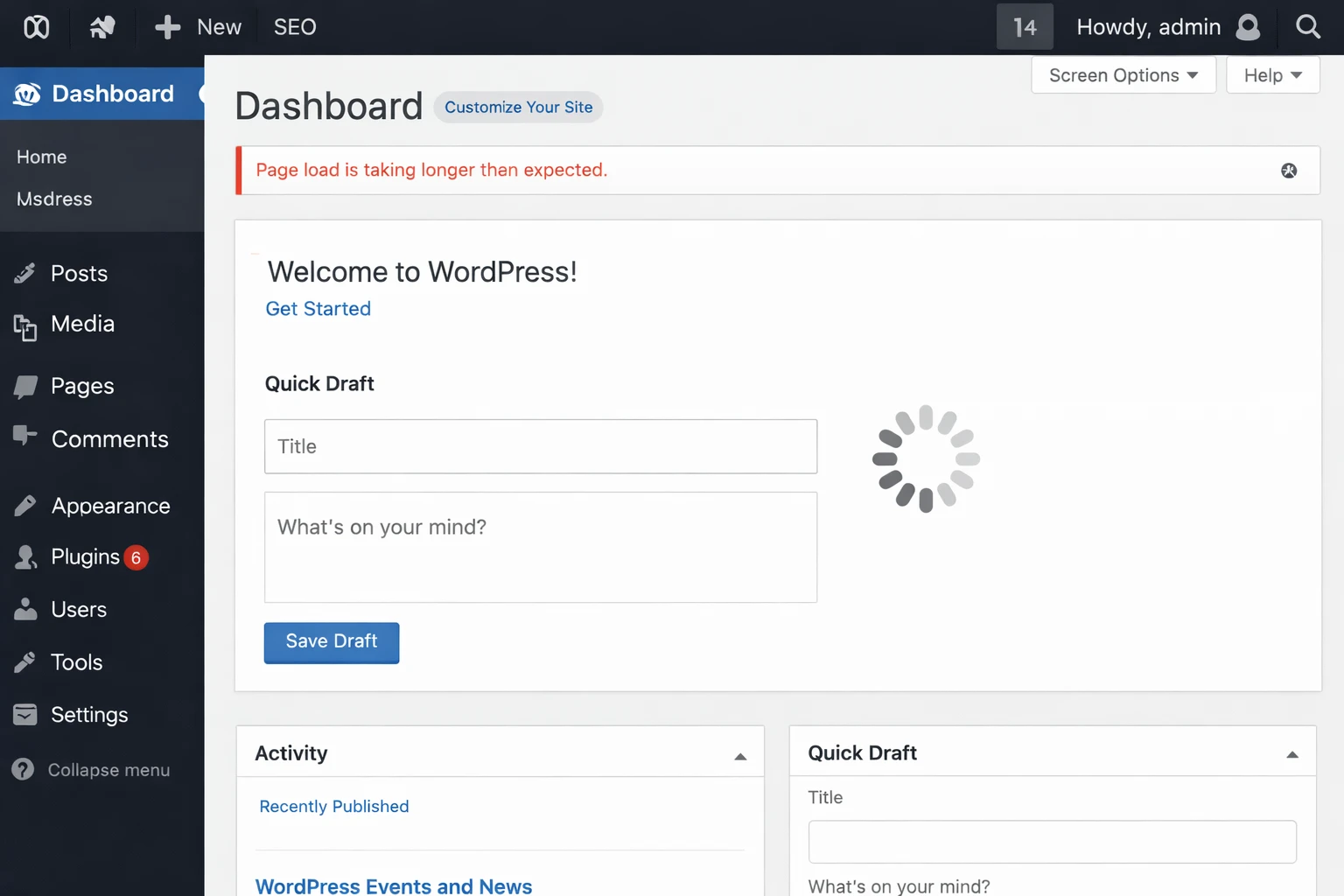
1. Confirm what "slow" means
Before changing anything, get a feel for where the slowness happens.
- Is the login page slow, or only after you log in.
- Are all admin screens slow, or specific ones like Plugins or WooCommerce orders.
- Does the dashboard feel slow only at certain times of day.
- Is the front end also slow, or only the backend.
If both frontend and backend are slow, you are likely dealing with a broader issue similar to slow hosting bottlenecks.
2. Quick checks inside the dashboard
Start with simple, low risk checks you can perform from inside WordPress.
Disable dashboard widgets
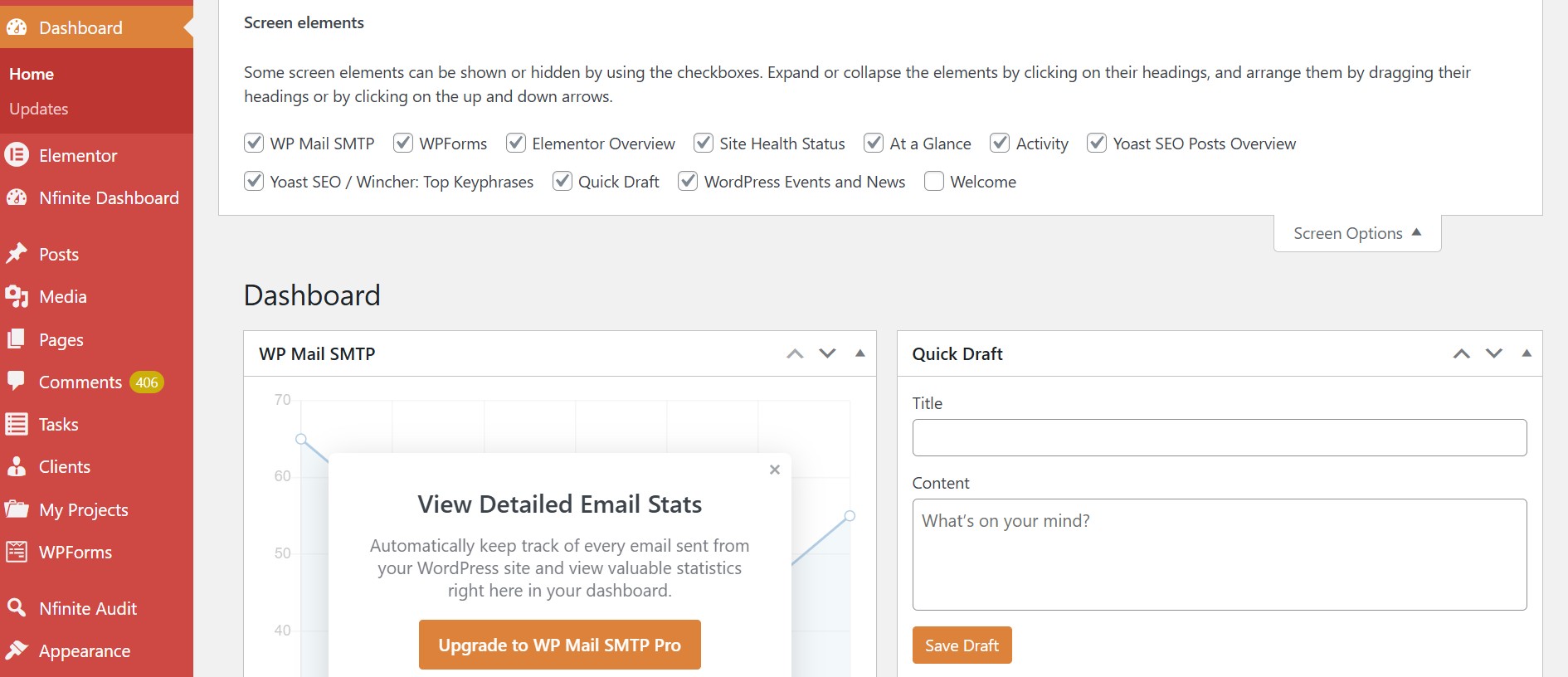
- From the main Dashboard screen, click the "Screen Options" tab at the top right.
- Uncheck heavy widgets like news feeds, plugin promo panels, and stats boxes.
- Reload the dashboard and see if load time improves.
Check for background updates
- Go to Dashboard → Updates and see if large updates are pending.
- Avoid running huge batches of updates while editing or working heavily in the admin.
3. Check for heavy or conflicting plugins
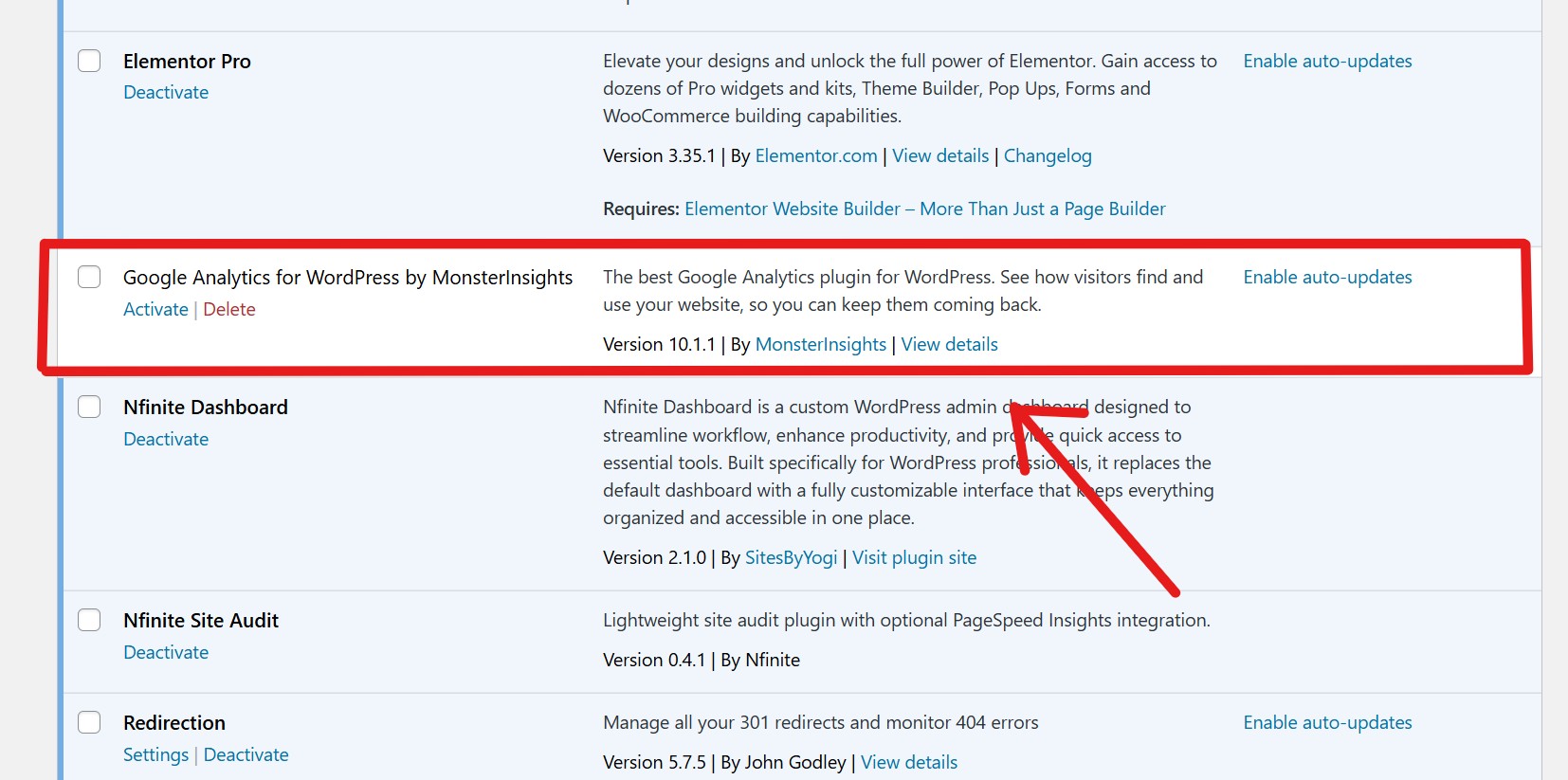
Many slow dashboards are caused by one or two plugins loading heavy code on every admin page.
Temporarily disable non essential plugins
- Make a quick backup or restore point if possible.
- Disable marketing, analytics, backup, and dashboard style plugins first.
- Leave core plugins such as WooCommerce active if the site depends on them.
- Reload the dashboard after disabling a group and note if speed improves.
Look for duplicated functionality
- Remove overlapping SEO, security, or caching plugins.
- Keep a single plugin for each major task where possible.
If you are unsure which plugins to keep, see our recommended plugins and tools guide.
4. Check resource usage on Yogi's VPS
Low PHP memory or high CPU usage can also make the dashboard feel slow, especially on busy WooCommerce or membership sites.
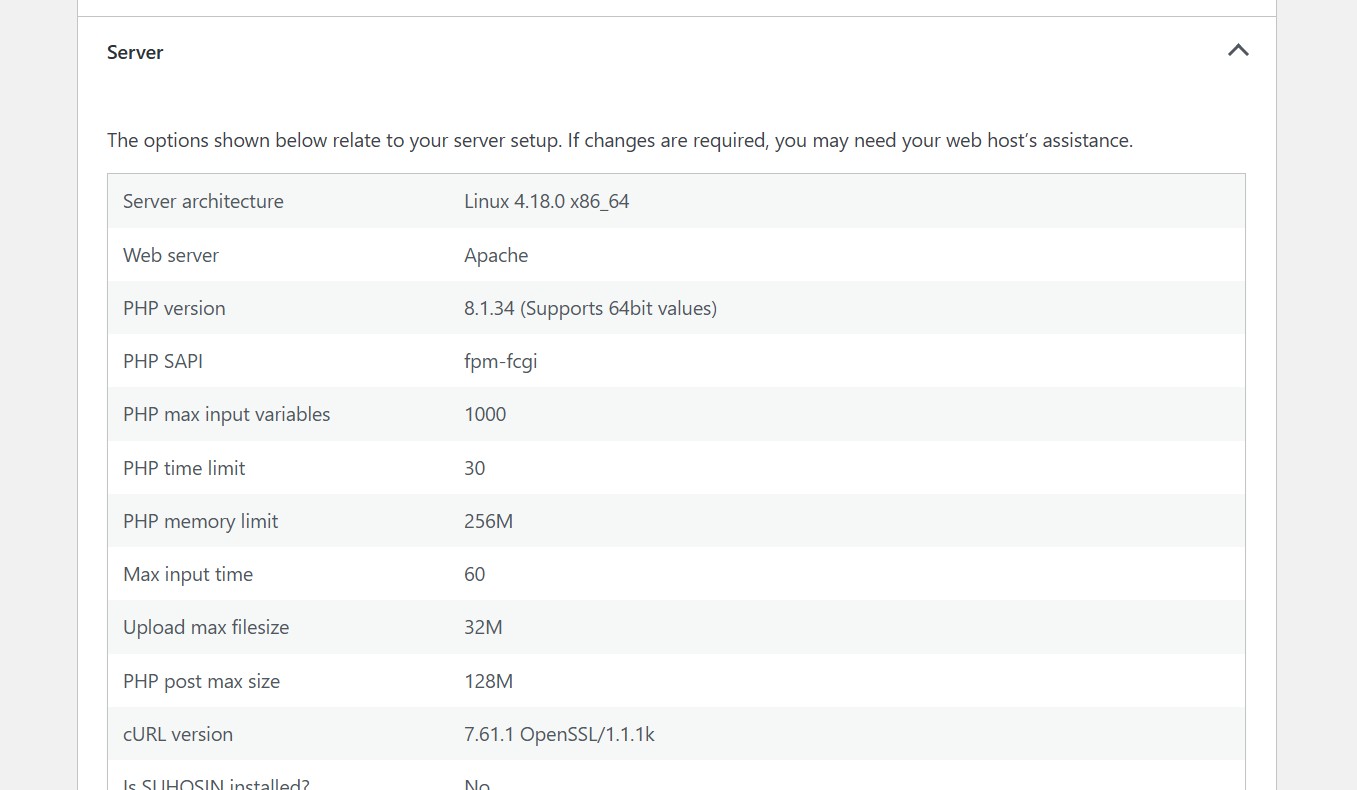
- Check the PHP memory limit in Tools → Site Health → Info → Server.
- For larger sites, aim for at least 256M of memory for WordPress.
- Ask support to review server CPU and RAM usage if you see frequent spikes.
- Confirm that you are not running scheduled scans or heavy cron jobs during peak editing times.
If resources are consistently maxed out, it may be time to move off shared hosting. See our migration guide.
5. Clean up database bloat and transients
Large options tables, expired transients, or logging tables can slow down admin queries.
Use a trusted cleanup plugin
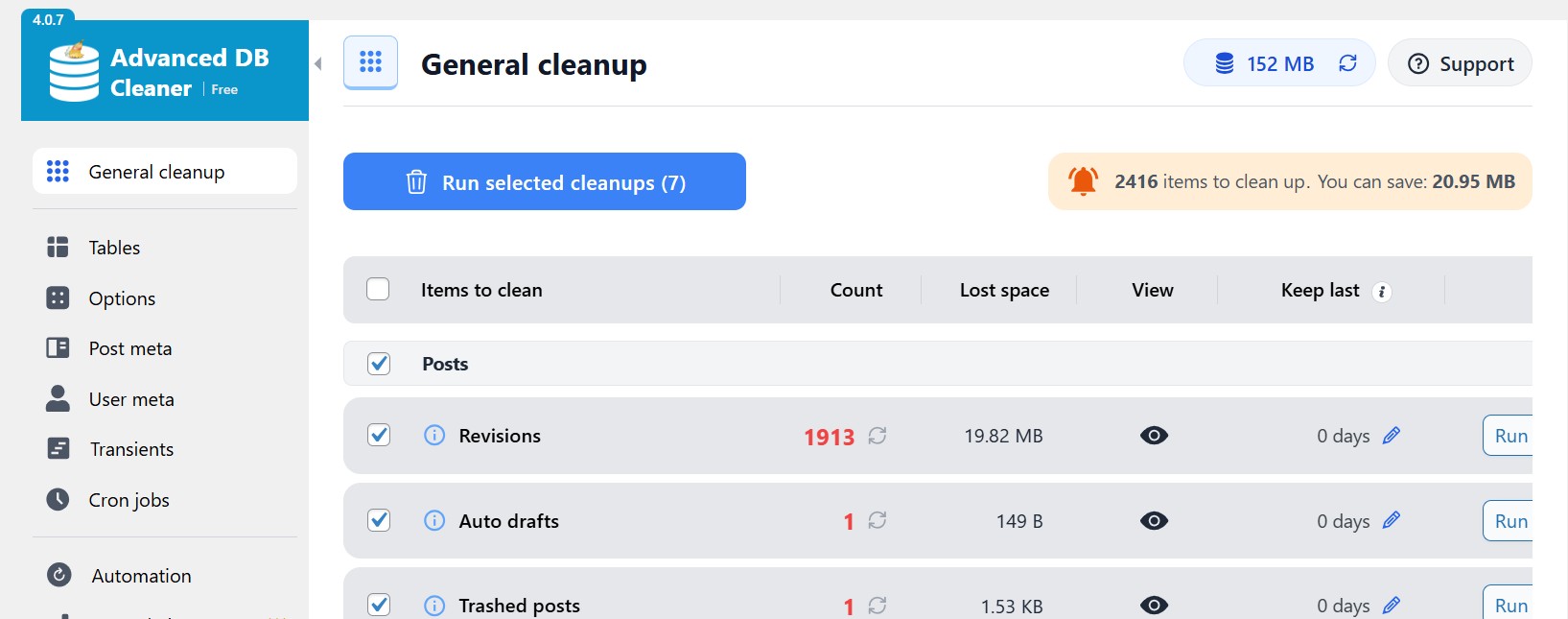
- Install a tool such as WP-Optimize or Advanced Database Cleaner.
- Remove post revisions, trash, and spam comments.
- Clean expired transients on a regular schedule.
Watch autoloaded options
- Large autoloaded options can slow every admin page.
- If you suspect this, open a ticket and we can review the options table for you.
6. Tweak Heartbeat and admin AJAX
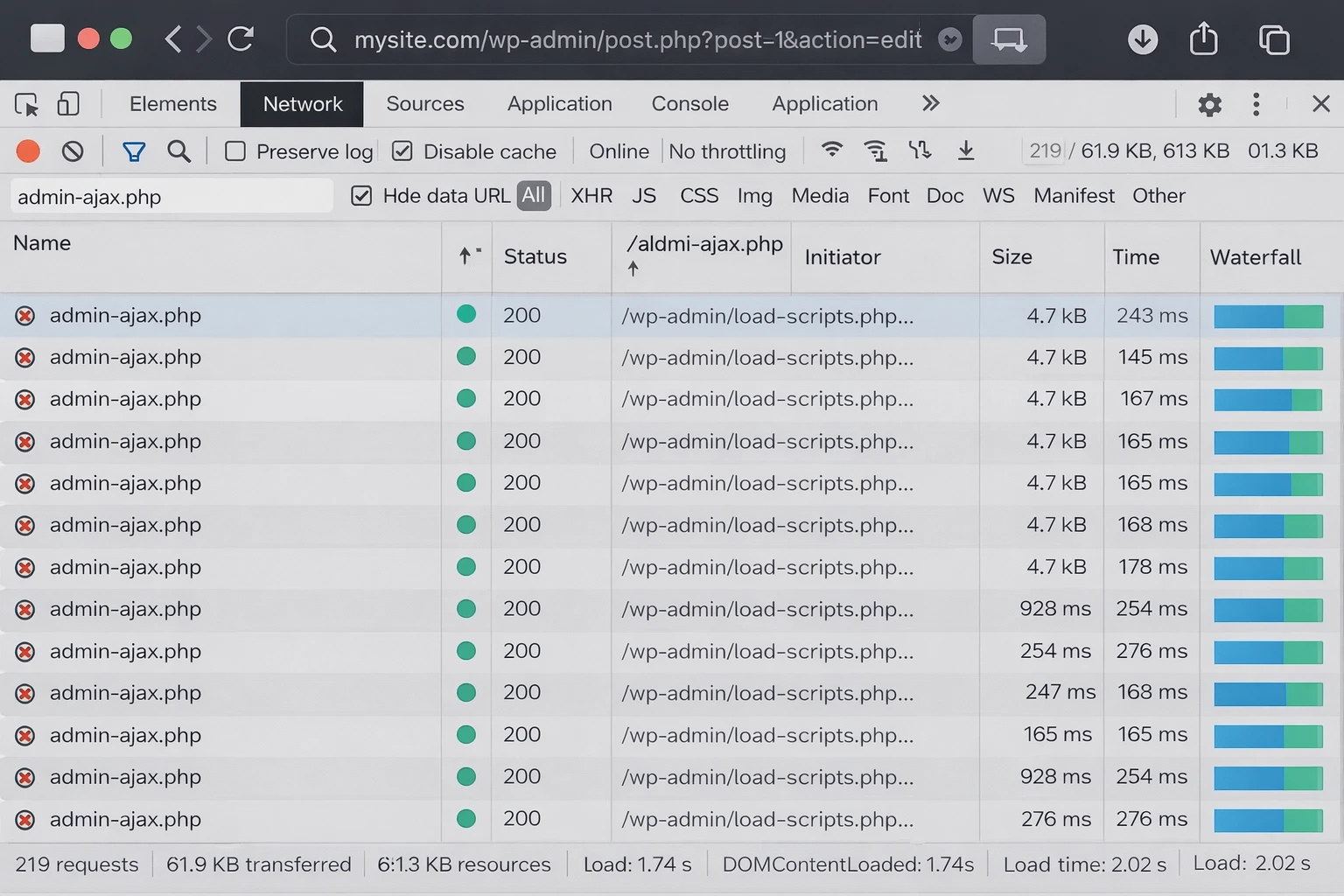
WordPress uses the Heartbeat API and admin AJAX for autosaves and updates.
- Install a Heartbeat control plugin if you see constant
admin-ajax.phpcalls. - Reduce Heartbeat frequency instead of disabling it.
- Turn off live stats widgets that constantly poll for data.
7. Speed up page and post editing
If the dashboard feels normal but the editor itself is slow, focus on what loads inside the editor.
Gutenberg and page builders
- Disable unused panels.
- Limit heavy blocks or templates.
- Trim builder addons.
Metabox and plugin panels
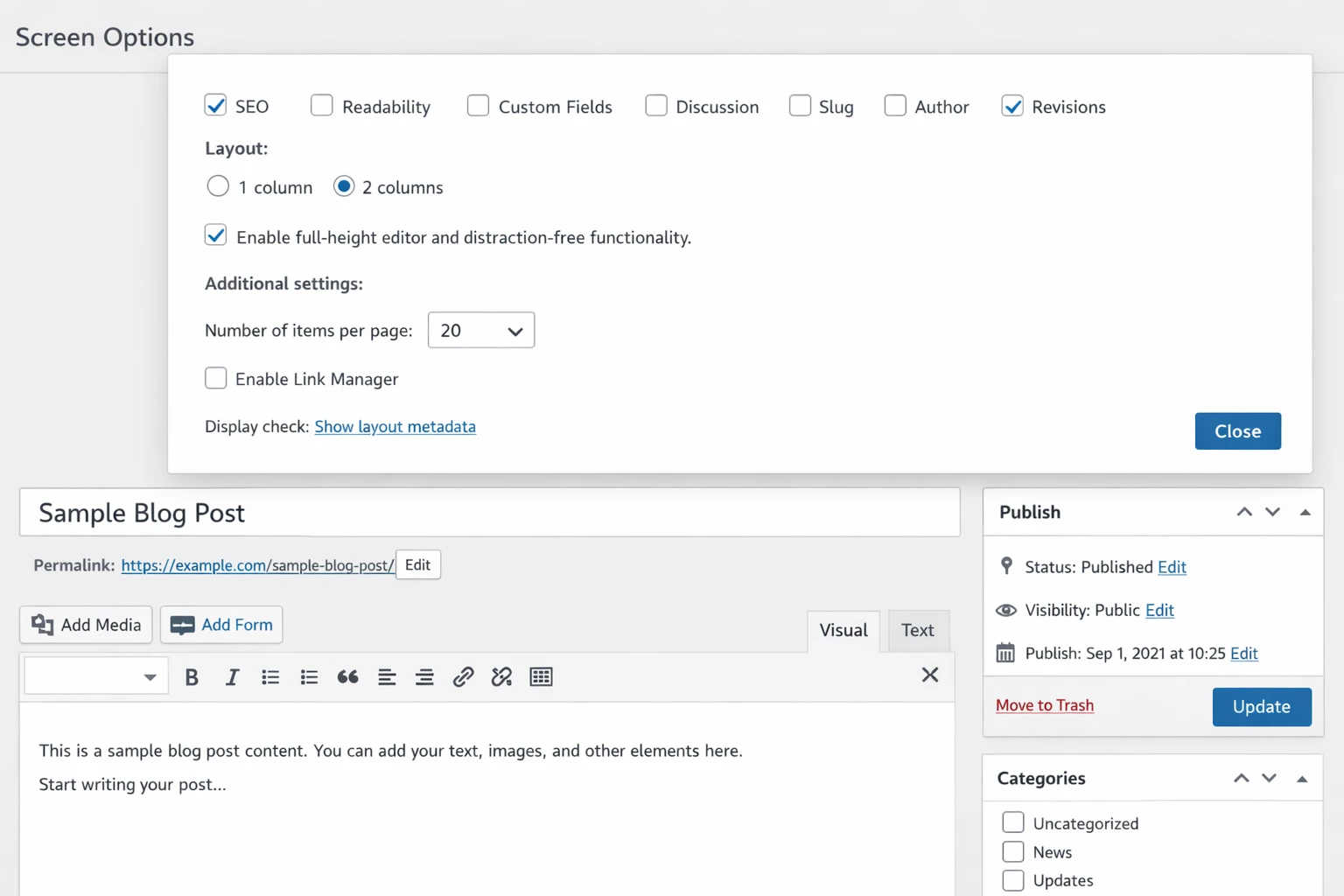
- Hide unused metaboxes via Screen Options.
- Turn off per post analytics or previews.
8. When to contact Yogi's VPS support
If you have tried the steps above and the dashboard is still slow, we can help profile what is happening.
- Send admin URL and describe where it feels slow.
- Mention steps you already tried.
- Include theme and key plugins.
- We will review logs, queries, and plugin impact.
For a deeper breakdown, we can also run a full WordPress performance audit to identify bottlenecks across your entire stack.