WooCommerce · Yogi’s VPS
WooCommerce Performance Checklist
WooCommerce sites require more power, more caching strategy, and tighter database hygiene than a normal WordPress blog. This checklist covers everything you should optimize to keep your store fast, stable, and ready for traffic spikes.
If your store feels slow, it is usually not just one issue. It is often a mix of weak hosting, plugin bloat, large product images, and database overhead. That is why WooCommerce stores benefit from the same approach outlined in our WordPress performance audit guide.
1. Optimize Hosting & Server Stack
WooCommerce needs strong CPU, fast NVMe storage, and optimized PHP workers. Yogi’s VPS is already tuned for dynamic store workloads, but here’s what you should ensure:
- PHP 8.2 or higher with OPcache enabled
- MariaDB or MySQL optimized for InnoDB
- Dedicated PHP-FPM workers per site
- Server-level caching enabled for static files
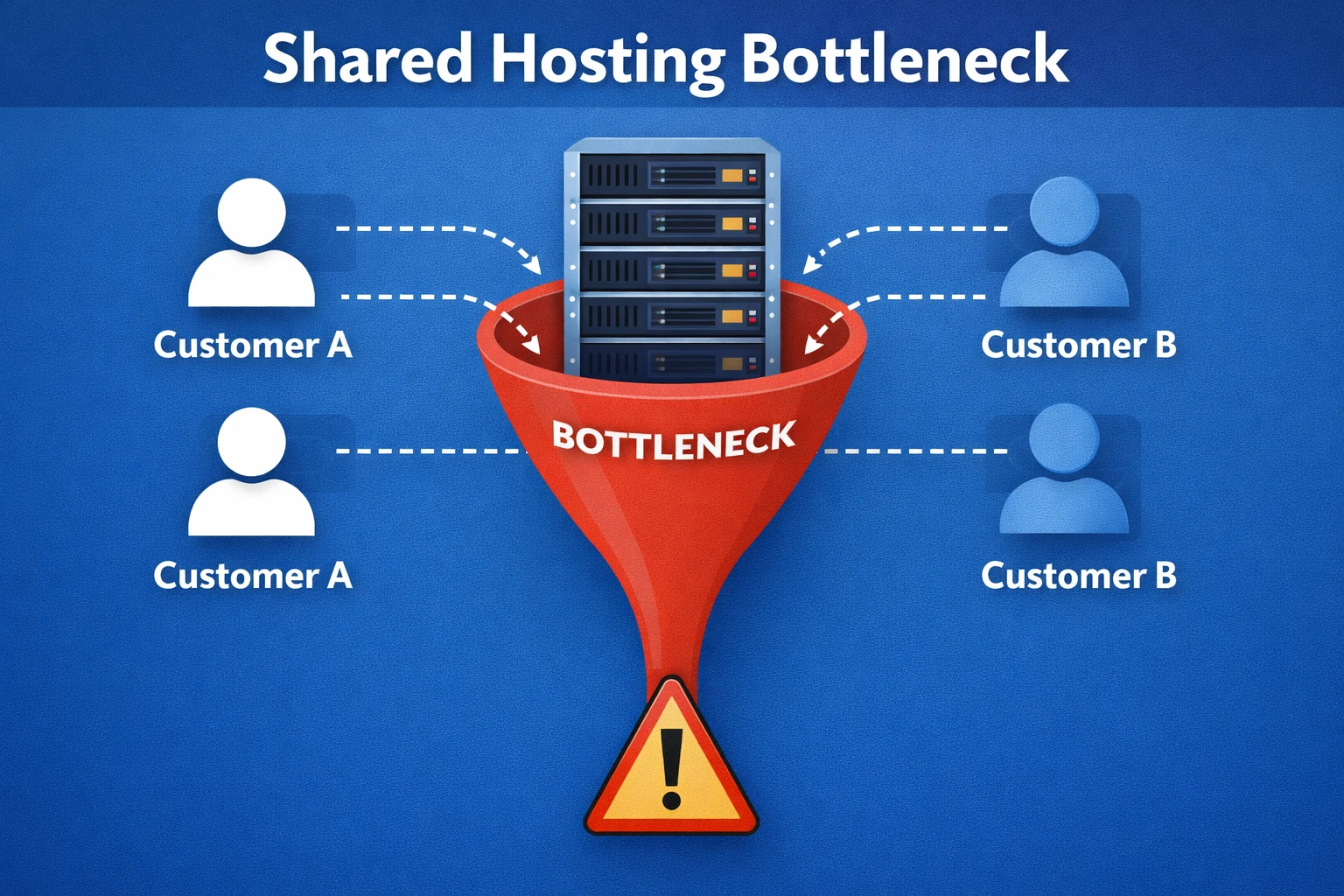
If your store is still running on shared hosting, that is often the real bottleneck. See why cheap WordPress hosting hurts SEO and how migrating to a managed VPS can improve performance immediately.
2. Smart Caching for Dynamic Stores
Unlike blogs, WooCommerce pages cannot always be cached. Follow this setup:
- Cache product and category pages
- No cache on cart, checkout, account, and admin pages
- Use W3 Total Cache with WooCommerce-aware rules
- Use Cloudflare APO for edge delivery
Recommended Cache Settings
- Minify enabled for JS and CSS
- Database caching enabled where appropriate
- Object cache enabled with Redis if available
For a broader setup strategy, review our guide on choosing the right caching setup for your WordPress site.
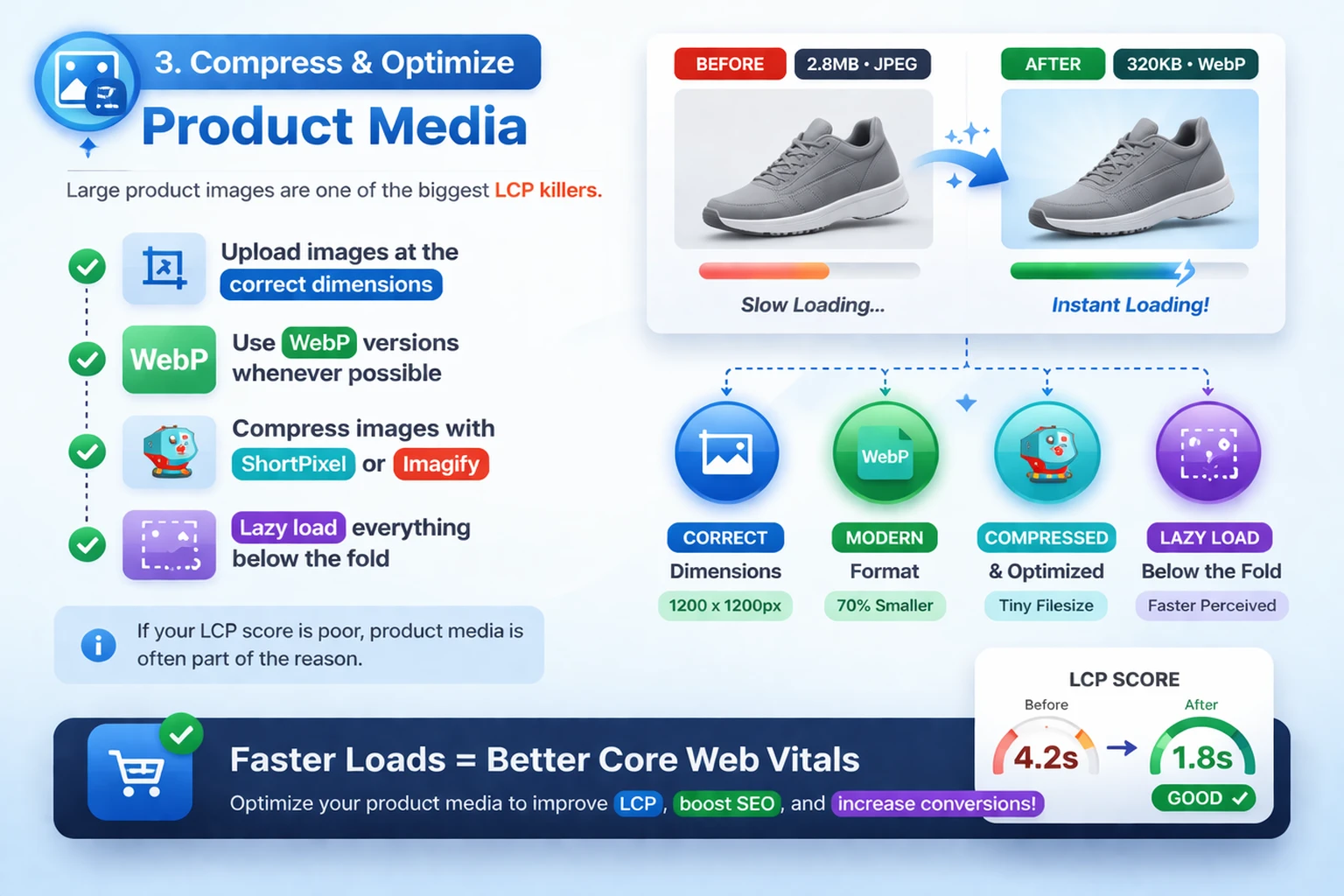
3. Compress & Optimize Product Media
Large product images are one of the biggest LCP killers.
- Upload images at the correct dimensions
- Use WebP versions whenever possible
- Compress images with ShortPixel or Imagify
- Lazy load everything below the fold
If your LCP score is poor, product media is often part of the reason. This ties directly into improving Core Web Vitals for eCommerce sites.
4. Keep Your Database Lean
WooCommerce writes a lot of data. Routine cleanup is mandatory.
- Delete expired transients
- Clean old order logs and entries
- Optimize tables weekly
- Remove orphaned postmeta
Use plugins like:
- WP-Optimize
- Advanced Database Cleaner
Database overhead is also a common reason for a slow WordPress dashboard, especially on larger stores with a lot of orders and metadata.
5. Reduce Plugin Bloat
WooCommerce stores should stay lightweight. Remove or replace:
- Heavy page builder addons
- Unused payment gateways
- Old marketing plugins
- Duplicate functionality
Tip: Every plugin loads PHP. If you're not using it weekly, disable or delete it.
Plugin overlap is one of the most common store issues we find during a WordPress site audit.
6. Use a Lightweight Theme
Themes matter more for WooCommerce speed than you think.
- Astra
- GeneratePress
- Blocksy
- Kadence
Avoid bulky themes that ship with 20+ plugins.
Theme bloat affects both frontend speed and admin usability, which is another reason to keep your full stack lean.
7. Optimize Checkout Flow
A slow checkout kills conversions. Improve it with:
- Disable unnecessary checkout fields
- Use Stripe Elements instead of redirects
- Cache everything except checkout and cart
- Use a dedicated SMTP provider for order notifications
Faster stores do not just rank better. They also convert better, which is exactly why high-performance websites drive SEO growth.
8. Monitor Site Speed Weekly
Use these tools to monitor performance metrics:
- PageSpeed Insights
- GTmetrix
- Query Monitor
- Cloudflare Analytics
A slowdown is always caused by something: new plugins, larger images, new scripts, new apps, or resource limits.
If you are consistently seeing poor results, it may be a deeper infrastructure issue similar to slow hosting bottlenecks.
9. Use a CDN for Global Delivery
- Cloudflare Free or Pro
- APO for WordPress dynamic delivery
- Image resizing on the edge
A CDN helps global customers load your store faster, but it works best when paired with strong hosting and correct caching rules.
10. Keep Everything Updated
- Update WooCommerce weekly
- Update payment gateway plugins
- Update PHP dependencies
- Test updates on a staging site first
Outdated components can affect compatibility, security, and speed. Staging first is always the safer move for active stores.
Need help auditing your WooCommerce performance? Start with a free WordPress audit or open a support ticket and we’ll review your entire stack.